20 TimePilot me and a endance systems TimePilot me and a endance systems 21
box is unchecked, the View bu on won’t appear. For the employee to see their
transac ons, they should iden fy themselves to the system either with their 4-fi git
ID number or iBu on, then click the “View” bu on. The employee cannot make
any changes to the transac ons.
Minimize Screen a er Transac on: Checking this box will cause the “virtual clock”
to be minimized a er a clock-in or a clock-out. To get the clock back on the screen
quickly, you are off ered the chance to set a shortcut, for instance, by holding down
the “Alt” key and pressing “A.”
Display Keypad: Checking this box will display the “virtual clock” with a full keypad,
as shown on the previous page. If you don’t check this box, the clock will appear
as at the top of the next page. Employees will be required to clock in and out with
their keyboards (See details
later in this chapter). They’ll s ll
need to use their mouse to click
the “Menu” bu on. When the
smaller clock is displayed, you
can exit the program by either
clicking “Menu” on the clock
and choosing “Exit” or simply
by pressing the “Escape” key on
your keyboard.
“Restric ons” tab: Checking this box •
will allow employees to clock in and out with their ID number. If the box is unchecked,
they’ll have to clock in with iBu ons and the Blue Dot Receptor.
Change Data Loca on
This allows you to change the loca on of the database where the data collected by this “virtual
clock” is stored.
Check for Updates
Checks for updates to the TimePilot PC “virtual clock” so ware (not for TimePilot Central—to
check for updates to TimePilot Central, click the Start bu on on your desktop, click “All
Programs,” then “TimePilot IV,” then “TimePilot U li es,” then “TimePilot Update U lity.”
Minimize
Minimizes the “virtual clock” to the taskbar, and keeps it running.
About
Gives informa on about the product, including:
To whom it is licensed.•
The so ware serial number.•
The so ware version and build number.•
The applica on path (the loca on of the so ware on your hard drive).•
The data path (the loca on of the clock-in and clock-out data).•
Exit
Quits program.
Clocking in and out
Basic method
Using your mouse to click the keys on the “virtual clock,” enter your employee ID 1.
number. Employee ID numbers can be found by double-clicking the employee’s name
in TimePilot Central.
The employee’s name will appear on the TimePilot PC screen, and the “In,” “Out,” 2.
“View” and “Clear” bu ons will appear down the right side of the clock.
Click the “In” or “Out” bu on to clock in or out. Clicking the “View” bu on will show 3.
the employee his or her Current Transac ons.
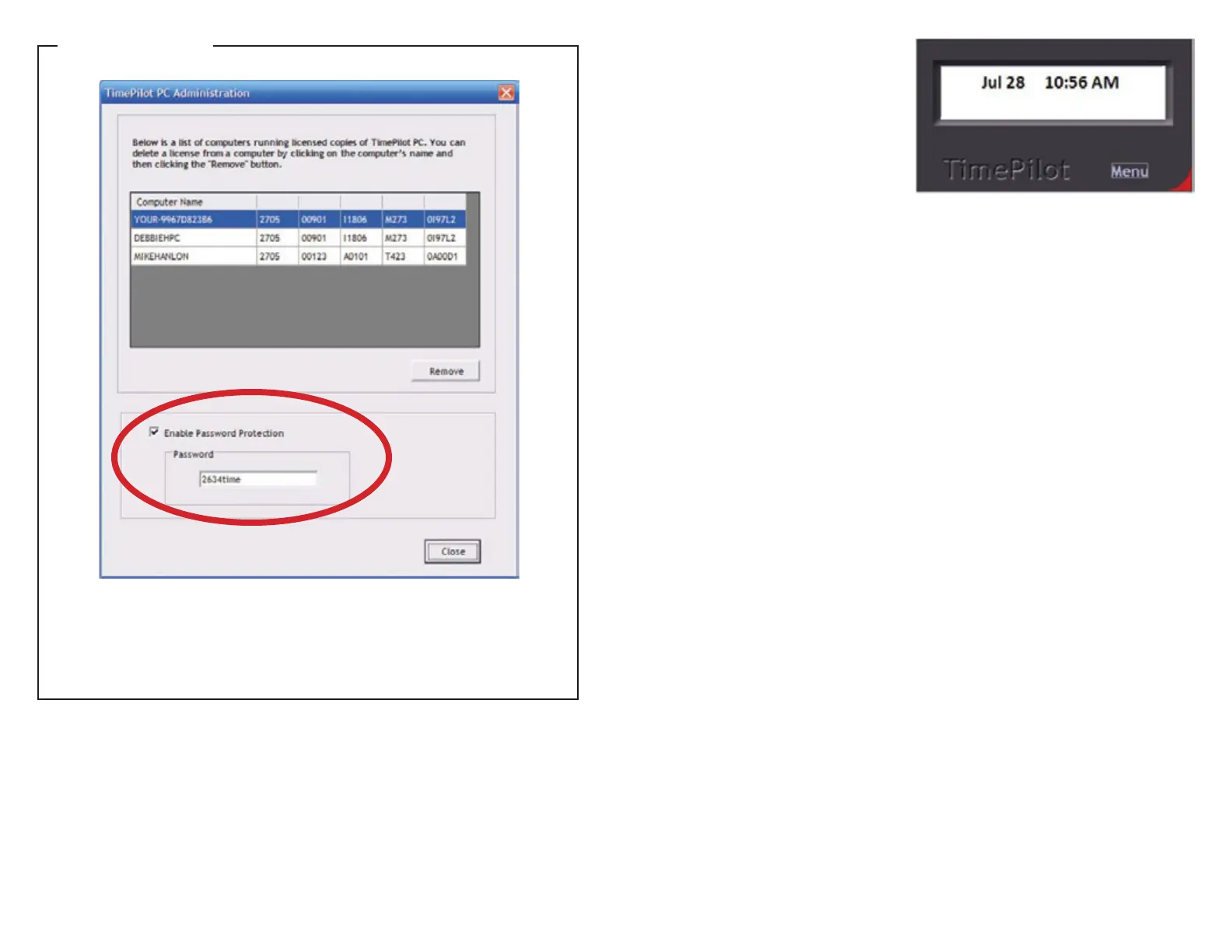
Password-protect your TimePilot PC menu
To keep employees from changing the se ngs on each virtual clock, you can set a
password to allow access to these menu items. To do so, go to TimePilot Central, click the
“Administra ve” menu, then “TimePilot PC Administra on.” Check the “Enable Password
Protec on” checkbox and enter a password.
TimePilot Tip


 To Next Page
 Loading...