21
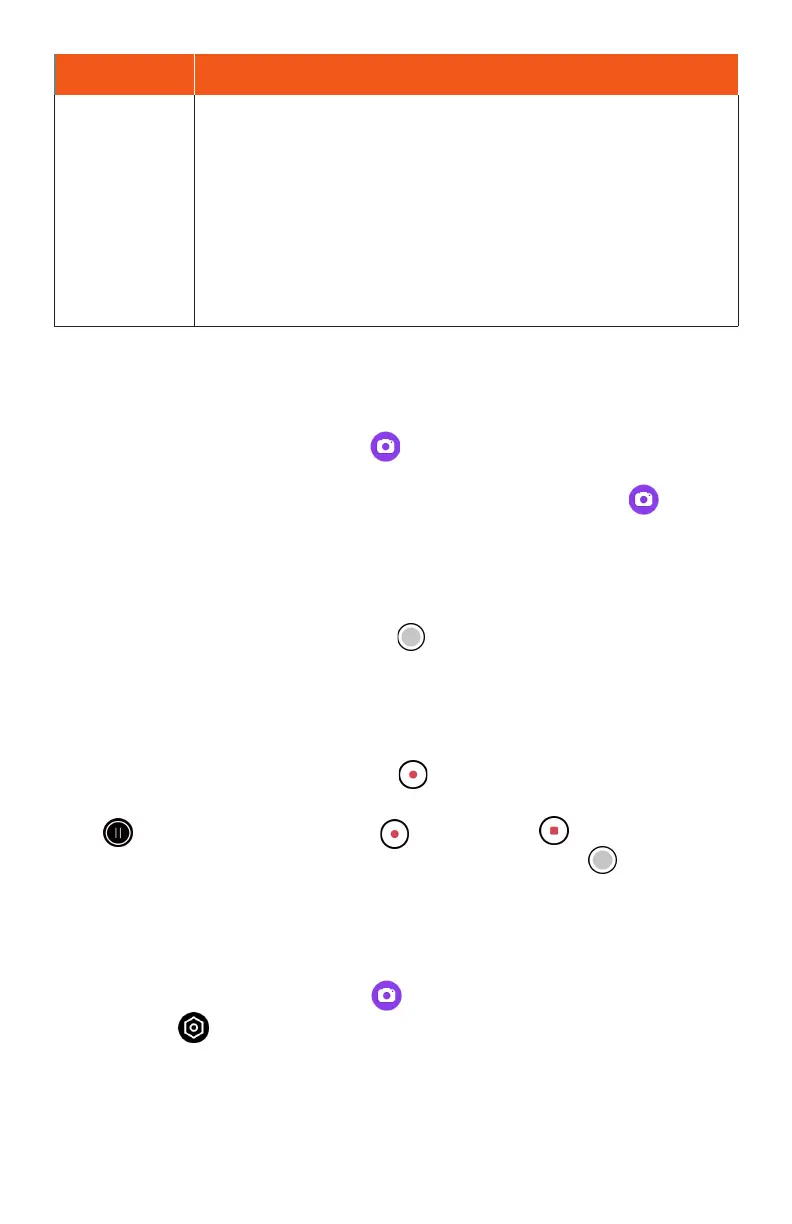
Modes Function/Service
More
• Time lapse: Record videos over a long period of time than
speed it up for a fast action moment.
• Slow motion: Record videos in slow motion.
• Motion photo: With motion photos, you can get the exibility
of a recording with the same image quality you expect.
• Professional: Manually adjust seings such as shuer
speed, ISO, white balance, focus, etc. for professional quality
photos.
Note: Camera options vary based on mode, camera in use, etc.
Take a photo
1. From the Home screen, tap Camera . You can also access the Camera with
one of the following methods:
• From the Home screen, swipe up to access Apps and tap Camera .
• Press the Power key twice quickly.
• From the Lock screen, swipe up from the boom right corner of the screen.
2. Tap Photo to switch to Photo mode.
3. Aim the camera at your subject and tap or press the Volume key to take the
photo.
Record a video
1. From the Camera screen, tap Video to switch to Video mode.
2. Aim the camera at your subject and tap or press the Volume key to sta
recording a video.
3. Tap to hold the recording and tap to resume. Tap to stop recording
and save your video. To take a picture during the recording, tap .
Camera seings
You can adjust your camera’s seings using the icons on the main camera screen
and the full camera seings menu.
1. From the Home screen, tap Camera .
2. Tap Seings .


 To Next Page