Appendix II:
Troubleshooting Guide
The Tobii T Series Eye Trackers use a network connection to communicate with the computer. This
guide helps you to troubleshoot the most common connection issues with your Tobii Eye Tracker.
Note: This guide assumes that the tracker in question has firmware 1.2.x or higher installed, and that the
latest Tobii Studio or Tobii Eye Tracking Tools is installed on the computer.
Problems with the Apple Bonjour Service
The Apple Bonjour service is used by the Tobii Eyetracker Browser and Tobii Studio to identify the eye
trackers that are connected to the same network as the computer. The service is installed automatically
with Tobii Studio and the Tobii Eye Tracking Tools.
The Apple Bonjour Service is not installed on the computer.
Check if the service is installed on the computer:
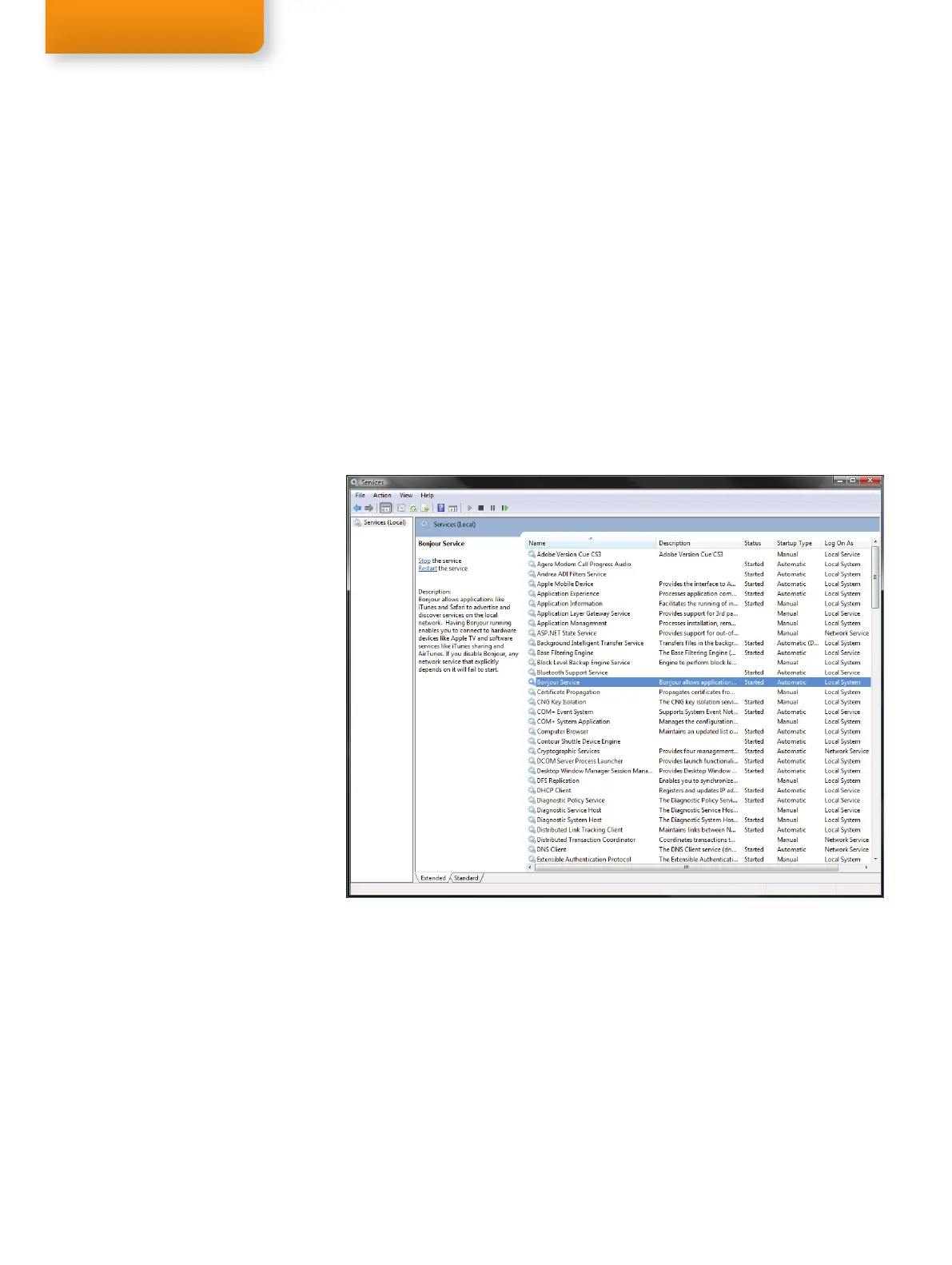
Open the Windows Control Panel (Classic View) > Administrative Tools > Services.
If the Apple Bonjour Service is not listed, then it will have to be installed on the computer. First check that
either Tobii Studio or the Tobii Eye Tracking Tools are installed on the computer, open the All Programs
folder in your Windows Start menu:
1. If a folder named Tobii containing the Tobii Eyetracker Browser is present in the All Programs
folder, then at least one of the two is installed. If that is the case, download and install the latest version
of the Apple Bonjour Service from: http://www.apple.com/support/downloads/bonjourforwindows.
html
2. If the Tobii folder is missing from the All Programs folder, then re-install Tobii Studio or the Tobii
Eyetracker Browser on the computer.
The Apple Bonjour Service is installed but not started.
Open the Windows Control Panel (Classic View) > Administrative Tools > Services.
Check in the Services list if the Apple Bonjour Service’s Status is set to Started. If the Status is
empty then right click on it and select Start. Restart any Tobii applications and connect again.
1.
2.



 To Next Page