Customizing the Eye
Tracker’s Display
On-screen display (OSD) dialog box
The monitor settings can be adjusted on the on-screen display (OSD) dialog box. To display the main
OSD menu press the Menu button located on the left side of the eye tracker. For best results it is
recommended that you turn on the monitor and wait for 30 minutes before making the adjustments.
Navigating the dialog box
Press the Menu button to display the main OSD dialog box on your screen. Use the Up and Down and
Menu buttons to navigate between and select the different menus/settings.
Using the Menu, Up and Down buttons
Press the Menu button to display the OSD dialog box.
Press the Up and Down buttons to navigate through the different menus and the Menu button to
select a menu. The first item in the menu gets highlighted indicating that it has been selected.
Press the Up and Down buttons to navigate between the items and the Menu button to select the
item you wish to change.
Press the Up and Down buttons to make the adjustments, then press the Menu button to store the
new settings and the display returns to the previous menu.
To leave the dialog, press the Up and Down buttons until EXIT is highlighted, then press the Menu
button to close the dialog box.
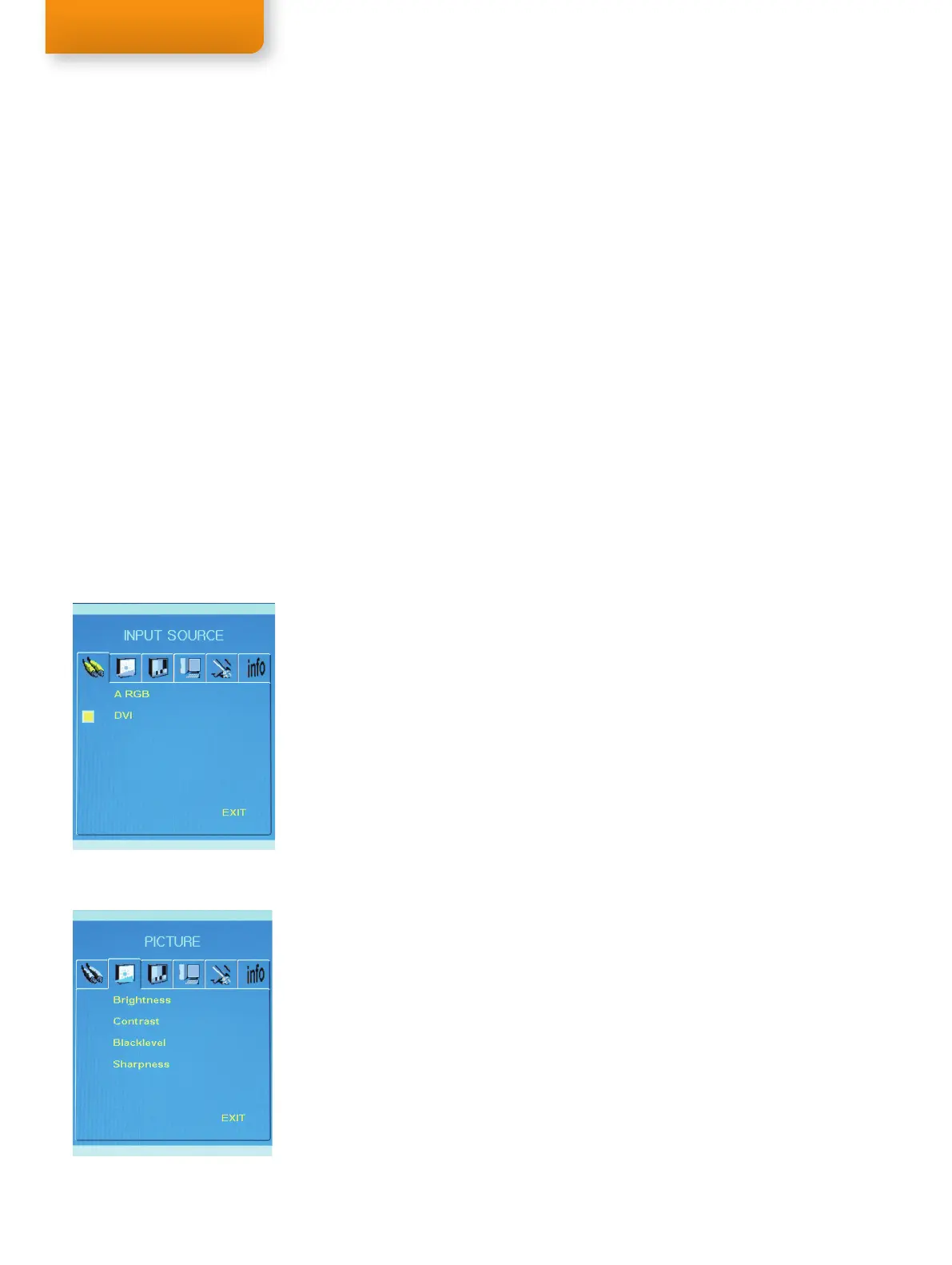
Choosing the image input source
Press the Menu button to display the INPUT SOURCE menu. Use steps 3 - 4 of Navigating the
menu instructions (page 18) to navigate and change the settings.
A RGB (VGA connector)
Change the image input signal source to analog RGB (analog video input).
DVI (DVI connector)
Change the image input signal source to DVI (digital video input).
EXIT
Exit the OSD dialog box.
1.
2.
3.
4.
5.
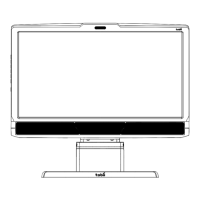
Adjusting the screen picture
Press the Menu button to display the PICTURE menu. Use steps 3 - 4 of Navigating the menu
instructions (page 18) to navigate and change the settings.
Brightness
Adjust the brightness of the screen.
Contrast
Adjust the ratio of luminance between black and white, adjusts distinction.
Blacklevel
Adjust the black level of the screen.
Sharpness
Adjust to sharpen or soften the picture.
EXIT
Exit the OSD dialog box.



 To Next Page