Tobii T60 and T120 Eye Tracker
19
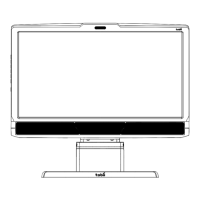
Adjusting the color temperature
Highlight the Temperature option and press the Menu button.
User
User defined screen color temperature (Red, Green and Blue tinge)
Warm
Red tinged screen.
Normal
Green tinged screen.
Cool
Blue tinged screen.
EXIT
Exit the OSD dialog box.
Adjusting the display settings
Press the Menu button to display the IMAGE CONTROL menu. Use steps 3 - 4 of Navigating the
menu instructions (page 18) to navigate and change the settings.
Auto
Executes an auto adjustment for the width, phase and position of the display (factory settings).
Width
Adjust the horizontal size of the screen by increasing or decreasing the number of picture elements.
Only adjust this setting if you have an horizontally unmatched picture after doing an auto adjustment.
Phase
Adjust the phase of the screen. Only adjust when noise or overlapped lines are shown on the screen.
H Position
Moves the screen horizontaly.
V Position
Moves the screen verticaly.
EXIT
Exit the OSD dialog box.
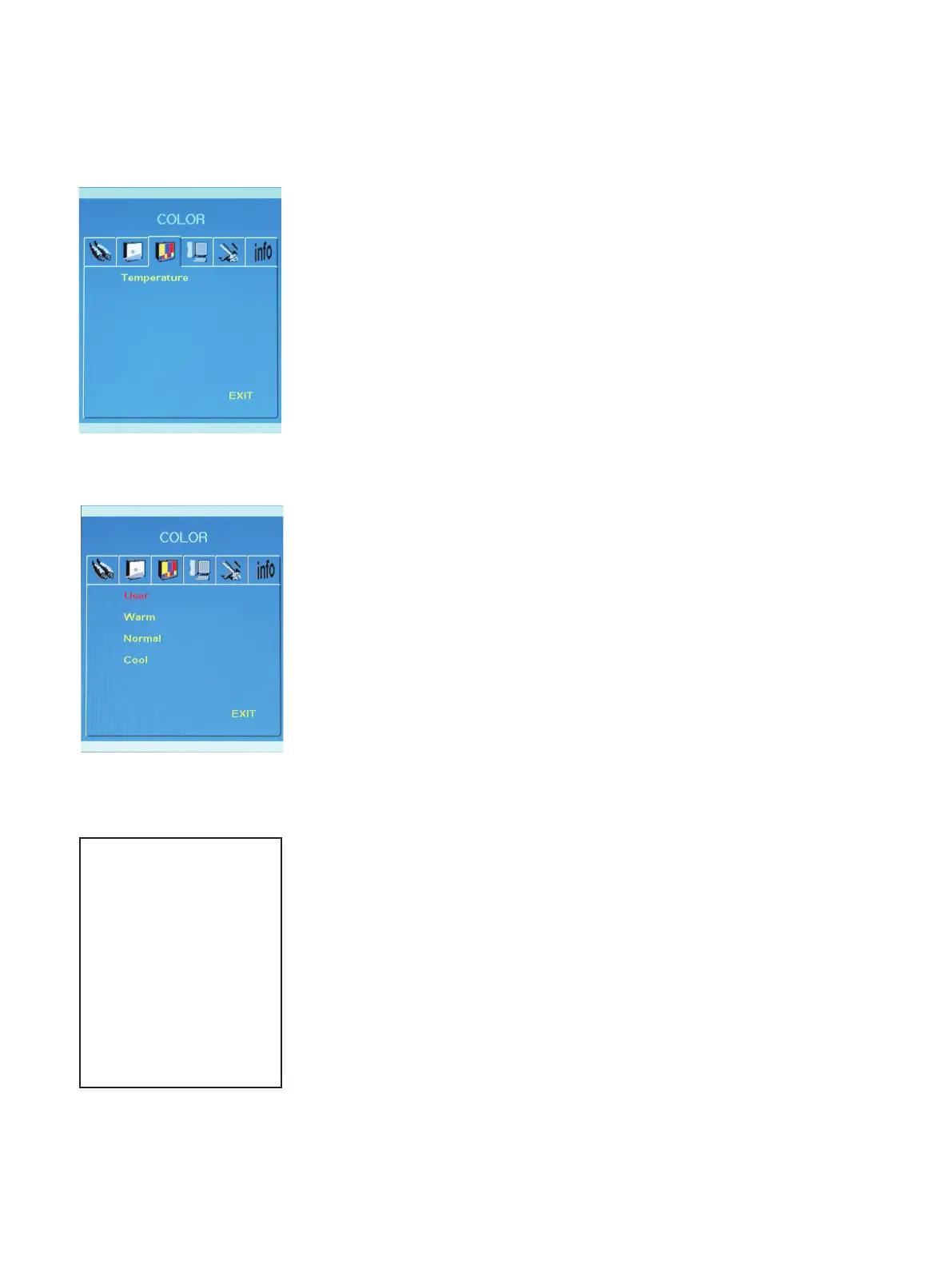
Adjusting the color
Press the Menu button to display the COLOR menu. Use steps 3 - 4 of Navigating the menu
instructions (page 18) to navigate and change the settings.
Temperature
Enter the User Menu (White color adjustment)
Auto Color
The color is set automatically from the external signal (only available when A RGB is used)
EXIT
Exit the OSD dialog box.
Available when the
Analog RGB
mode is used
(VGA connector)



 To Next Page