Tobii T60 and T120 Eye Tracker
9
Open the Windows Control Panel (Control Panel Home view)
Click on Network and Internet
Open Network and Sharing Center
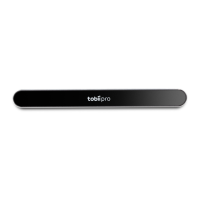
Click on the View Status link next to Local Area Connection (see figure below). The Local Area
Connection Status dialog box will open.
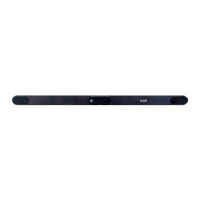
Click on the Properties button. The Local Area Connection Properties dialog box opens.
Under “This connection uses the following items”, click Internet Protocol Version 4 (TCP/IPv4), and
then click on the Properties button. See 3rd figure on the left.
Make sure that Obtain an IP address automatically is selected in the Properties window. See 1
st
figure on the next page.
Click OK to close the windows and apply the settings.
Turn on and plug in the eye tracker to the network card and reboot your computer.
Windows will say limited connectivity for the eye tracker network connection. This is correct, ignore the
warning.
Setting up the network connection to the eye tracker in Windows
The network card in Windows must be configured to obtain an IP address automatically. On most
computers this is the default setting. Please follow the instructions below to configure the network
card.
In Windows XP
Open the Windows Control Panel
Open Network Connections
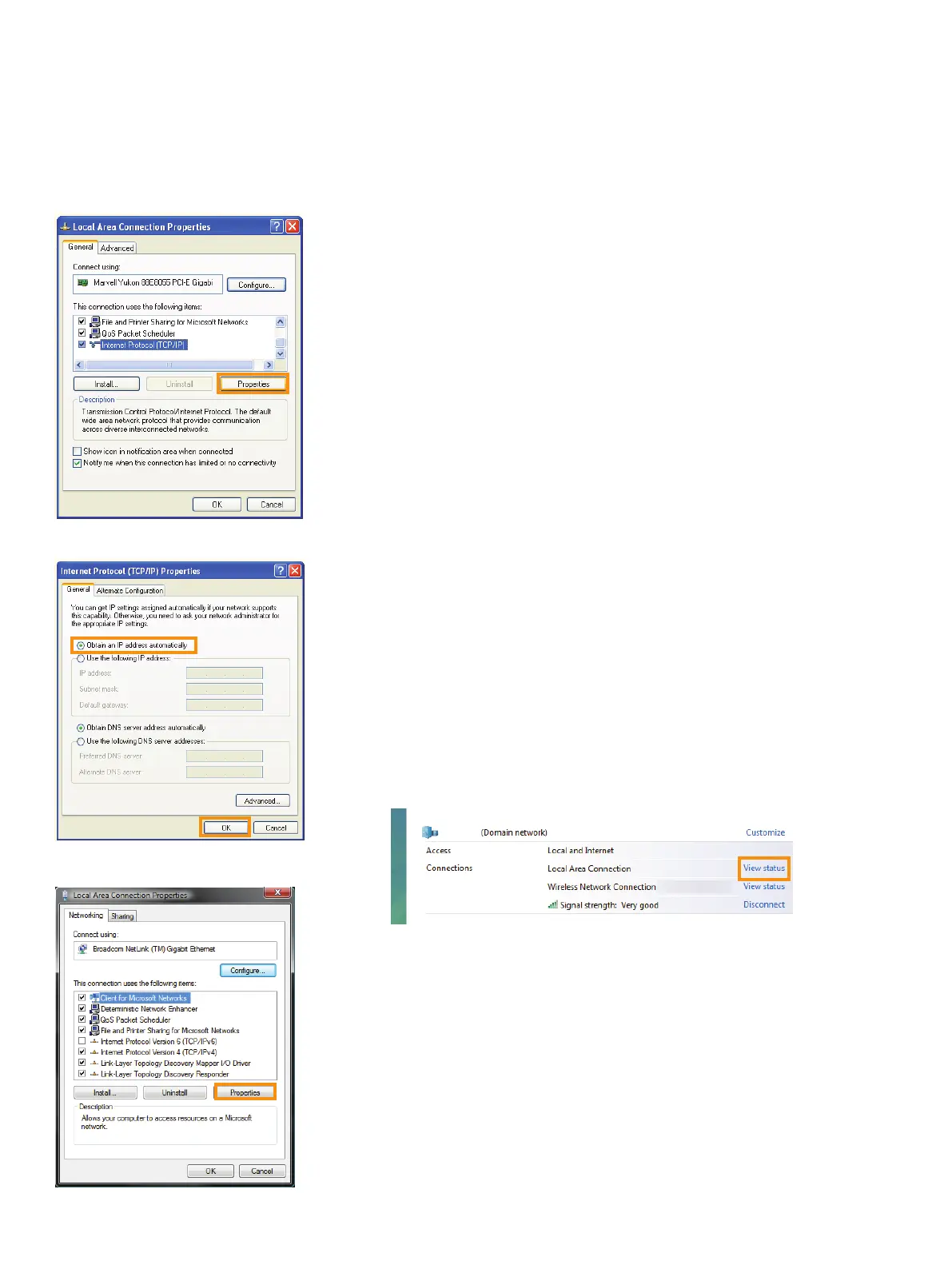
Right click on the network card you will be using to communicate with the eye tracker. Choose
Properties.
Select Internet Protocol (TCP/IP) then click on the Properties button. See 1
st
figure on the left.
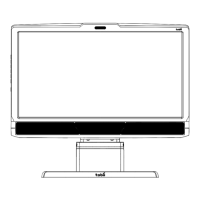
Make sure that Obtain an IP address automatically is selected in the Internet Protocol (TCP/IP)
Properties window. See 2
nd
figure on the left.
Click OK to close the windows and apply the settings.
Turn on and plug in the eye tracker to the network card and reboot your computer.
Windows will say limited connectivity for the eye tracker network connection. This is correct, ignore the
warning.
In Windows Vista
1.
2.
3.
4.
5.
6.
7.
1.
2.
3.
4.
5.
6.
7.
8.
9.
Windows XP Step 4.
Windows XP Step 5 & 6.
Windows Vista Step 6.



 To Next Page