Front Panel User Guide Page 10
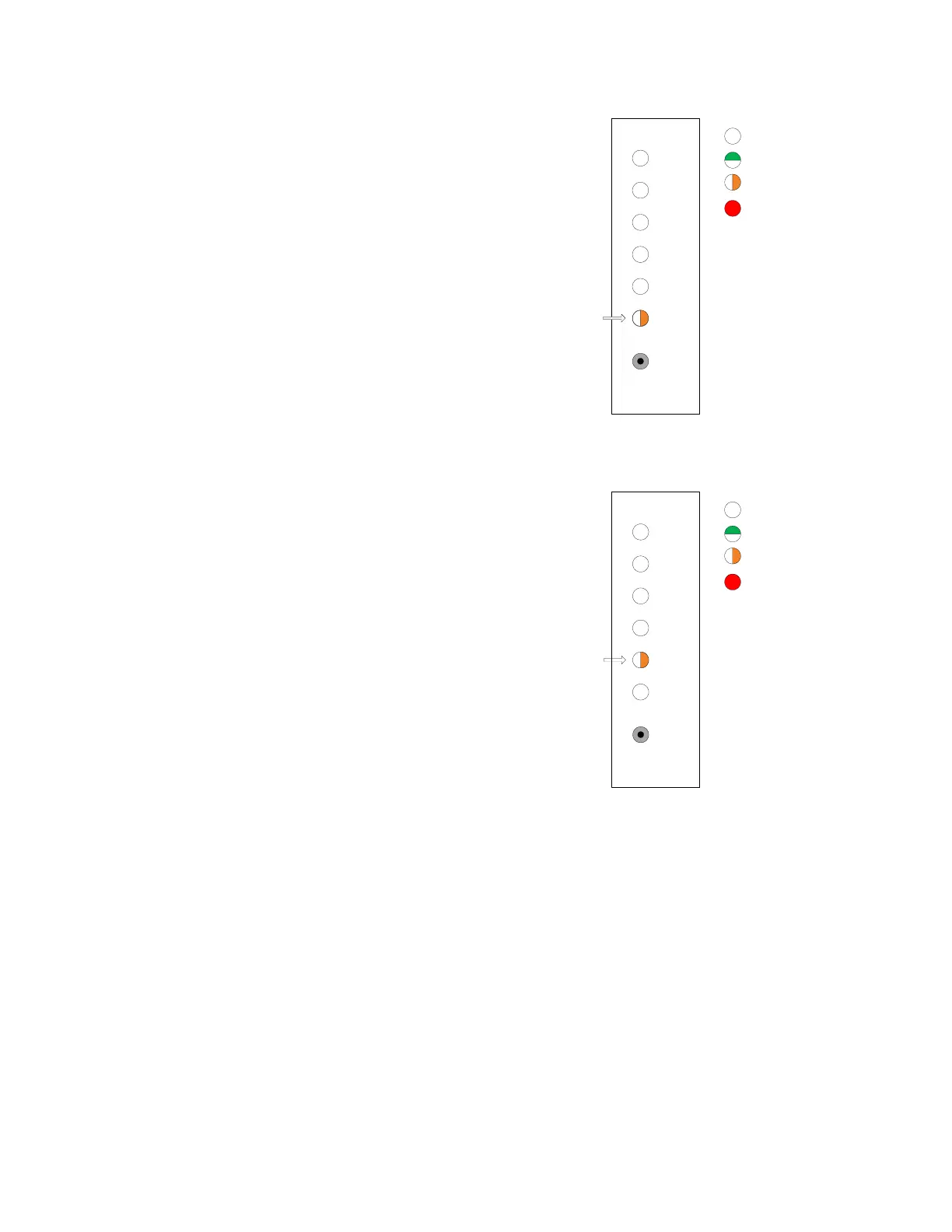
2. Utilize the Enable/Disable submenu
commands. Issue a utilize press on the
pushbutton (> 2 s). Release the button after the
LED changes to amber. The front panel indicates
that the submenu item for channel
Enable/Disable has been selected.
3. Select the transit Enable/Disable submenu
command. Issue a selection press on the
pushbutton (< 2 s). The front panel indicates that
the submenu item for transit Enable/Disable has
been selected.
4. Utilize the transit enable/disable command. Issue a utilize press on the pushbutton (> 2 s).
Release the button after the LED changes. The channel selection process is entered with
channel 1 selected. The LED will blink red or green indicating disabled or enabled, respectively.
5. Select the desired channel on which to apply the transit enable or disable command. Issue
selection presses until the desired channel is indicated.
6. Activate the command on the selected channel. Issue an activation press on the pushbutton (>
4 s). The LED for this channel will turn either green or red blinking, indicating if the transit on
the channel is enabled or disabled, respectively.
Note: Disabled transit channels are only visible as red blinking LEDs when using this particular
menu command during the channel select phase.
4
5
3
2
6
1
Select
LED Off
LED Green
LED Amber
LED Red
Enable/Disable Menu
Channel Submenu
Enable/Disable Menu
Transit Submenu
4
5
3
2
6
1
Select
LED Off
LED Green
LED Amber
LED Red



 To Next Page