Front Panel User Guide Page 8
2 Full Command Menu – Commands Illustrated
The process of activating each command is shown in this section. In these illustrations, it is assumed
that the menu system begins in the idle state. If the state of the menu is not certain, the user may wait
30 seconds to ensure the menu has exited to the default idle state.
2.1 Enable/Disable Menu: Channel Enable or Disable
A channel disable operation will disable preemption outputs for a channel. Preemption events will be
tracked and logged as configured, but no preemption output is allowed if the channel has been disabled.
Note: Disabled channels are indicated as a solid red LED on the front panel, regardless of the state of the
intersection. The only exception is when navigating the menu system.
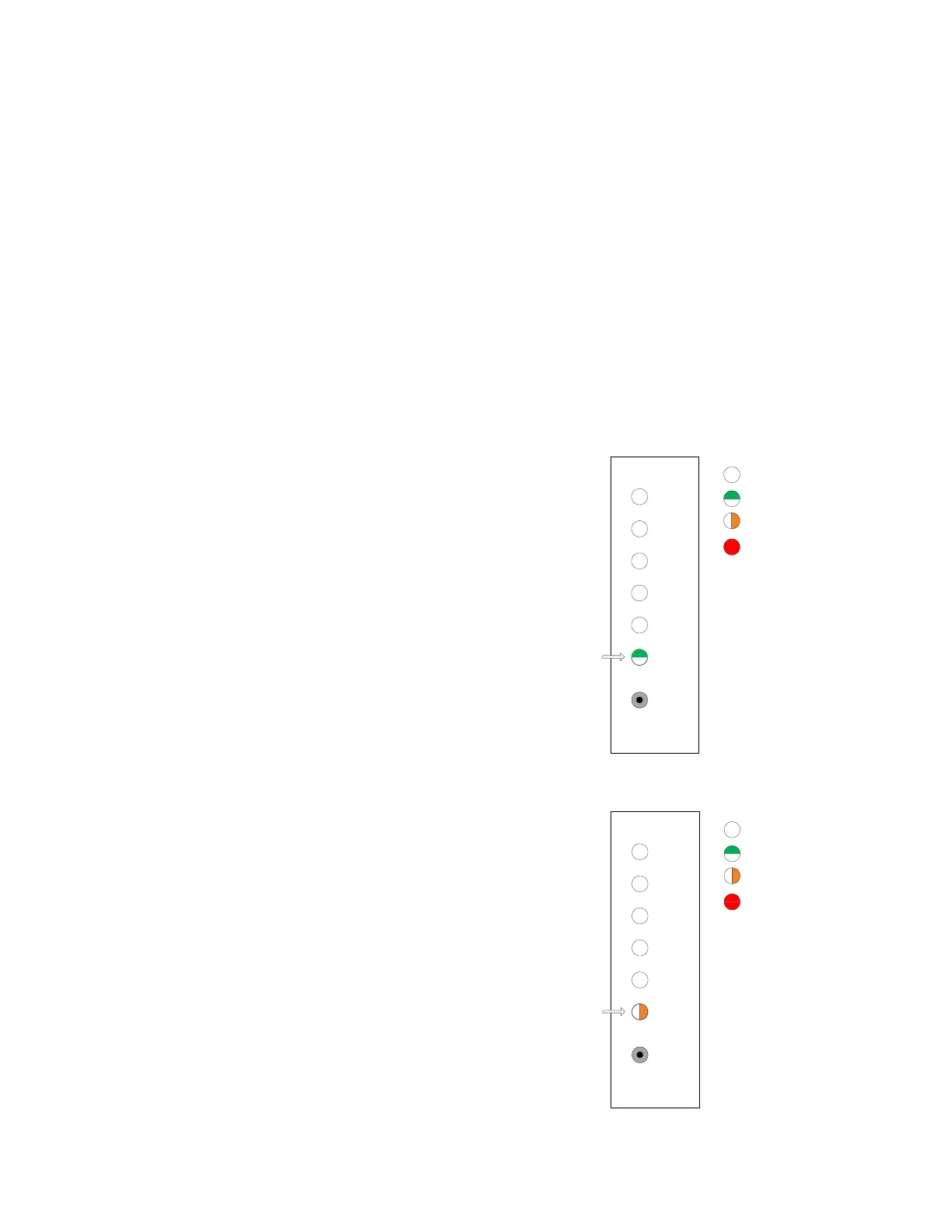
1. Select the Enable/Disable menu item. Issue a
selection press on the pushbutton (< 2 s). The
front panel indicates that the top level menu
item for Enable/Disable has been selected.
2. Utilize the Enable/Disable submenu
commands. Issue a utilize press on the
pushbutton (> 2 s). Release the button after the
LED changes to amber. The front panel indicates
that the submenu item for channel
Enable/Disable has been selected. This is the
first submenu item which is the channel disable
item.
4
5
3
2
6
1
Select
LED Off
LED Green
LED Amber
LED Red
Enable/Disable Menu
Top Level
4
5
3
2
6
1
Select
LED Off
LED Green
LED Amber
LED Red
Enable/Disable Menu
Channel Submenu



 To Next Page