Browse Map12.
26
Browse Map
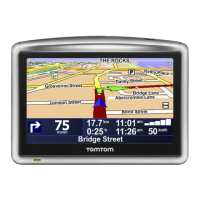
To look at the map in the same way as you might look at a traditional paper
map, tap Browse map in the Main Menu.
You can move around the map by dragging it using your finger on the screen.
1. The scale bar
2. Traffic - current traffic incidents. Use the Options button to select whether
traffic information is shown on the map. When traffic information is shown
on the map, POIs and Favourites are not shown.
Note: To use a TomTom traffic information service, you may need a subscrip-
tion or a receiver. Traffic services are not supported in all countries. For more
information and how to subscribe, visit tomtom.com/services.
3. Marker
Markers point towards and show the distance to your current location, your
home location and your destination.
Tap a marker to centre the map on the marked location.
To set your own marker, position the cursor on the required location on the
map, tap the cursor button and then tap Set marker position.
4. Options
5. The cursor
6. The Find button
Tap this button to find specific addresses.
7. The Cursor button
Tap this button to navigate to the cursor position, make a Favourite of the
cursor position, or find a Point of Interest near the cursor position.
8. The zoom bar



 To Next Page
 Loading...