44
Status bar preferences
Change map colours
Brightness preferences
Status bar
preferences
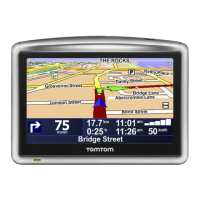
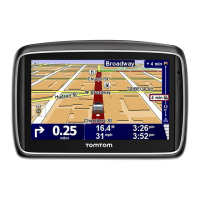
Tap this button to select the information shown on the status bar:
• How should the status bar be displayed?
Horizontal - if you choose this option, the status bar is shown at the bot-
tom of the Driving view.
Vertical - if you choose this option, the status bar is shown at the right-
hand side of the Driving view.
• Current time
• Speed
• Show max speed next to speed - only available when speed (above) is
also selected.
Note: If the speed limit for the road you are on is available, it is shown next
to your speed.
If you drive faster than the speed limit, your speed is shown in red.
• Show leeway to arrival time - your Blue&Me-TomTom shows how late
or early you will arrive, compared with the preferred arrival time that is
set during the planning of a route.
• Direction
• Show compass
• Arrival time - your estimated arrival time.
• Remaining time - the estimated time left until you reach your destination.
• Remaining distance - the distance left until you reach your destination.
• Show lane guidance - if you choose this option, your Blue&Me-TomTom
shows the lane you should take in the status bar for some exits and junc-
tions.
Change map
colours
Tap this button to select the colour schemes for day and night map colours.
Tap Advanced to scroll through colour schemes one at a time.
You can also download more colour schemes using TomTom HOME.
Brightness
preferences
Tap this button to set the brightness of the screen.
Move the sliders to set the brightness separately for day map colours and
for night map colours.



 To Next Page
 Loading...