43
2D/3D preferences
2D/3D
preferences
Tap this button to set 2D/3D preferences.
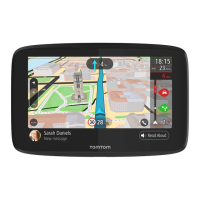
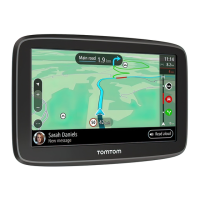
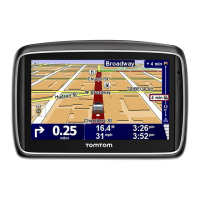
The 2D view shows a two dimensional view of the map as though viewed
from above. The 3D view shows a three dimensional view of the map as
though you are driving through the landscape.
The following buttons are available:
• In 2D view: rotate map in direction of travel - tap this button to have the
map automatically turn to match the direction you are travelling in.
• Switch to 3D view when following a route - tap this button to automat-
ically switch to the 3D view whenever you are following a route.
Tip: To switch between 2D and 3D views of the map, tap the centre part of
the status bar in Driving View.
In some situations, it is easier to see the map from above. Perhaps if the
road network is complicated or for times when you are walking while using
your Blue&Me-TomTom to navigate.



 To Next Page
 Loading...