48
Safety preferences
What happens when I use the Turn off map display option?
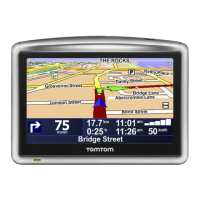
When you turn off the map display, instead of seeing your position on a map
in the Driving View, you will only see information about the next instruction.
Tap the button and select an option for when the map should be turned off.
These are the options:
• Always - The map will not be shown and you will only see information
about the next instruction and arrows showing direction.
• Above a certain speed - you set the speed at which point the map will be
turned off. This option is useful for situations when the map might be dis-
tracting, such as when you are driving fast.
• Never - the map is never turned off.
Advanced preferences
Safety
preferences
Tap this button to set the following safety preferences:
• Show only essential menu options while driving
• Suggest driving breaks
• Show safety reminders
• Warn when near places of worship or schools
• Warn when driving faster than allowed
• Warn when driving faster than a set speed
• Warn me not to leave the device in the car
Select whether or not your Blue&Me-TomTom should warn you about
which side of the road you should be driving on.
Decide if you want the map display to be turned off in special circum-
stances and press Done.
Advanced
preferences
Tap this button to set the following advanced preferences:
• Show house number before street name - when does this happen??
• Show street names - if you are using a computer voice for spoken
instructions and have selected that street names should be read aloud,
you do not need to select this option, since the street names will be read
aloud even though this option is not selected.
• Show next street name - the name of the next street is shown in the top
of the Driving View.
• Show current street name on map - the name of the street you are on is
shown just above the status bar.
• Enable automatic zooming in 2D view
• Enable automatic zooming in 3D view
• Show lane images - for some exits and junctions, an image shows the
lane you should be in.



 To Next Page
 Loading...