Ver 1.1, 30 August 2018 4
14. Establish a benchmark elevation:
a. Tap Setup icon.
b. Tap Benchmark icon.
c. Under the Benchmark window, enter the following before tapping [Next >>]:
Occupy: 1
Code: IP ****** should auto-populate. ******
HI: <user-defined height of instrument>’
d. Under the Benchmark: Normal window, enter the following before tapping [Next >>]:
Elevation: 100.000 ****** tap button to toggle between [Point], [Elevation]. ******
Prism (icon) : <user-defined rod/prism height>
Tap the “measure/read” icon to take measurement.
Review the data point. If satisfied, tap the “save” icon to store the benchmark reading.
e. Review the benchmark data on the Benchmark: Resuts window. If satisfied, tap
[Accept].
f. A warning will appear indicating that point “1” already exists with a height of “0.000”.
Tap “Update Height?” radio button.
Tap the checkmark icon near the top-right to update the instrument hub elevation to
reference a 100.000ft benchmark elevation.
15. Backsight on the benchmark point and establish the benchmark data point:
a. Tap Backsight icon.
b. Under Occupation Point, verify/enter the following:
Point: 1
HI: <user-defined height of instrument>
Scale: 1.000000000000
c. Under Backsight Point, enter the following before tapping [Next >>]:
Azimuth: 0.000 ****** tap button to toggle between [Point], [Azimuth]. ******
Prism (icon) : <user-defined rod/prism height>
d. Under the Backsight: Normal window > Set Circle to:
Tap the menu icon.
Tap and select: Get from Instr
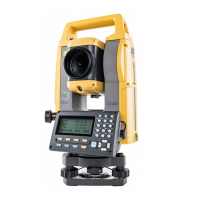
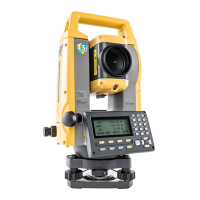
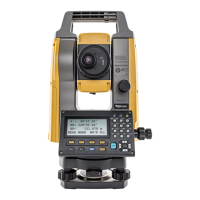
Verify that the listed reading matches the “HR:” angle reading on the GM-55 display.
Tap Set icon.
e. Tap Yes to store the measured backsight point.
f. In the Store Point As… window, enter the following before tapping the checkmark icon
near the top-right:
Point: 10 ****** Use prefered numbering rule but do not go above point number 99. ******
Code: TBM
g. Review the backsight data (e. g. Elevation = 100.000ft) before tapping the home screen icon
near the top-right.


 To Next Page