OPERATION MANUAL
20
① Select CH No.
② Tick “Mouse Control”
③ Adjust “Speed”
④ Move the direction with mouse
How to set Preset
Note:
PTZ Control is only available at 1 CH
layout.
PTZ MENU is displayed when PTZ camera
is selected.
① Select CH No.
② Select “Preset”
③ Tick “Preset Save”
④ Move the camera direction
⑤ Select a “Preset No.” to save
⑥ Click “P-Run’ to move the saved Preset
How to delete Preset
① Select CH No.
② Select “Preset”
③ Select a “Preset No.” to delete
How to set Pattern
① Select CH No.
② Select “Pattern”
③ Tick “Pattern Save”
④ Move the camera direction
⑤ Deselect “Pattern Save”
⑥ Moving between ③ and ⑤
How to use Mouse Control
Note:
1 CH Search is available at Surveillance
Mode
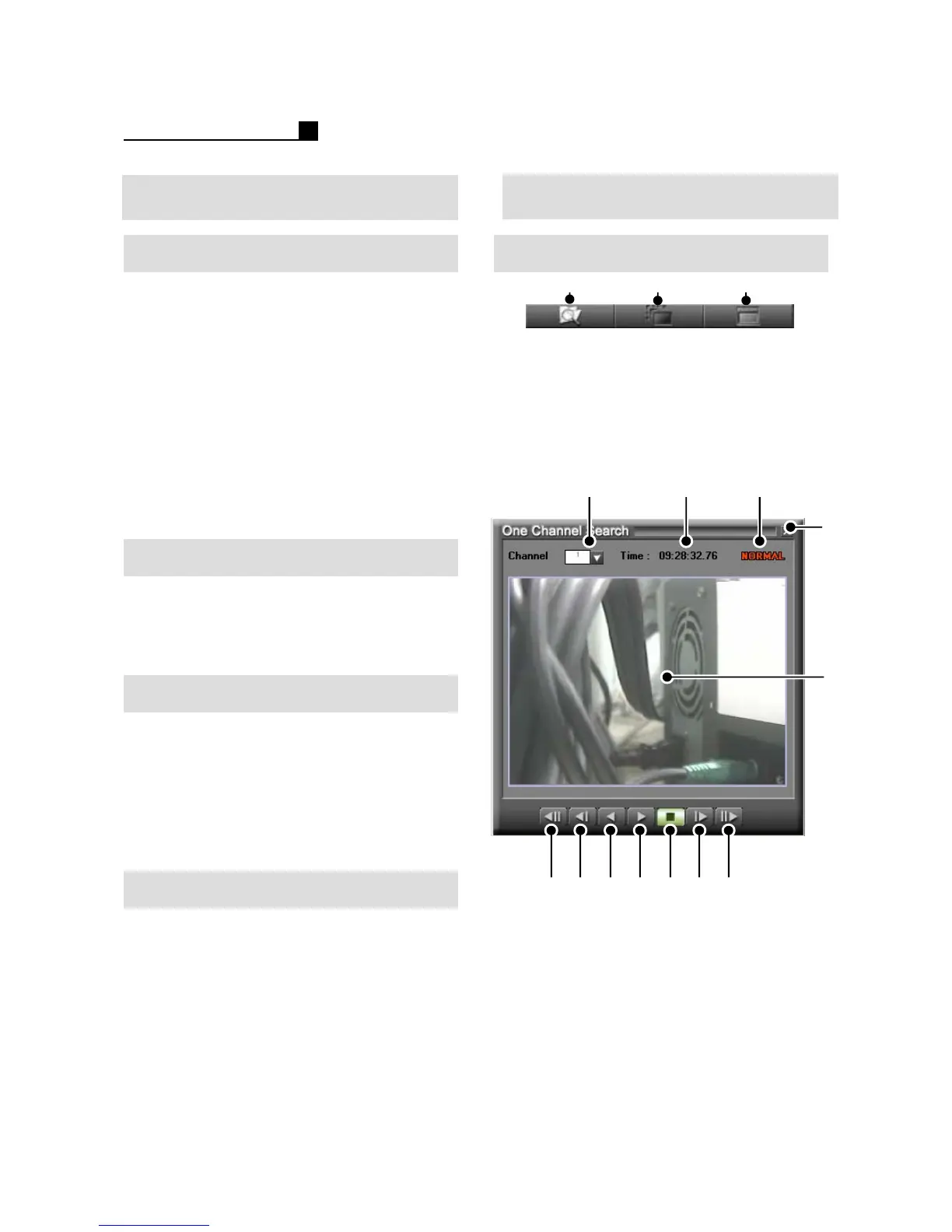
①
②③
① 1CH Search
② Smart Search (Object Search)
③Map Search
① ② ③
④
⑤
⑥ ⑦ ⑧ ⑨ ⑩ ⑪ ⑫
①CH No.
②Rec. Time
③ Record Type
④Close 1 CH Search
⑤ Recorded Image
⑥First Image
⑦Previous Image
⑧Reverse
⑨Playback
⑩Stop
⑪Next Image
⑫Last Image
1CH Search
2.2 PRESET SETTING
2.3 1CH SEARCH



 To Next Page