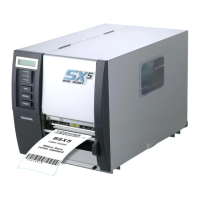
What to do if my Toshiba B-SX5T displays NO RIBBON?
- LLaura MendezSep 1, 2025
If your Toshiba Printer displays a 'NO RIBBON' error, it means the ribbon has run out. To solve this, load a new ribbon and then press the [RESTART] key.

What to do if my Toshiba B-SX5T displays NO RIBBON?
If your Toshiba Printer displays a 'NO RIBBON' error, it means the ribbon has run out. To solve this, load a new ribbon and then press the [RESTART] key.
What to do if my Toshiba B-SX5T Printer has a SYSTEM ERROR?
If your Toshiba printer displays a 'SYSTEM ERROR', it could be due to several reasons: 1. The printer is used in a noisy environment, or there are power cords of other appliances nearby. 2. The power cord is not grounded. 3. The printer shares a power source with other appliances. 4. There is an error or malfunction in the application software on your computer. Here's how to address it: 1. Keep the printer and interface cables away from noise sources. 2. Ground the power cord. 3. Provide an exclusive power source for the printer. 4. Confirm that your computer operates properly.
What to do if my Toshiba B-SX5T displays HEAD OPEN **** error?
If your Toshiba Printer shows 'HEAD OPEN ****', it means you've tried feeding or printing with the Print Head Block open. Close the Print Head Block, then press the [RESTART] key.
What to do if my Toshiba B-SX5T Printer displays HEAD OPEN?
If your Toshiba Printer displays 'HEAD OPEN', it means the Print Head Block is opened in Online mode. To resolve this, close the Print Head Block.
Why is my Toshiba Printer not turning on?
If your Toshiba printer is not turning on, there are several potential causes: 1. The power cord is disconnected. 2. The AC outlet is not functioning correctly. 3. The fuse has blown, or the circuit breaker has tripped. To resolve this: 1. Plug in the power cord. 2. Test the AC outlet with a power cord from another electric appliance. 3. Check the fuse or breaker.
What to do if my Toshiba Printer says NO PAPER?
If your Toshiba Printer displays a 'NO PAPER' error, it could be due to the following reasons: 1. The media has run out. 2. The media is not loaded properly. 3. The media is slack. Here’s how to resolve it: 1. Load new media and then press the [RESTART] key. 2. Reload the media correctly and then press the [RESTART] key. 3. Take up any slack in the media.
What causes a COMMS ERROR on a Toshiba B-SX5T Printer and how to fix it?
A 'COMMS ERROR' on your Toshiba Printer indicates a communication error has occurred. To resolve this, ensure that the interface cable is correctly connected to both the printer and the host device, and verify that the host device is turned on.
What to do if my Toshiba B-SX5T Printer prints nothing on the media?
If your Toshiba printer is printing nothing on the media, it could be due to the following reasons: 1. The media is not loaded properly. 2. The ribbon is not loaded properly. 3. The print head is not installed properly. 4. The ribbon and media are not matched. To resolve this: 1. Load the media properly. 2. Load the ribbon properly. 3. Install the print head properly and close the Print Head Block. 4. Select an appropriate ribbon for the media type being used.
| Print Method | Thermal Transfer / Direct Thermal |
|---|---|
| Print Speed | 6 ips |
| Interface | USB, Serial, Parallel, Ethernet |
| Ribbon Length | 600 meters |
| Barcodes | UPC/EAN/JAN, Code 39, Code 93, Code 128 |
| 2D Codes | Data Matrix, PDF417, QR Code |
| Media Type | tag |
| Media Thickness | 0.06 – 0.254 mm |
Welcome, manual usage, key features, and accessories of the B-SX5T printer.
Details the printer's physical dimensions, front/rear views, operation panel, and interior layout.
Lists and describes optional modules like cutters, RFID, and interface boards for expanded functionality.
Covers installation precautions, fan filter, power connection, and initial media/ribbon loading.
Detailed steps for loading various media types and ribbons, including safety and mode settings.
Guidelines for connecting the printer via various interfaces and installing the necessary drivers.
Configuration of operating environment, system mode parameters, and basic settings like language and codes.
How to adjust print start position, tone, cut/strip positions, and ribbon motor torque for optimal output.
Procedures for automatic and manual threshold adjustments to ensure accurate media detection.
Explains the operation panel's LEDs, keys, and LCD messages for monitoring printer status.
Guidelines for regular cleaning of print heads, covers, and optional modules to maintain performance.
Comprehensive list of error messages, their causes, and solutions for common printer malfunctions.
Detailed technical specifications of the printer and requirements for media and ribbons.
Technical specifications for various printer interfaces (Serial, USB, LAN) and power cord requirements.
Examples of fonts and bar codes, along with definitions of technical terms used in the manual.