18 Uninstalling the Drivers from Windows
0.Uninstalling the Drivers from Windows
This section explains how to uninstall the printer, scanner, N/W Fax drivers, and e-STUDIO Scan Editor. Uninstalling
the drivers requires the administrator authority.
To perform uninstallation, you must log onto Windows with the “Administrator” account. However, even if you
have logged on with a user account other than “Administrator”, entering an administrator password upon display
of the [User Account Control] dialog box enables you to perform the uninstallation by temporarily changing the
user account.
Even when you have logged on Windows with the “Administrator” account, the [User Account Control] dialog box
may appear. In this case, click a button for allowing the operation, such as [Continue], and then continue.
Drivers other than e-STUDIO Scan Editor can be uninstalled from the installer on the DVD, too.
1
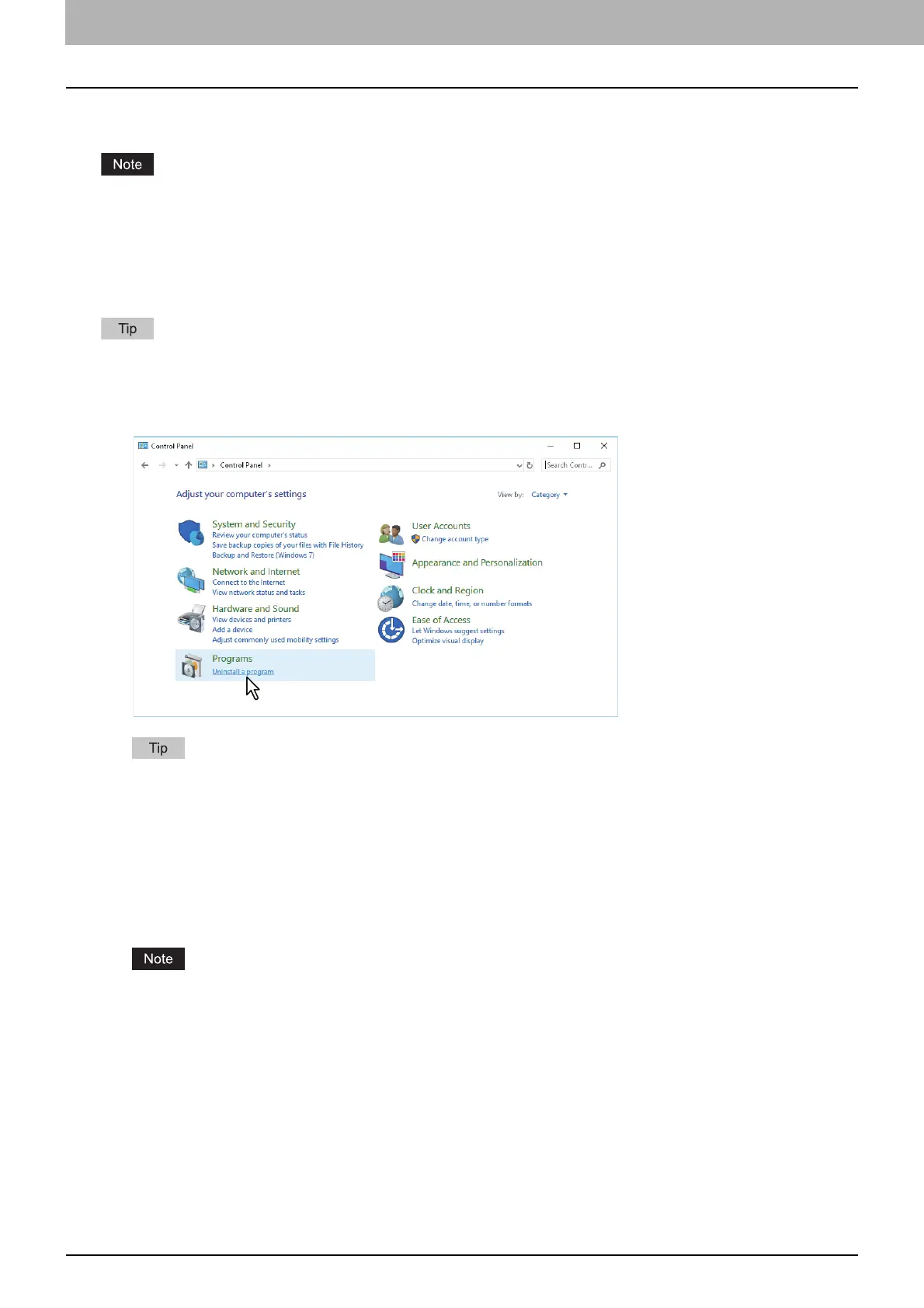
Open the [Uninstall a program] folder.
Click [Start], and then click [Windows System] > [Control Panel] > [Uninstall a program] from the list of all
applications.
Depending on the version of Windows 10, click [Start] and select [All apps], and then select [Windows System]>
[Control Panel] > [Uninstall a program] from the list of all applications.
For Windows Server 2012, from the setting charm, click [Control Panel] > [Uninstall a program].
2
From the list, select you want to uninstall, and click [Uninstall].
3
Click [Yes].
4
Click [Yes] to delete the setting files.
Deleting files starts.
If you want to reinstall the client software later, click [No] to have the setting files remain. You can restore the
data and settings when you reinstall the client software.



 To Next Page
 Loading...