EasyManua.ls Logo

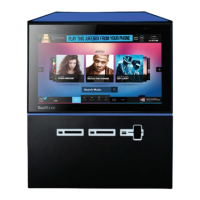
TouchTunes Playdium - User Manual

TouchTunes Playdium
12 pages
Print Icon
To Next Page IconTo Next Page
Loading...
900785-001 Rev. 02 February 2016
This guide is an overview of the Playdium installation process.
1 of 12
Quick Start Guide
Disclaimer and Important Safety Instructions
TouchTunes Interactive Networks is not responsible for
any damage resulting from the improper installation or
connection of test kit components or any other external
equipment to Playdium. Nor is TouchTunes responsible for
any damage caused during shipment (except the shipment
to the original purchaser) or any damage caused by:
impacts, fluids, fire, flood, wind, earthquake, lightning
or similar disaster
unauthorized modifications, attachments or
peripherals, improper use, environment, installation or
electrical supply
improper maintenance
any other misuse, abuse, or mishandling
Familiarize yourself with this important safety information
before proceeding with product installation.
The Lightning Flash with arrow head symbol
within an equilateral triangle is intended to alert
the user to the presence of un-insulated
"dangerous voltage" within the product enclosure
that may be of sufficient magnitude to constitute a
risk of shock to persons".
The exclamation point within an equilateral
triangle is intended to alert the user to the
presence of important operating and maintenance
(servicing) instructions in the literature
accompanying the product".
WARNING: Do not defeat the safety purpose of
the polarized or grounding-type plug. A polarized
plug has two blades with one wider than the other.
A grounding type plug has two blades and a third
grounding prong. The wide blade or the third
prong are provided for your safety. If the provided
plug does not fit into your outlet, consult an
electrician for replacement of the obsolete outlet.
WARNING: TO REDUCE THE RISK OF FIRE OR
ELECTRIC SHOCK, DO NOT EXPOSE THIS
APPARATUS TO RAIN OR MOISTURE AND
OBJECTS FILLED WITH LIQUIDS, SUCH AS
VASES, SHOULD NOT BE PLACED ON THIS
APPARATUS
DO NOT USE THIS APPARATUS NEAR WATER.
WARNING: TO REDUCE THE RISK OF FIRE OR
ELECTRIC SHOCK, THIS APPARATUS SHALL
BE CONNECTED TO A MAINS SOCKET
OUTLET WITH A PROTECTIVE EARTHING
CONNECTION.
WARNING: The speaker output of this unit can
exceed 10 Watts and could cause a shock injury.
Connection to speakers should be performed by a
skilled person in compliance with local building
codes. Class 2 wiring is required for speaker
cables. Use of external speakers outside the
ratings stated at the speaker jack may result in a
shock injury or damage to the unit, or equivalent.
CAUTION: Playdium is heavy and represents a
serious safety hazard if its mounting system
should fail. Installation of the mounting system for
Playdium should be performed only by an
experienced installer or licensed contractor
familiar with standard rigging, mounting and
hanging practices as recognized by a licensed
engineer or government agency in your area.
Playdium is intended to be wall mounted or used
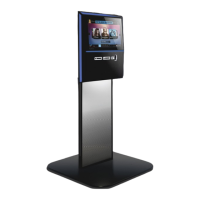
only with TouchTunes Floor Stand model 700748-
001, which is optional.
CAUTION: Do not use Playdium immediately after
transferring the unit from a cold place to a warm
place as condensation may have occurred on
internal components. Wait for the unit to reach
room temperature before using it.
IMPORTANT: See product enclosure for safety-
related markings.
TO COMPLETELY DISCONNECT THIS
APPARATUS FROM THE AC MAINS,
DISCONNECT THE POWER SUPPLY CORD
PLUG FROM THE AC RECEPTACLE
THE MAINS PLUG OF THE POWER SUPPLY
CORD OR APPLIANCE COUPLER SHALL
REMAIN READILY ACCESSIBLE
No serviceable parts inside the core, please
contact TouchTunes Customer Support for
service; only the hard drive is designed to be
serviced, and is accessible from outside the core.

Other manuals for TouchTunes Playdium

Questions and Answers

  • K
    ksharpSep 2, 2025
    How to fix a TouchTunes Jukebox display that is too bright or too dim?
    • V
      Vanessa JordanSep 2, 2025
      If your Jukebox display is either too bright or too dim, the issue might be with the display backlight settings. Open the payment door and press the MNGR button on the backplane. Then, navigate to Hardware | Options and adjust the backlighting. If adjusting the backlighting doesn't resolve the issue, the software may be corrupted. In this case, reboot into the ODT and perform a software reinstall.
  • E
    Ethan GillAug 31, 2025
    What to do if my TouchTunes Playdium microphone does not work?
    • E
      Ethan BrooksAug 31, 2025
      If the microphone on your Jukebox isn't working, first ensure that the microphone is set to on, or that the talk button is being pressed during testing. Check the MIC volume in the Operator Screen under Sound|Zone X In and make sure it is set high enough. Wiring issues could also be the cause; check the microphone wiring, the connection to the Mic-IN box, and the connection between the Mic-IN box and the backplane. If none of these steps work, the Mic-IN box may be damaged and need replacement.
  • E
    Erin WardAug 29, 2025
    What causes volume fluctuations in songs on my TouchTunes Jukebox?
    • J
      James FloresAug 29, 2025
      Volume fluctuations in songs played on your Jukebox can be due to several reasons. Check that the AVC feature in the Operator Screen (under Sound | Global) is set to OFF. Damaged speakers or speaker wiring can also cause fluctuations, so inspect them carefully. A damaged core might also be the culprit; install a different, verified working core, remembering to transfer the hard drive, to see if this resolves the issue. Finally, a damaged backplane could be the cause; replace it and check if the fluctuations persist.
  • T
    Troy BurnsAug 28, 2025
    What to do if my TouchTunes Playdium Jukebox has no video (display is all black)?
    • J
      Jasmin HillAug 28, 2025
      If your Jukebox display is completely black, the issue could stem from several causes. First, check if the Jukebox is in Night Mode by pressing the power button on the remote or under the Playdium. Ensure the Jukebox has power by verifying it's plugged into a working wall socket and that the power switch is set to ON. If the screen remains black after a reboot, the core might be damaged and should be replaced. A non-destructive software crash may also be the reason, so exit the ODT and allow Playdium to reboot normally. Lastly, corrupted software can cause this issue, so reboot into the ODT and perform a Software Restore.
  • H
    hmillerAug 26, 2025
    Why is the volume so low on my TouchTunes Playdium?
    • T
      Travis LynchAug 26, 2025
      Low volume on your Jukebox could be due to several factors. First, check the Zone X IN controls in the Operator Screen and ensure the 'Juke' volume is set to its maximum value. Also, verify that the Amp Settings are correctly configured. Polarity inconsistencies in speaker wiring or an unsuitable impedance load on the internal amplifier can also cause low volume. If using the internal amplifier, check the impedance of the speakers connected to the speaker outputs. Lastly, a damaged core could be the problem; replace it with a known working core, remembering to move the hard disk, and see if the volume increases.
  • J
    jonesloriAug 25, 2025
    How to fix distorted or glitchy sound on my TouchTunes Playdium Jukebox?
    • P
      Peter BensonAug 25, 2025
      Distorted or glitchy sound on your Jukebox can be due to several reasons. Try setting the EQ settings for the zone to 'flat' and turn off the 'Bass Boost' setting on the Operator Screen. Lowering the volume for the affected zone may also eliminate the distortion. Using verified, good speakers powerful enough for a strong signal can help. Software issues can also cause this; in the ODT, press the 'Restore Software' button to reinstall the software. Damaged core or backplane could also be at fault; try installing a different core onto the chassis or replacing the backplane and running the audio test tool in the ODT.
  • B
    Brenda OwensAug 22, 2025
    Why is my TouchTunes Playdium skipping songs?
    • A
      Austin GilbertAug 22, 2025
      Sound skipping on your Jukebox can be attributed to a few potential causes. Ensure that the Song Length Limit feature is set to OFF in the Operator Screen under Music | Options. If that's not the issue, the song file itself might be corrupted, so try replacing the hard drive. Software corruption could also be the cause; install the problematic hard drive in a jukebox, and boot into the ODT by holding down the MNGR button while booting.

Summary

Safety and Disclaimer

General Safety and Disclaimer

Outlines responsibilities and general safety advice for Playdium installation.

Electrical Shock and Fire Hazards

Warnings regarding voltage, moisture, grounding, and mains connection to prevent hazards.

Physical Installation and Environmental Risks

Cautions about unit weight, mounting, and environmental factors like condensation.

Symbol Explanations

Explains warning symbols used in the manual, like lightning flash and exclamation point.

Installation and Setup

Moving and Unpacking

Instructions for safely moving and unpacking the Playdium unit.

Site Selection and Wall Mounting

Guidance on choosing an installation location and mounting the chassis to the wall.

Hard Drive and Core Installation

Steps for installing the hard drive and connecting the core unit to the chassis.

Cable Routing and Connectivity

Using provided cable channels for routing network and audio cables.

Network and Audio Setup

Connecting the Playdium to a broadband network and installing speakers.

Power Up and Initial Activation

Powering on, enabling the screen, activating the system, and initial settings.

System Configuration and Operation

Software Updates and Remote Control

Performing system updates via 'Call Now' and setting up the remote control.

Payment System Configuration

Configuring bill acceptors, testing payments, and reapplying filters/rules.

Usage Notes

Sticker Placement Guidelines

Advice against affixing stickers to the touch screen or camera.

TouchTunes Playdium Specifications

General IconGeneral
BrandTouchTunes
ModelPlaydium
CategoryJukebox
LanguageEnglish

Related product manuals