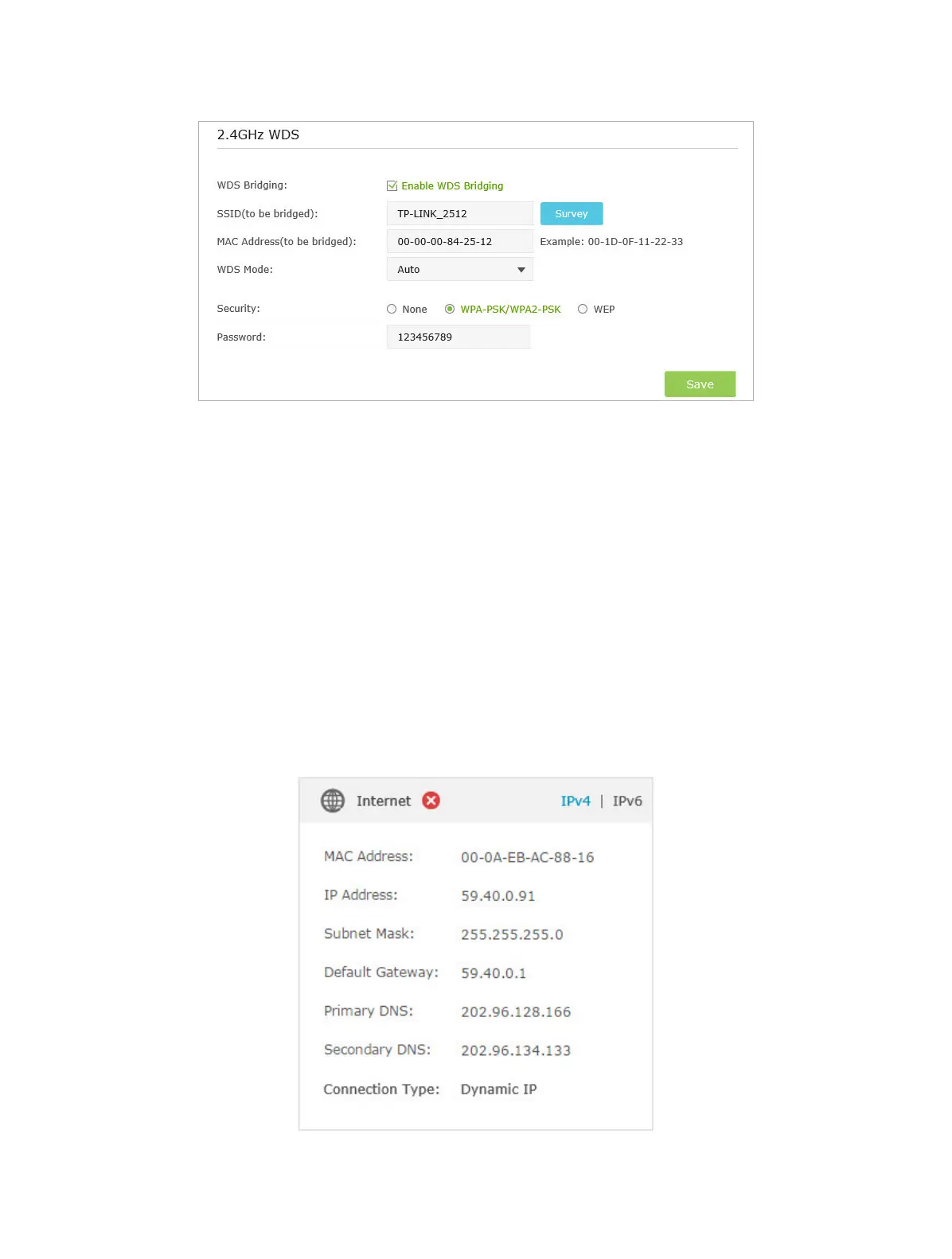
96
4. Disable DHCP:
1 ) Go to Network > DHCP Server.
2 ) Deselect Enable DHCP Server and click Save.
Now you can go to Advanced > Status > Wireless to check the WDS status. When the
WDS status is Run, it means WDS bridging is successfully built.
Q5. I cannot access the Internet even though the configuration is
finished, what can I do?
1. Visit http://tplinkwifi.net.
2. Go to Advanced > Status to check Internet status:
As the follow picture shows, if IP Address is a valid one, please try the methods
below and try again:






 To Next Page