82
Chapter 13
Manage the Router
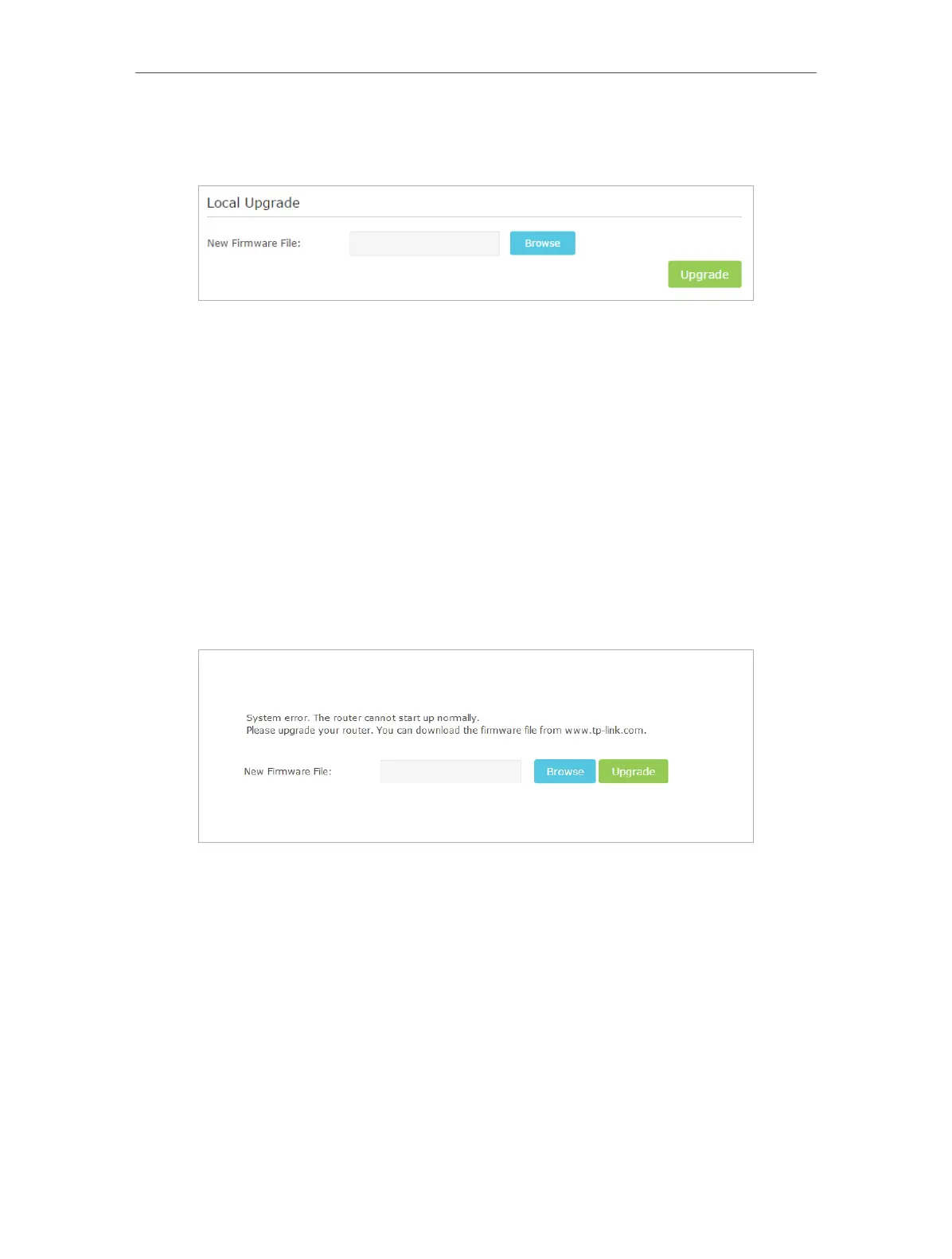
5. Focus on the Local Upgrade section. Click Browse to locate the downloaded new
firmware file, and click Upgrade.
6. Wait a few moments for the upgrade and reboot to complete.
13. 3. 3. Restore Interrupted Upgrade after Power Failure
If your router cannot start up after an upgrade interruption due to power failure, do
follow the steps below to restore the interrupted upgrade. Otherwise, your router
cannot work again.
1. Make sure you have the latest firmware file in your computer. If not, try another way
to connect your computer to the Internet and download the latest firmware file from
www.tp-link.com.
2. Connect your computer to the router with an Ethernet cable.
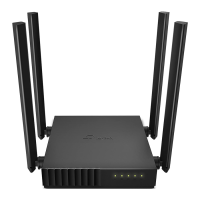
3. Visit 192.168.0.1 and you will see the following upgrade page.
4. Click Browse and select the downloaded firmware file.
5. Click Upgrade and wait for a few minutes until the router completes the upgrading
and restarts.
13. 4. Backup and Restore Configuration Settings
The configuration settings are stored as a configuration file in the router. You can
backup the configuration file to your computer for future use and restore the router to
a previous settings from the backup file when needed. Moreover, if necessary you can
erase the current settings and reset the router to the default factory settings.






 To Next Page