80
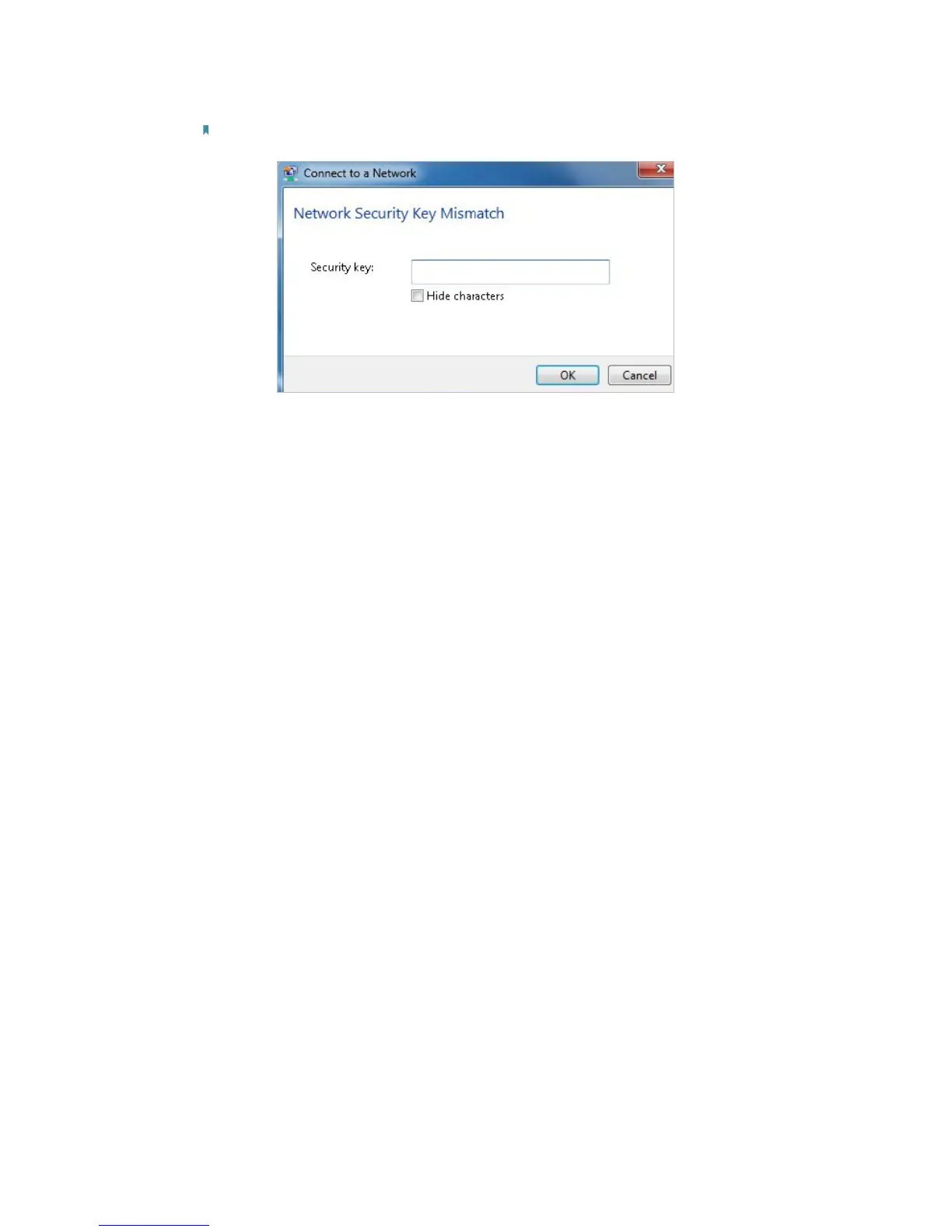
Note: Wireless password/Network Security Key is case sensitive.
4 ) Connect to wireless network.
2. Windows was unable to connect to XXXX /Cannot join this network/Taking longer
than usual to connect to this network.
1 ) Check the wireless signal strength of your network, if it is weak (1~3 bars),
please move the router closer and try again;
2 ) Change the wireless Channel of the router to 1,6,or 11 to reduce interference
from other networks;
3 ) Re-install or update the driver for your wireless adapter of the computer;
4 ) Connect to wireless network.
T7. How can I change my computer‘s setting to obtain an IP address
automatically?
To change the computer’s network settings, follow the steps below.
• For MAC OS X:
1 ) Click the Apple icon, and select System Preferences from the drop-down list.
2 ) Click the Network icon.
3 ) Select Ethernet (for wired connection) or Wi-Fi (for wireless connection) in the
left panel, then click Advanced.
4 ) Click TCP/IP.
5 ) From the Configure IPv4 drop-down list, select Using DHCP.
6 ) Click OK.
• For Windows 7/8/8.1/10:
1 ) Right-click the Network icon on the system tray and select Open Network and
Sharing Center > Change adapter settings.
2 ) Right-click your network connection (wired or wireless) and select Properties.
3 ) Double-click Internet Protocol Version 4 (TCP/IPv4).


 To Next Page