5
Chapter 1
Get to Know Your Modem Router
1. 2. 2. Back Panel
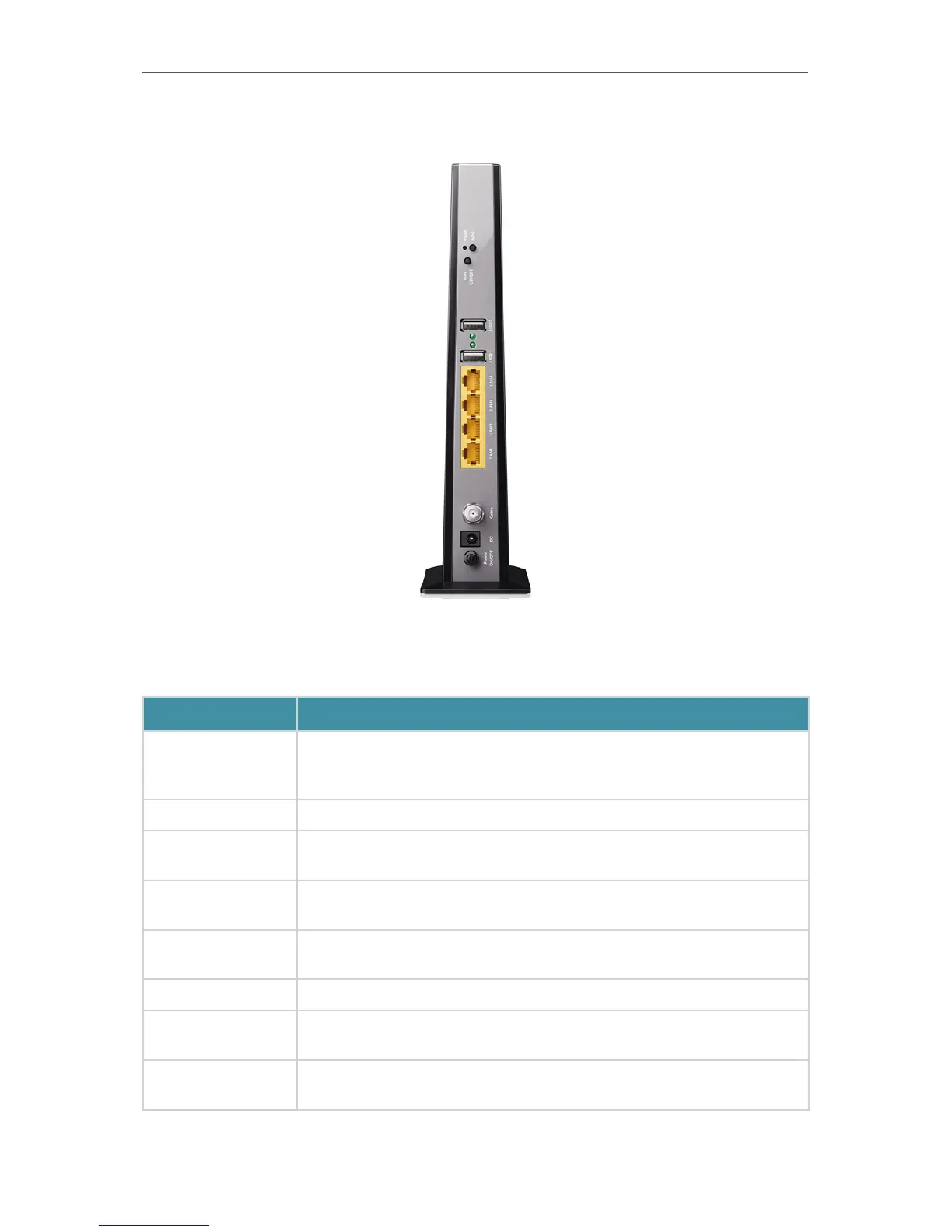
The back panel provides buttons and connection ports. Refer to the following for
detailed instructions.
Item
Description
Reset Button
With the modem router powered on, use a pin to press and hold the
Reset button for at least 8 seconds. And the modem router will restore
to its factory default settings.
WPS Button Press to start a WPS synchronization.
WiFi ON/OFF
Button
Press to turn the Wi-Fi on or off.
USB1 and USB2
Ports
For connecting to USB storage devices or USB printers.
LAN1, LAN2, LAN3,
and LAN4 Ports
For connecting to your PCs or other Ethernet network devices.
Cable Port For connecting to a coaxial cable.
DC Port
For connecting the modem router to power socket via the provided
power adapter.
Power On/Off
Button
Press to power on or off the modem router.


 To Next Page