85
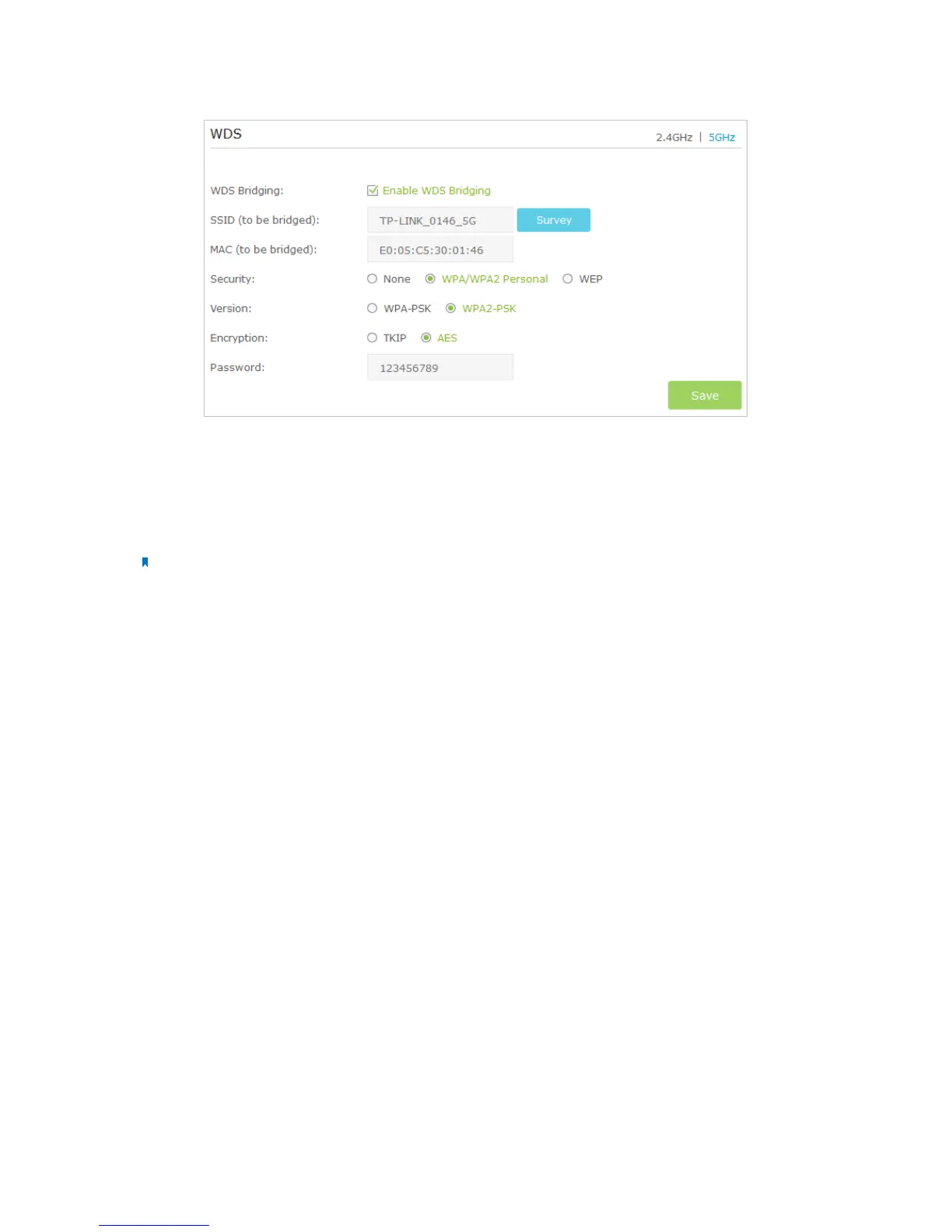
7. Click Save to make the settings effective.
8. Go to Advanced > Network > LAN Settings page to disable DHCP.
Now, the root’s wireless network is extended and you can use the router’s SSID and
password to enjoy the network.
Note: The extended router (4G LTE router) can have different SSID and password from the root router, you can
change your router’s SSID and password on Basic > Wireless page.
T8. What can I do if I cannot find my wireless network or I cannot connect
the wireless network?
¾ If you fail to find any wireless network, please follow the steps below:
1. Make sure the wireless function is enabled if you’re using a laptop with built-in
wireless adapter. You can refer to the relevant document or contact the laptop
manufacturer.
2. Make sure the wireless adapter driver is installed successfully and the wireless
adapter is enabled.
On Windows 7
1 ) If you see the message No connections are available, it is usually because the
wireless function is disabled or blocked somehow;






 To Next Page