Time: Specify the device’s time. Select the number from the drop-down
list in time format HH/MM/SS.
NTP Server I/NTP
Server II:
Please input the primary NTP sever address and an alternative NTP
server address.
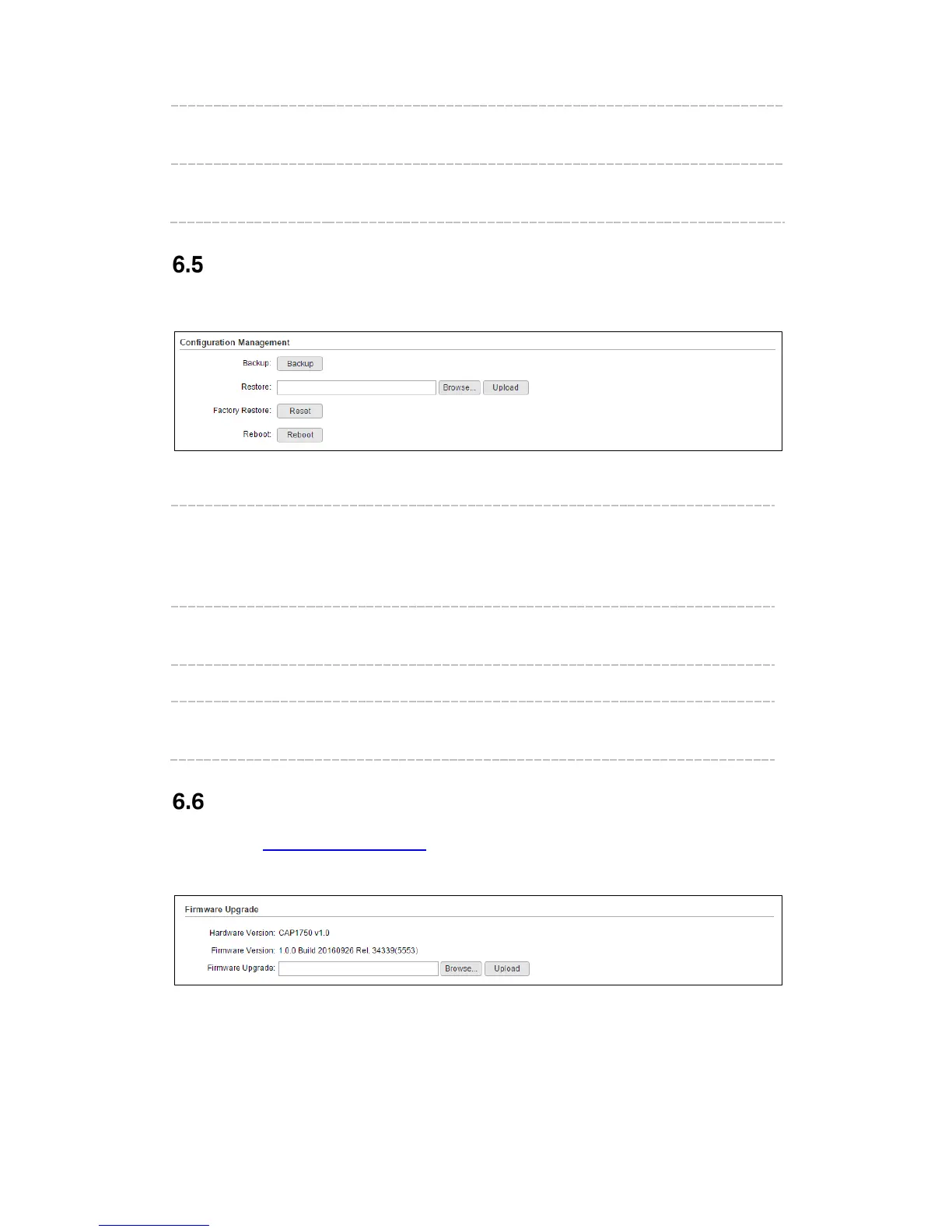
Configuration Management
In this section, you can backup, restore, reset or reboot your CAP.
Figure 6-6 Configuration Management
Backup: Click Backup to save a copy of your current settings. Please save
your copy in a secure file location. It is recommended to back up the
settings before you change the configurations and upgrade the
firmware.
Restore: Click Browse to locate and select the backup file, then click Upload
to import the file to recover the configurations.
Factory Restore: Click Reset to restore your device to its factory default settings.
Reboot: Click Reboot to reboot your device. Do NOT power off your device
while it is rebooting.
Firmware Upgrade
Please log in http://www.tp-link.com/ to download the latest system file. Click Browse to
locate and select the firmware file. Click Upload to upload the file to upgrade.
Figure 6-7 Firmware Upgrade
27



 To Next Page