18
Chapter 4
Set Up Internet Connection
Tips:
• If you use Dynamic IP and PPPoE and you are provided with any other parameters that are not required on the page,
please go to Advanced > Network > Internet to complete the configuration.
• If you still cannot access the internet, refer to the FAQ section for further instructions.
4. 4. Set Up the Router as an Access Point
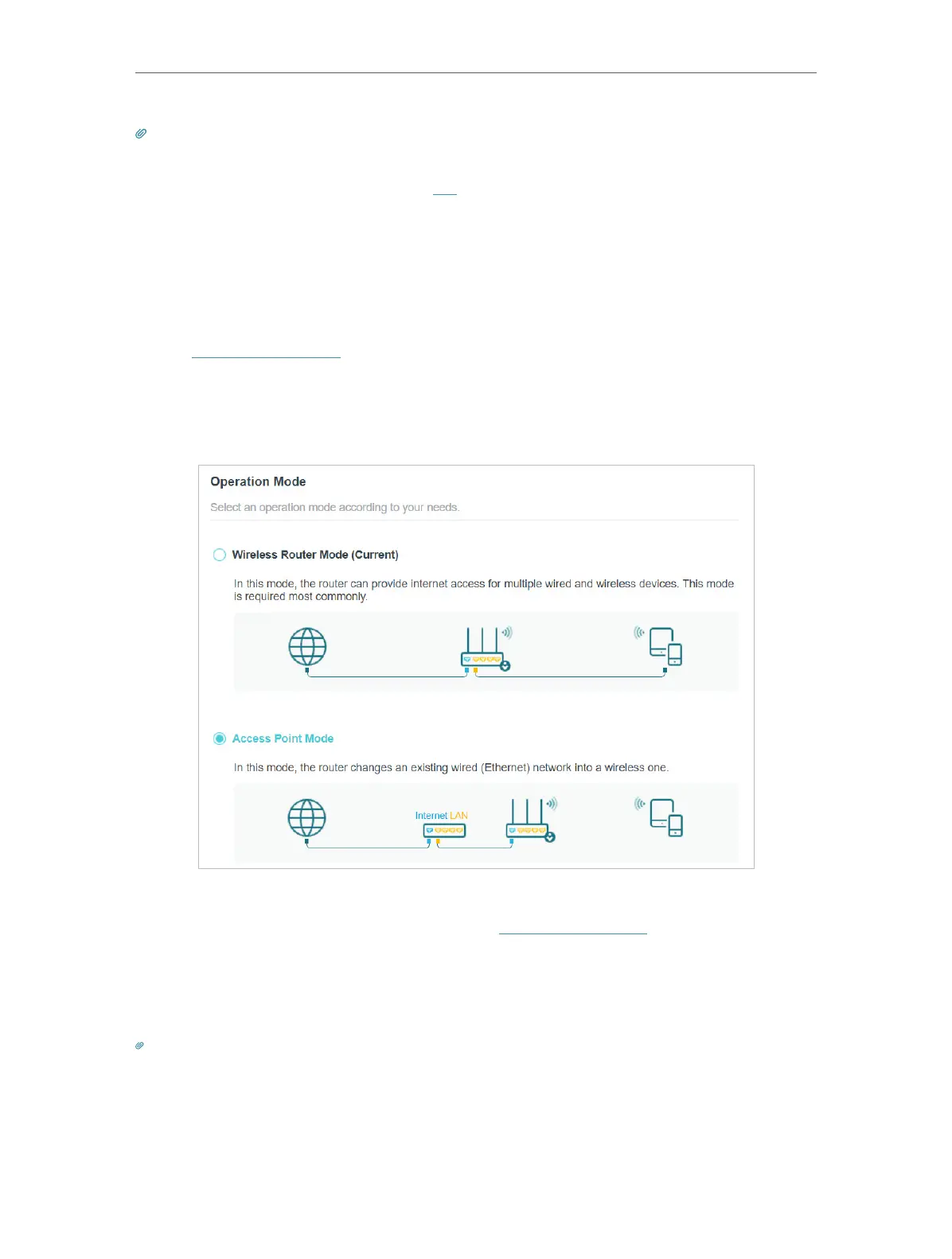
The router can work as an access point, transforming your existing wired network to a
wireless one.
1. Visit http://tplinkwifi.net, and log in with your TP-Link ID or the password you set for
the router.
2. Go to Advanced > System > Operation Mode, select Access Point Mode and click
SAVE . The router will reboot and switch to Access Point mode.
3. After rebooting, connect the router to your existing wired router via an Ethernet cable.
4. Log in again to the web management page http://tplinkwifi.net, and go to Advanced
> Quick Setup.
5. Configure your wireless settings and click NEXT.
6. Confirm the information and click SAVE . Now, you can enjoy Wi-Fi.
Tips:
• Functions, such as Parental Controls, QoS and NAT Forwarding, are not supported in the Access Point mode.
• Functions, such as Guest Network, are the same as those in the Router mode.







 To Next Page