19
Chapter 4
Set Up Internet Connection
4. 5. Set Up an IPv6 Internet Connection
Your ISP provides information about one of the following IPv6 internet connection
types: PPPoE, Dynamic IP(SLAAC/DHCPv6), Static IP, 6to4 tunnel, Pass-Through
(Bridge). After setting up the IPv6 internet connection, you can add IPv6 firewall rules
to protect your IPv6 network.
• Set up an IPv6 Internet Connection
1. Visit http://tplinkwifi.net, and log in with your TP-Link ID or the password you set for
the router.
2. Go to Advanced > IPv6.
3. Enable IPv6 and select the internet connection type provided by your ISP.
Tips:
If you do not know what your internet connection type is, contact your ISP or judge according to the already known
information provided by your ISP.
4. Fill in information as required by different connection types.
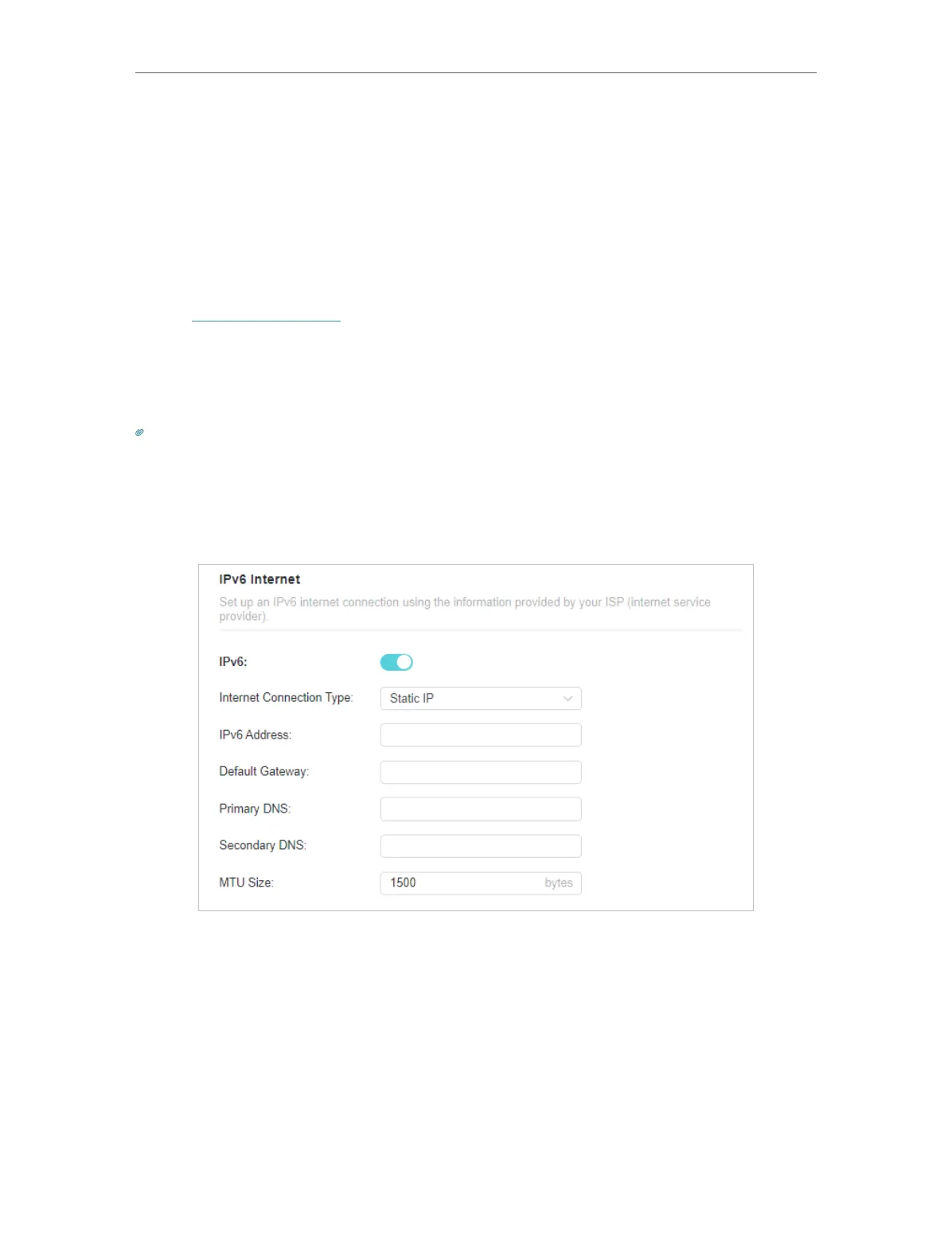
1 ) Static IP: Fill in blanks and click SAVE .
2 ) Dynamic IP(SLAAC/DHCPv6): Click Advanced to input further information if
your ISP requires. Click SAVE and then click RENEW.







 To Next Page