Is missing text on the Windows test page a Triumph Adler Printer problem?
- MMatthew MillerSep 23, 2025
Text missing on the Windows test page is not a printer problem. It is a problem specific to the Windows OS and does not affect print quality.
Is missing text on the Windows test page a Triumph Adler Printer problem?
Text missing on the Windows test page is not a printer problem. It is a problem specific to the Windows OS and does not affect print quality.
What to do if the Triumph Adler Printer says 'Add paper MPTray'?
If your Triumph Adler Printer displays the message 'Add paper MPTray', it means that the paper has run out in the paper source displayed. You should supply paper to the indicated paper source, which could be the paper cassettes, MP tray, or optional paper feeders. This message alternates with printer status messages like 'Ready', 'Please wait', and 'Processing'.
What to do if my Triumph Adler Printer displays 'Close top cover'?
If your Triumph Adler Printer shows the message 'Close top cover', it indicates that the top cover of the printer is open. Simply close the printer's top cover to resolve the issue.
What to do if my Triumph Adler Printer displays 'Close left cover'?
If your Triumph Adler Printer displays the message 'Close left cover', it means that the left cover of the printer is open. Close the printer's left cover to continue.
What to do if my Triumph Adler Printer displays 'Close rear unit'?
If your Triumph Adler Printer displays the message 'Close rear unit', it indicates that the rear unit of the printer is open. Ensure that you close the printer's rear unit.
What to do if nothing lights up on the operation panel of my Triumph Adler Printer?
If nothing lights up on the operation panel of your Triumph Adler Printer, and the fan makes no noise, first check that the power cord is properly plugged into the power outlet. Connect both ends of the power cord securely and try replacing the power cord. Also, check that the power switch is in the On (|) position.
Why is my Triumph Adler Printer emitting vapor?
Vapor emitted from the rear of your Triumph Adler Printer is due to heat generated during printing evaporating water moisture in the printed paper. To correct this, increase the temperature in the room and use paper that has been stored in a dry place.
Why are there black or white vertical streaks on Triumph Adler Printer output?
Black or white vertical streaks on prints from your Triumph Adler Printer may indicate a low toner level. Check the operation panel for the 'Toner low' message. If displayed, install a new toner kit.
Why is my Triumph Adler Printer showing a gray background on prints?
A gray background on your Triumph Adler Printer's output may be caused by a low toner level or an incorrect print density setting. Check the operation panel for the Toner low message and a flashing [Attention] indicator; if present, install a new toner kit. Also, access the print menu from the operation panel and select a lighter density setting.
What does 'Load MP Tray (A4)/(PLAIN)' mean on my Triumph Adler Printer?
If your Triumph Adler Printer displays 'Load MP Tray (A4)/(PLAIN)', it means there is no paper cassette installed in the printer that matches the paper size and paper type of the print job. Set paper in the MP tray and press [GO] to resume printing.
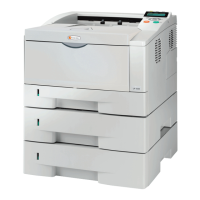
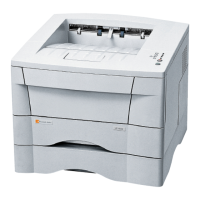
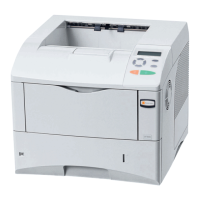
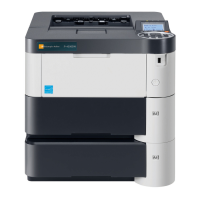
Details the physical parts located on the front of the printer.
Details the physical parts located on the rear of the printer.
Explains the controls and display of the printer's operation panel.
Provides recommendations and limitations for using different types of paper.
Offers guidance on choosing appropriate paper for optimal print quality.
Lists and describes various paper types compatible with the printer.
Step-by-step instructions for loading paper into the main paper cassette.
Instructions for loading paper into the multi-purpose (MP) tray.
Specific guidance for loading envelopes into the MP tray.
Explains how to connect the printer via USB, network, or parallel interfaces.
Details how to set up and configure network parameters for printing.
Guides users through the process of installing the printer driver on a PC.
Describes how to print documents from various software applications.
Explains how to access and use the printer's status monitoring utility.
Provides instructions for removing printer software from a Windows PC.
Overview of basic maintenance tasks like toner replacement.
Step-by-step guide for replacing the toner cartridge.
Instructions for cleaning the internal parts of the printer.
Guidance on handling the printer during prolonged non-use or relocation.
Basic steps and tips for resolving common printer issues.
Identifies common print quality issues and their corrective actions.
Lists printer error messages and provides solutions.
Explains the meaning of Ready, Data, and Attention indicators.
Detailed instructions for removing jammed paper from different printer areas.
Describes the layout and functions of the printer's control panel.
Explains how to navigate and use the printer's menu system.
Details how to print various reports like menu maps and status pages.
Covers printing files from and managing USB flash memory.
Explains Job Retention, Storage, and configuration for saving print jobs.
How to set paper size and type for MP tray and cassettes.
Adjusts print parameters like paper source, orientation, and quality.
Guides through TCP/IP (IPv4/IPv6) and other network settings.
Covers administrator ID, password, and interface blocking settings.
Details how to manage printing by department using account IDs.
Configuration of administrator credentials and user management.
Accessing printer maintenance functions like restart and service.
Overview of available optional hardware for the printer.
Details on installing additional memory to enhance printer performance.
Information on the optional paper feeder for continuous printing.
Guide to installing and using CF cards for storage.
Lists other optional accessories like envelope feeders and hard disks.
Details on parallel, USB, and network interface connectors and standards.
Information on the high-speed data transmission via parallel port.
Specifications for the Hi-Speed USB interface, including connectors and modes.
Supported protocols, operating systems, and network features.
Technical data and performance details for different printer models.
Information on the printer's compliance with environmental standards.
| Printer Type | Laser Printer |
|---|---|
| Print Speed | 45 ppm |
| Print Resolution | 1200 x 1200 dpi |
| Duplex Printing | Automatic |
| Processor Speed | 800 MHz |
| Resolution | 1200 x 1200 dpi |
| Connectivity | USB, Ethernet |
| Interface | USB 2.0, Ethernet |
| PDL | PCL 6, PostScript 3 |