Enabling UPnP for Automatic Remote Access Setup
If UPnP did not work, and if you have an up to date router other than Apple Airport, it is worth double checking if
UPnP is enabled in your router. Some Routers like the ActionTec and Westell units distributed for free with Verizon
and Qwest DSL service have the feature initially disabled.
Usually it is very simple to enable UPnP. You just need to log in to your router’s setup screen and find the UPnP
menu. Then you click on enable, save the setting and restart both the router and the camera (in that order).
Many routers may need a firmware update for UPnP to be available or work properly. You should look up your
router’s model number on your router manufacturer’s support web page to see if updates are available.
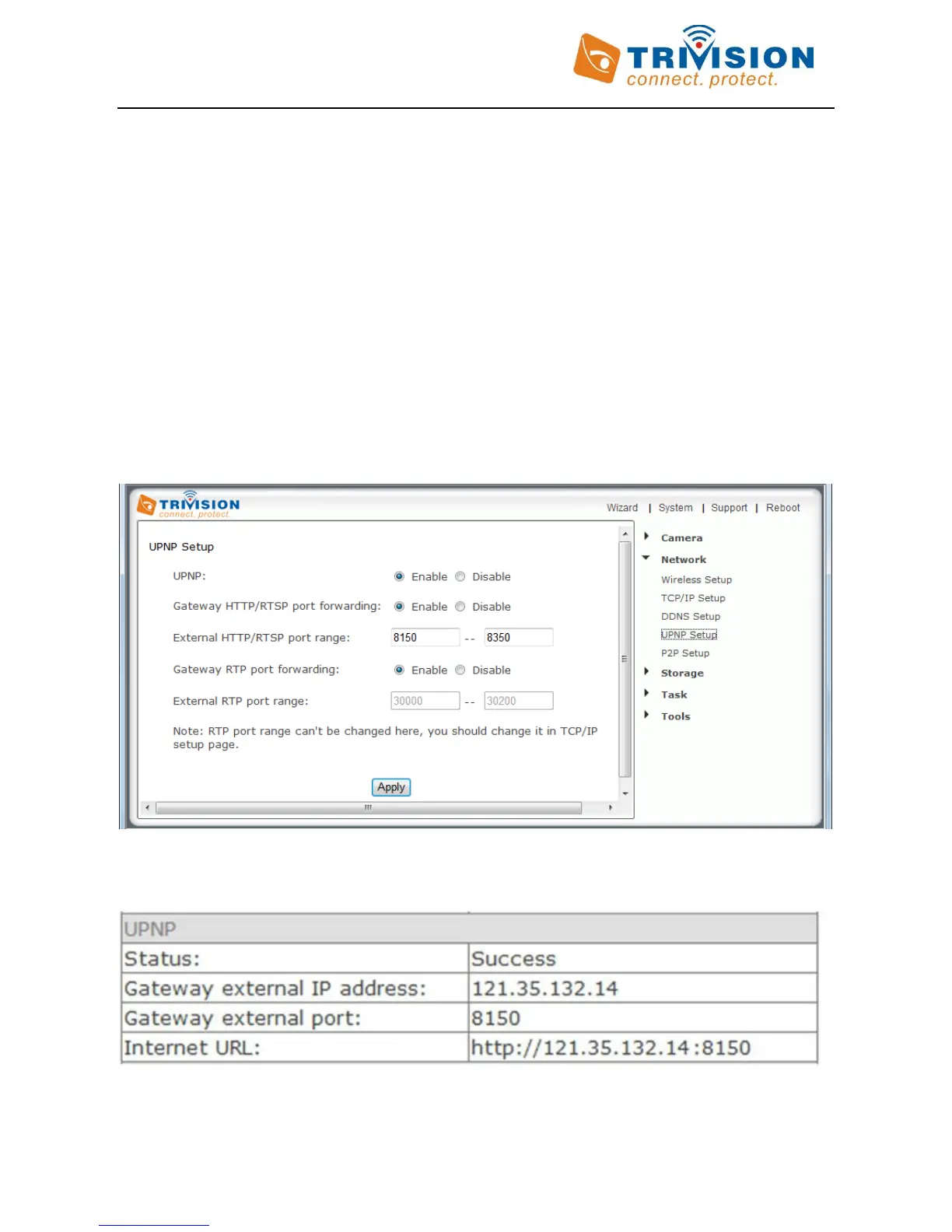
The camera comes from the factory with the UPnP enabled. You can double check by selecting the “UPnP Setup”
tab under the camera’s “Network” menu:
If UPnP works, clicking on the camera’s “system” menu at the top of the setting screen will show something like
the following in the UPnP section:


 To Next Page