2726
Troubleshoong
Direcon Trim
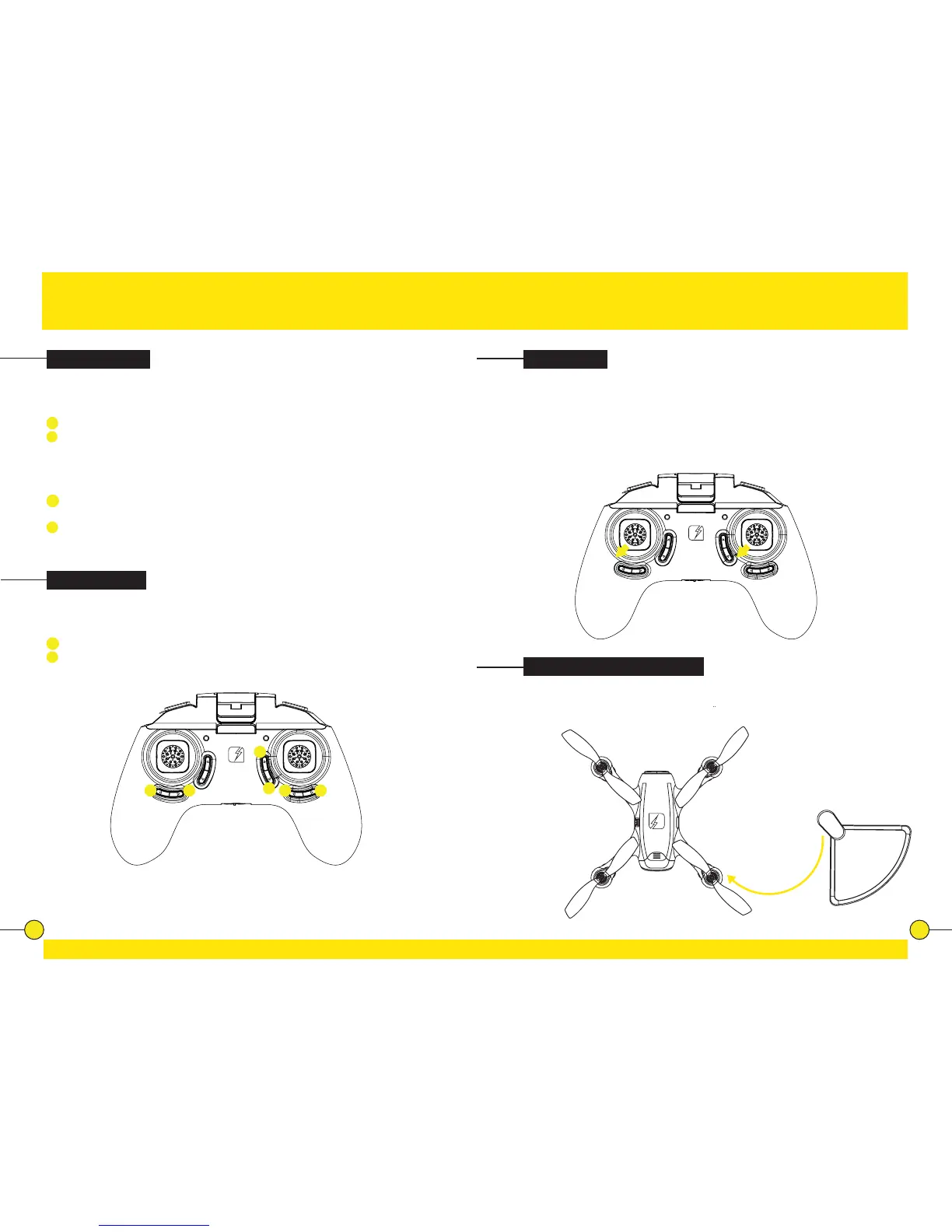
When hovering, if the drone ies forward or backward without moving the Direcon
sck, proceed as follows:
1
If the drone moves on its own forward, tap the Backward Trim arrow in steps.
2
If the drone moves on its own backward, tap the Forward Trim arrow in steps.
When hovering, if the drone ies to the le or right without
moving the Direcon sck, proceed as follows:
3
If the drone moves on its own sideways to the le, tap the Right Trim arrow in
steps.
4
If the drone moves on its own sideways to the right, tap the Le Trim arrow in
steps.
When hovering, if the drone rotates to the le or right without you moving the
Throle/Rotate sck, proceed as follows:
5
If the drone rotates on its own to the le, tap the right Rotate Trim arrow in steps.
6
If the drone rotates on its own to the right, tap the le Rotate Trim arrow in steps.
Rotaon Trim
Calibraon
The drone needs to be calibrated if it ies unstable.
Place the drone on a at and level surface. Now, at the same me, push both
the le and right joysck to the lower le corners and hold for 2 to 3 seconds.
The LED lights on the drone will start blinking rapidly, indicang the drone
is calibrang. Aer 2 to 3 seconds the LED lights will return back to normal,
indicang the calibraon was succesful.
Rotor Protector Installaon
Gently slide the Rotor Protectors from below onto the landing feet of the drone.
1
2
3456


 To Next Page