EasyManua.ls Logo

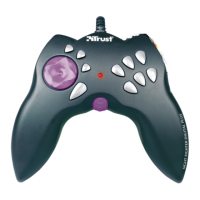
Trust Sight Fighter Digital Plus - User Manual

Trust Sight Fighter Digital Plus
26 pages
Print Icon
To Next Page IconTo Next Page
Loading...
Sight Fighter Digital Plus
SIGHT FIGHTER DIGITAL PLUS
User's manual
Version 1.0

Questions and Answers

  • J
    jacobdoyleAug 9, 2025
    Why does my Trust Sight Fighter Digital Plus gamepad not react during use?
    • J
      Jeffrey MaloneAug 9, 2025
      The gamepad might not react because it isn't connected correctly to the USB or game port. Alternatively, the sound card or USB port might not be installed correctly. Reinstall the sound card (refer to its manual) or remove and reinstall the USB port from the system manager. Ensure only one game port is active. It is also possible that the gamepad on the game port is not installed in the Game Controllers, so follow chapter 3.4 to install the gamepad.
  • W
    wolsenAug 13, 2025
    What to do if programmed buttons on Trust Sight Fighter Digital Plus don't react correctly?
    • J
      Jeffrey AlvarezAug 13, 2025
      If the programmed buttons on your Trust Mouse aren't reacting correctly, it might be because the profile isn't active. To fix this, activate the profile by putting a tick in the window in front of the profile. If the profile does not exist, you should create the profile (see chapter 5).
  • C
    Charles SmithAug 19, 2025
    What to do if Trust Mouse gamepad is not found on USB?
    • S
      Shelly ScottAug 19, 2025
      If the Trust Mouse gamepad is not found on the USB after connection, it may be because the gamepad has already been installed. Follow the uninstallation procedure in chapter 6 and reinstall the gamepad. Another reason might be that the USB connection is not working, so activate the USB connection (see your computer's instruction manual) or use the joystick connection. USB only works with Windows 98 or higher. Use your computer's joystick connection instead of the USB connection.
  • P
    Pam OdomAug 23, 2025
    How to fix Trust Mouse buttons 7 & 8 not working?
    • A
      Angela HarringtonAug 25, 2025
      If buttons 7 & 8 (top of the gamepad) on your Trust Mouse do not work, it's likely because they are set as the 4th axis (Rudder). Refer to chapter 5.2 to configure these as buttons.
  • A
    Andrew BradshawAug 29, 2025
    Why does Trust Sight Fighter Digital Plus affect computer operation when connected via USB?
    • B
      Brian BlairAug 29, 2025
      If connecting the Trust Mouse via USB causes your computer to malfunction, the USB connection may be sharing an interrupt with other devices. Assign a unique number to the USB connection. If this isn't possible, don't use the USB adapter; instead, use the joystick connection on your computer.
  • C
    Caitlyn CamposSep 3, 2025
    Why is the 3rd axis (Throttle) on Trust Mouse the wrong way round?
    • S
      Sonya MitchellSep 3, 2025
      The 3rd axis (Throttle) may be reversed because it is set as 'Reversed' in the button mapping software. See chapter 5.2 to set this the other way round.

Trust Sight Fighter Digital Plus Specifications

General IconGeneral
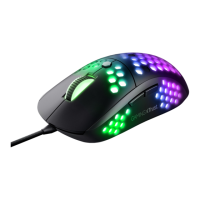
TypeGaming Mouse
ConnectionWired
TechnologyOptical
CompatibilityPC
Cable length180 cm
Weight120 grams

Related product manuals