AudioTron Quick-Start Guide
Page 19
Remote Control
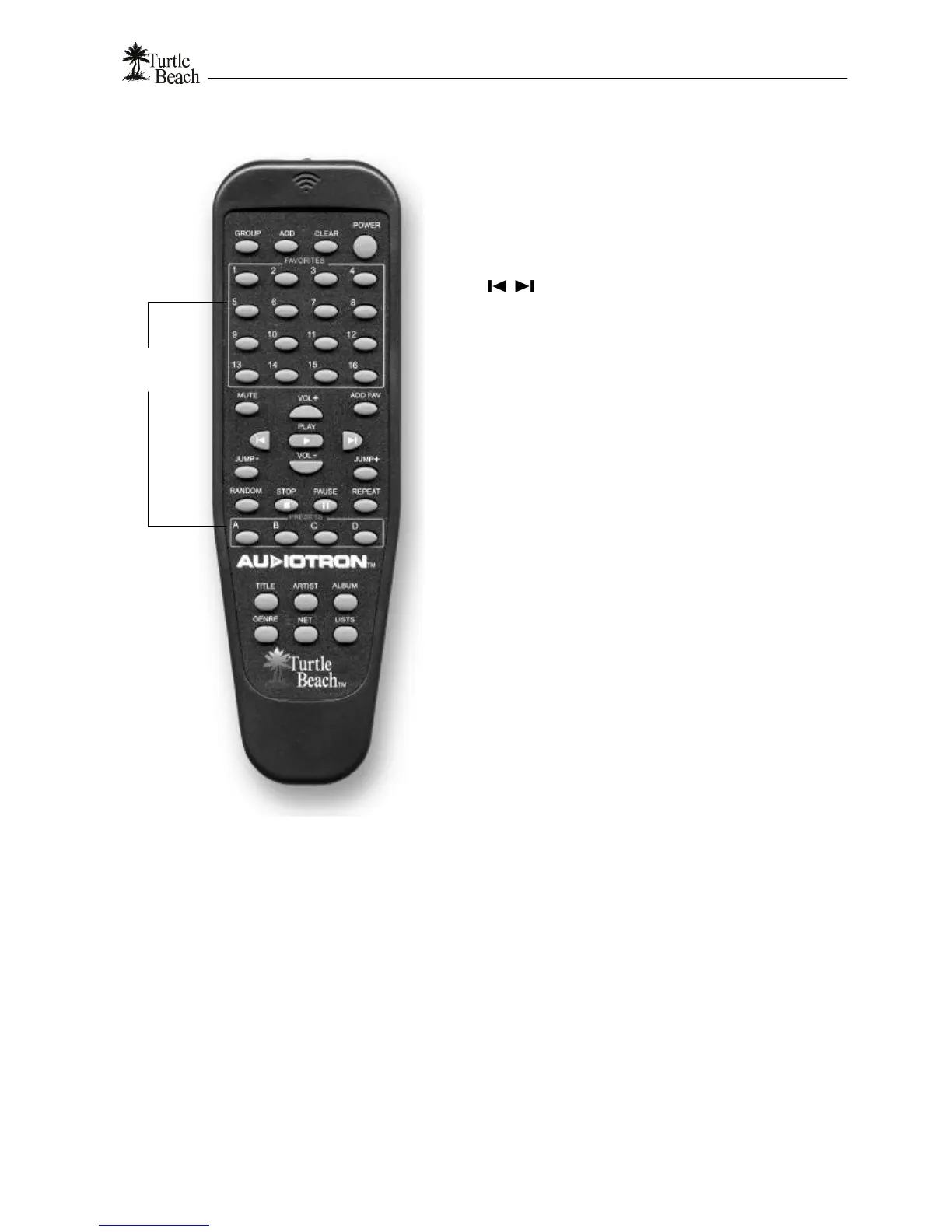
GROUP, ADD, CLEAR (Group Mode controls) – Equivalent to
the front panel Group, Add and Clear buttons.
POWER – Equivalent to the front panel Standby button
MUTE – Equivalent to the front panel Mute button. Silences the
audio playback.
PLAY, STOP, PAUSE – Equivalent to the front panel transport
buttons
Equivalent to the front panel previous/next track
buttons. When in Select modes, these buttons also scroll through
lists in the same way as turning the Control Knob. The scrolling
speed will increase as the buttons are held down longer.
VOL+ (volume up), VOL– (volume down) – Equivalent to the
front panel Control Knob when in Play Mode (Volume Control).
RANDOM / REPEAT – Equivalent to the front panel Random and
Repeat buttons.
FAVORITES – The 16 “Favorites” buttons work in conjunction
with the ADD FAV button to quickly activate favorite songs and
lists by pressing one of the FAVORITES buttons. See “Favorites”
instructions below for details.
PRESETS – These are 4 additional favorites buttons grouped
into a separate area for quicker access. Use these buttons for
assigning “favorites” you intend to use often.
ADD FAV (Add Favorite): This button is active in the select
screen (Select Mode). It prompts the user to select a favorite slot
and saves the current selection type and entry into the Favorites
slot you choose. See “Favorites” instructions below for details.
JUMP + (jump forward) and JUMP – (jump back): Jumps forward
or back to the next entry that does not begin with the same
character (case insensitive) as the current Entry. Makes it easier
to navigate through long lists of songs.
TITLE, ARTIST, ALBUM, GENRE, LISTS (List Selection
Buttons) – Equivalent to the categories in the main menu for
selecting lists.
NET (Network): Equivalent to the “Check for New Music” Options
display, which causes AudioTron to scan the network for new
music files.
To assign the Favorites and Presets buttons…
1. From the main menu display, select Title, Artist, Album, Genre, or Lists and select an item in the list.
2. Press the “ADD FAV” button and the display will ask if you want to add the selected item to one of the
Favorites buttons.
3. Press one of the 16 “Favorites” buttons or one of the 4 “Preset” buttons (e.g. pressing button #1, will
change the # sign in the display to a “1”, indicating the number of the button pressed.)
4. From this point on, pressing Favorites Button 1 will load and play this song.
5. To re-assign a song or list to a button that has been assigned, follow the same process to overwrite the
previous contents.
Favorites
Buttons
List
Buttons
Group
Buttons
Playback
Buttons


 To Next Page