www.Turtle-Beach.com
Page 6
Song Directory Troubleshooting Procedure
Your digital music files must be located in directories called \Music, \Audio or \My Music (with a space in between
"My" and "Music") under a “shared” directory. The AudioStation CD installs sample music files under the proper
directory names, however the share setting must be done manually, as described in the section “AudioTron Shared
Directories Requirements”. Before proceeding, be sure to install the sample music files and configure the directory
share. For more information on shared directories and AudioTron directory requirements, refer to the Reference
Manual on the enclosed CD.
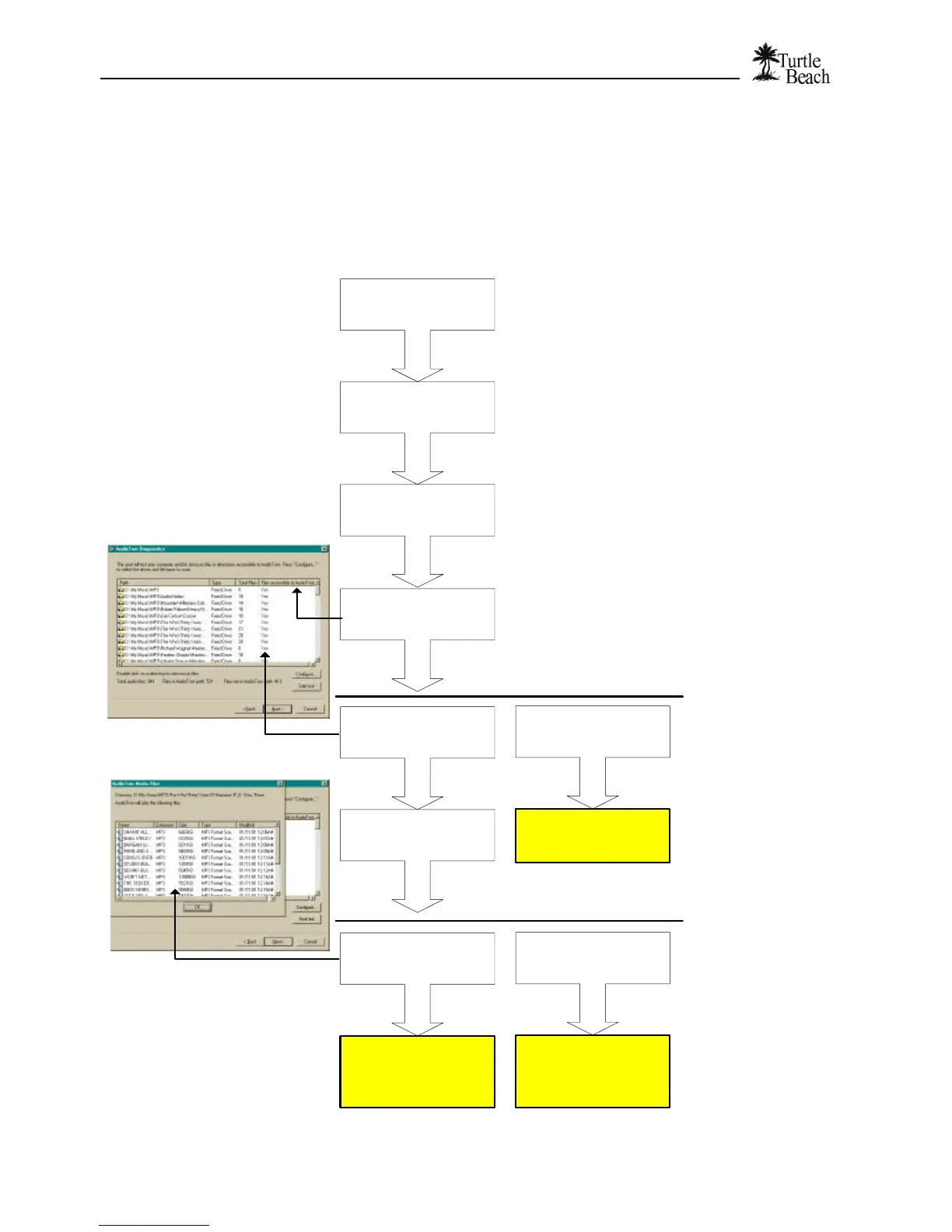
Press "Next" to enter the
Scan Directories
screen
Double-click on the heading
"Files Accessible to
AudioTron"
A "Yes" in this column indicates music files
in the path can be accessed by AudioTron.
There are paths marked as
"Yes"
Double click a "Yes" path to
view the songs
No paths marked "Yes"
See AudioTron Reference
Manual to set the proper
directory shares.
What happened?
Run the AudioTron Setup
Utility
Press "Start Test" to
search for music files.
A "No" indicates there
are no directories
accessible to AudioTron,
so it can't find any music
files on your PC.
AudioTron can only play
music files located in
specially named folders
that are "shared".
More details on this can
be found in the
Reference Manual.
There are songs in the
paths marked "Yes"
There are no songs in the
paths.
Run the AudioTron CD to
load the sample files.
Return to the Setup
procedure to see if
AudioTron plays songs.
What happened?
Run the AudioTron Setup Utility from the AudioStation CD.
See "Installing the AudioStation CD" for details


 To Next Page