www.Turtle-Beach.com
Page 10
Connecting AudioTron to your network
This Quick Start Guide assumes you have already installed your home network. For instructions
on how to install and check your network, refer to the documentation that was included with your
network hardware.
AudioTron is compatible with Ethernet 10/100BaseT and HPNA 2.0 networks running the TCP/IP
protocol. For detailed information on network troubleshooting and setting up AudioTron with a
configured network, please see the AudioTron Reference Manual included on the CD.
Connect AudioTron to your Network
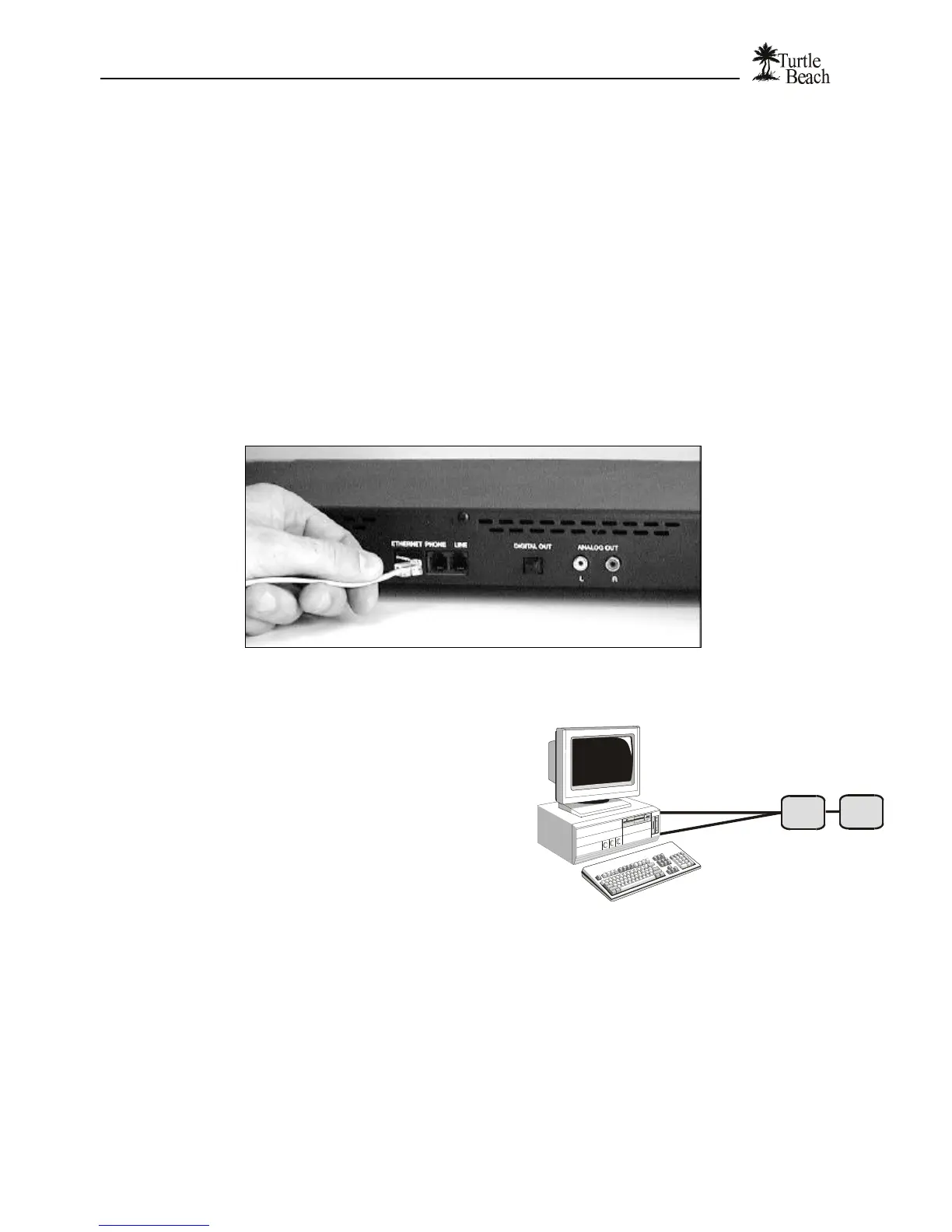
1. If you have an HPNA network: Insert the phone cable (included with your AudioTron) into the LINE
connector on the AudioTron rear panel. Insert the other end of the cable into your HPNA phone jack. If you
had a phone connected to the phone jack, you can insert the phone line into the connector labeled
PHONE.
2. If you have an Ethernet Network: Insert the Cat-5 Ethernet RJ-45 cable (included with your AudioTron)
into the connector labeled ETHERNET on the AudioTron rear panel. Insert the other end of the cable into
your Ethernet hub, which in turn connects to a network interface card in your PC.
Figure 4 Connect the AudioTron to HPNA or Ethernet on the rear panel.
Checklist for HPNA 2.0 networks…
ü If your PC has a separate modem and
HPNA Network Interface… Connect the
modem and HPNA cards to the phone jack
with separate cables and a splitter, as
shown in the diagram.
ü If you have more than one phone line…
Make sure AudioTron is connected to the
same phone line as your HPNA network.
To check this, unplug the AudioTron and
PC from the phone jacks, then plug a
phone into the jack used to connect
AudioTron and another phone into the
jack used to connect the HPNA interface on your PC. If you can’t talk between the two
phones, then the jacks are connected to different phone lines and there will be no HPNA
network communication between the PC and AudioTron.
ü If you have DSL service… Typically, when a DSL modem is installed, the phone company
also installs phone line filters which could interfere with your HPNA network. Be sure the
filter is not in line with the phone wire connected to the PC’s HPNA card or to the AudioTron
HPNA connector. See your DSL manual for details on the line filter, if one is installed.
Modem and
HPNA interface
phone cable
to HPNA NIC
phone cable
to Modem
Splitter
Phone
Jack
Figure 5 To optimize network performance, connect the PC
modem and HPNA card to the phone jack with a splitter.


 To Next Page