AudioTron Quick-Start Guide
Page 7
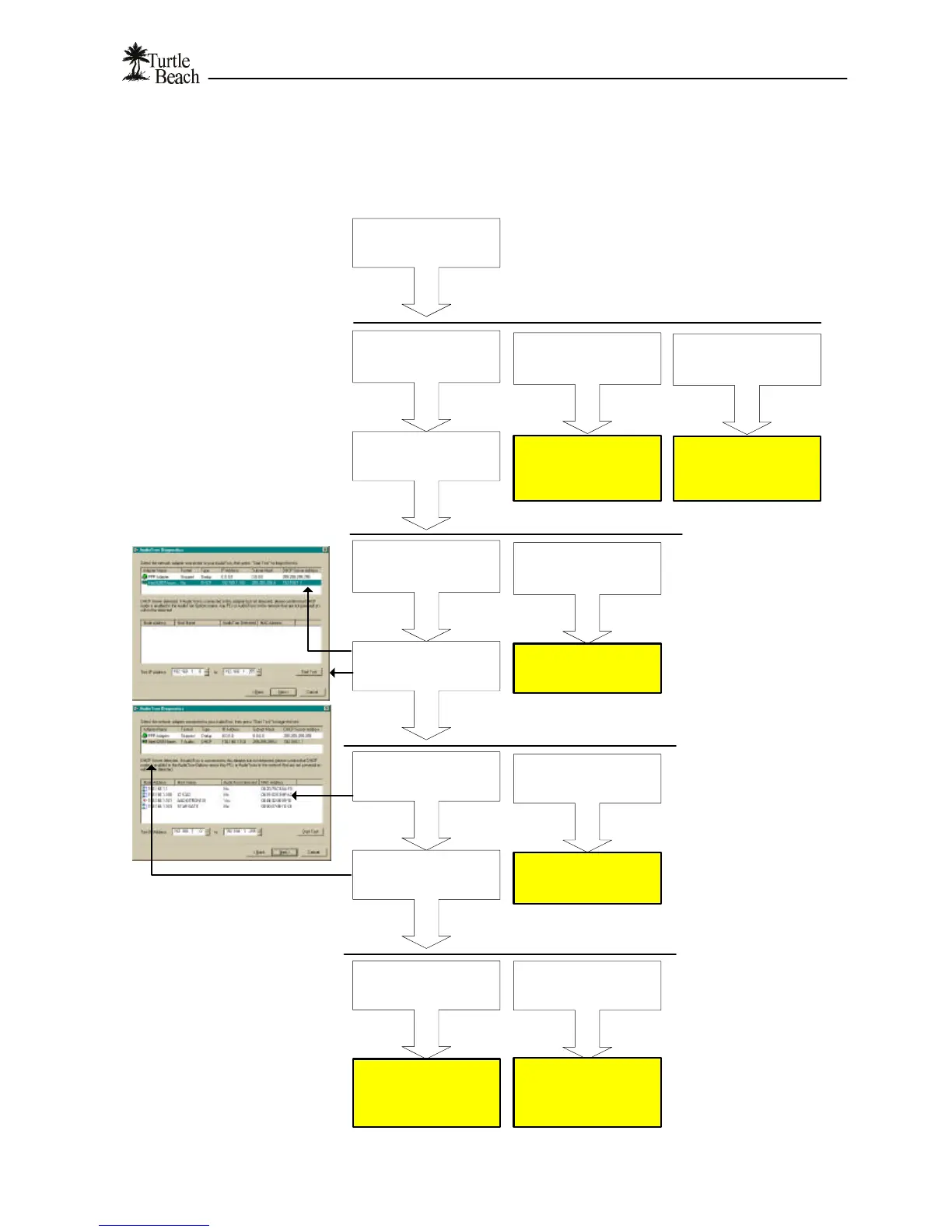
Network Troubleshooting Procedure
Before following this procedure, please refer to the section called “Connecting AudioTron to your Network” to
check for the most common network issues. Additional information is available in the Reference Manual on the
enclosed CD.
Directory sharing problem.
See "
Song Directory
Troubleshooting
Procedure"
Run the AudioTron Setup Utility from the
AudioStation CD.
See "Installing the AudioStation CD" for
more details
Press "Next" to enter the
Network Scan screen
AudioTron and PC's are
listed in the Network Nodes
screen
Was a DHCP server
detected?
AudioTron is not in the list
See the Reference Manual
for detailed network
troubleshooting tips.
What happened?
Make sure
AudioTron is
powered on.
If it is, check the
network connection
to AudioTron.
Yes, there is a DCHP
server.
No DCHP server was
detected.
See the Reference Manual
for instructions on setting
up AudioTron with "
Static
IP Addressing".
Return to the Setup
procedure to see if
AudioTron can now log on
to the network.
What happened?
Click to highlight the
network adapter.
Press "Start Test"
No network adapters were
found
Your network is not set up
properly.
What happened?
If no network adapter is
found, the networking
hardware is either not
installed or not installed
properly.
Please refer to the
network hardware
documentation for
details on how to
properly configure your
network before
proceeding.
If no DHCP server was
detected, AudioTron's
network settings must
be manually configured,
as described in the
Reference Manual on
the AudioStation CD.
Displays "No Host Found"
Turn the power off and on.
Press Standby.
When rebooting AudioTron, look at the display messages as it
attempts to log-on to the network.
The display should indicate the type of network you're using
(HPNA or Enet).
Run the AudioTron Setup
Utility
Scans for songs and
dispays main menu
What happened?
Network connection is
operating. Go back to
Setup procedure.
Found host, but displays
"No Songs Found"


 To Next Page