50
In ‘Pixel’ mode, the user has direct access to pixel and line-accurate scaling
functions. This lets the user specify the exact co-ordinates and size of the
source image (within the video source), and the position and size of where
this is placed in the output video signal.
The table below summarizes the different menu items in the different modes –
the ‘Simple’ items have already been described earlier in this section, so only
the ‘Advanced’ and ‘Pixel’ ones that are different (highlighted in bold) will be
detailed here.
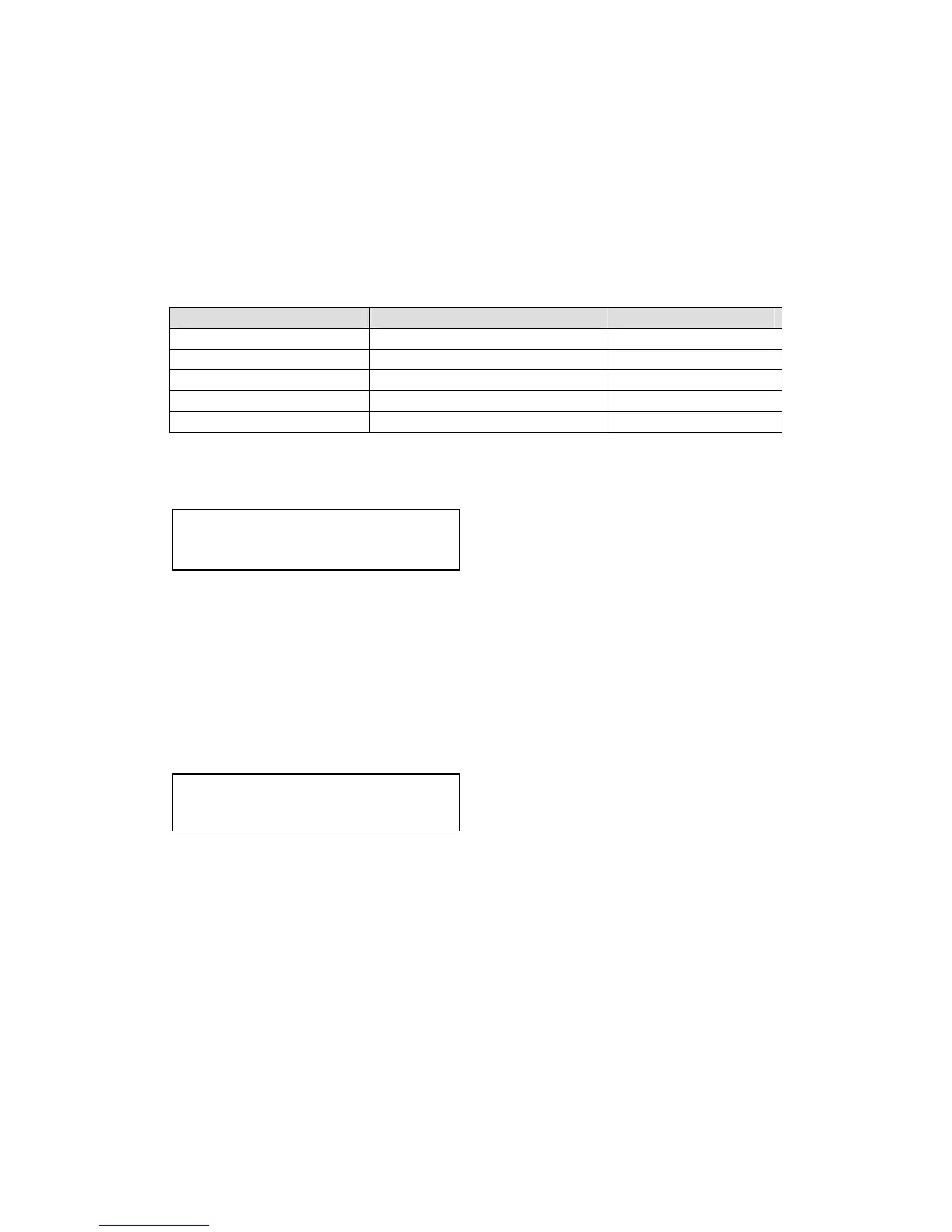
Simple Advanced Pixel
Zoom level % [100] Zoom H/V [100]100 1.333:1 In [ 0],0 640,480
H/V zoom pan% [50] 50 H/V zoom pan% [50] 50 Out [ 0],0 640,480
H/V crop % [ 0] 0 H/V crop % [ 0] 0
Shrink level % [50] Off ShrnkH/V [50] 50 1.333:1
H/V position % [50] 50 H/V position % [50] 50
9.6.2 ‘Aspect adjust’ = ‘Advanced’
This item allows the independent setting of the horizontal and vertical zoom
values. The third number (1.333 in the example) is the Aspect Ratio resulting
from the adjustments, which is automatically calculated for you based on the
incoming resolution and the H & V Zoom values.
Most resolutions are 4:3 ratio, thus the third number will be 1.333 (4 divided
by 3). Another common aspect ratio is 16:9 (16 divided by 9 = 1.777). PAL
and NTSC inputs are physically 4:3 on your video monitor, but their actual
pixel/line ratios are different and so will not display as 1.333.
This item allows the setting of different Horizontal and Vertical ‘shrink’ sizes.
The third number (1.333 in the example) is the Aspect Ratio resulting from the
adjustments, which is automatically calculated for you based on the output
resolution (the actual pixels & lines, not your physical screen size) and the H
& V Shrink values.
Most resolutions are 4:3 ratio, thus the third number will be 1.333 (4 divided
by 3). Another common aspect ratio is 16:9 (16 divided by 9 = 1.777).
Therefore, to convert your 4:3 output into a 16:9 output, reduce the vertical (V)
Shrink value to 75% and this will simulate a 16:9 output. PAL and NTSC
inputs are physically 4:3 on your video monitor, but their actual pixel/line ratios
are different and so will not display as 1.333.
Adjust windows
Shrink H/V % [100] [100] 1.333
Adjust windows
H/V zoom % [100] [100]1.333:1


 To Next Page