Ubee Interactive Using the Advanced Option
Ubee EVW32C Advanced Wireless Voice Gateway Subscriber User Manual • March 2017 65
6.4.9 Using the DMZ Option
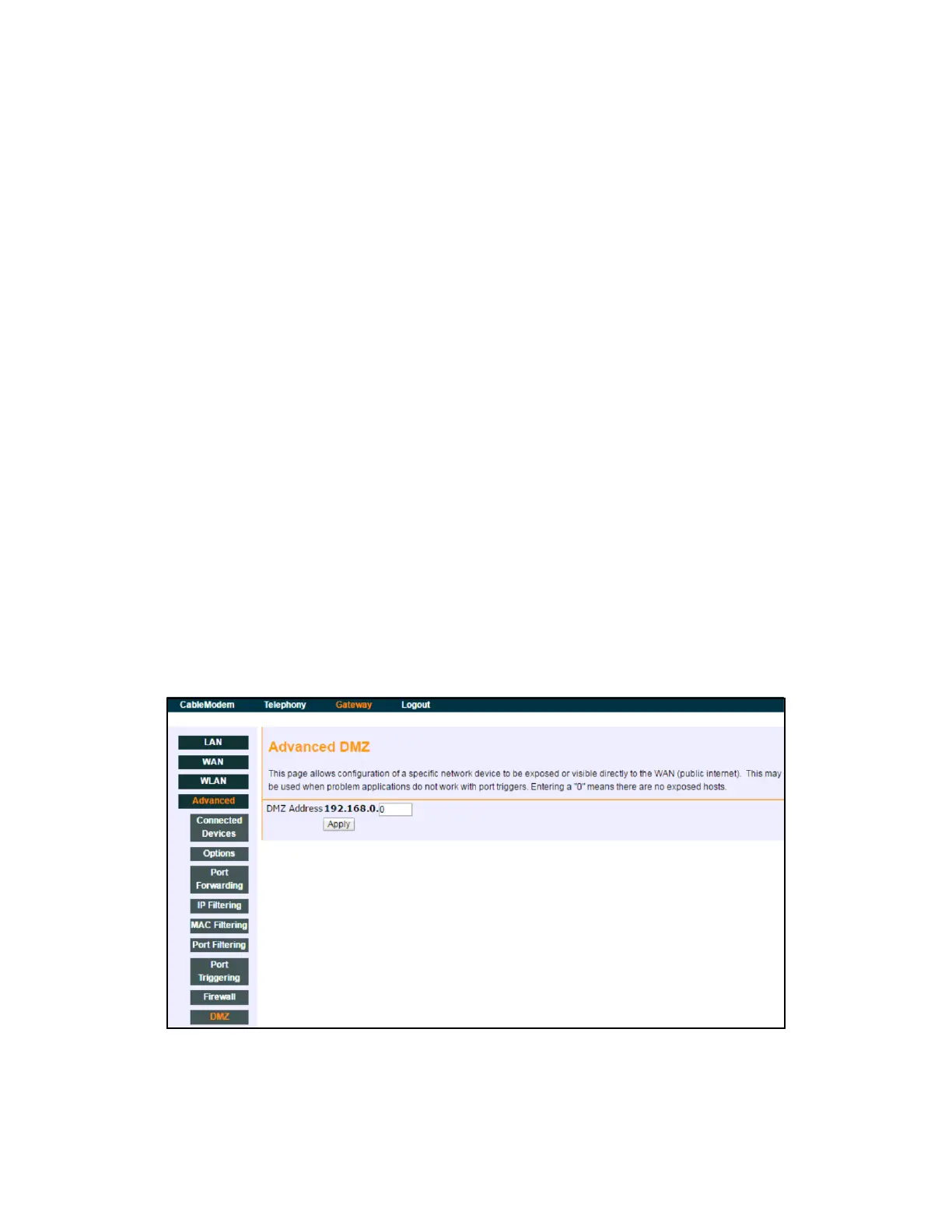
Use the DMZ (demilitarized zone) option to expose a host IP address to the WAN (public
Internet). Putting a host in the DMZ outside the firewall is a quick and easy way to enable
remote access and functionality of devices such as home routers, web cameras, VoIP
phones, gaming consoles and other such devices without having to set up more
complicated port forwarding or port triggering configurations.
To set up a DMZ host
1. Connect a PC to an Ethernet port on the EVW32C. Make sure both devices are
powered on and functioning.
2. Connect a home gateway (or other device you wish to be in the DMZ) to an Ethernet
port on the EVW32C.
3. Log in to the EVW32C Web user interface.
4. Click Gateway from the main menu.
5. Click Advanced from the left side menu.
6. Click DMZ under the Advanced options.
7. Enter the IP address of the home gateway or other device you wish to be exposed to
the WAN.
8. Test the device to ensure Internet access is available and the device is functional. For
example, connect to the Internet from a PC connected to the home gateway, or make
a call from a VoIP phone.
Field descriptions follow the screen sample below.


 To Next Page