ULEAD VIDEOSTUDIO USER GUIDE
10
Setting project properties
Project Properties serve as your template for previewing your movie projects.
The project settings in the Project Properties dialog box determine the appearance
and quality of a project when it is previewed on-screen. To customize project
settings, select File: Project Properties.
Adding clips
There are three ways you can do to add clips to your project:
• Capture video clips from a video source. The video clips will be inserted onto
the Video Track.
• Drag clips from the Library onto the correct tracks.
• Click to directly insert media files to the different tracks.
Previewing
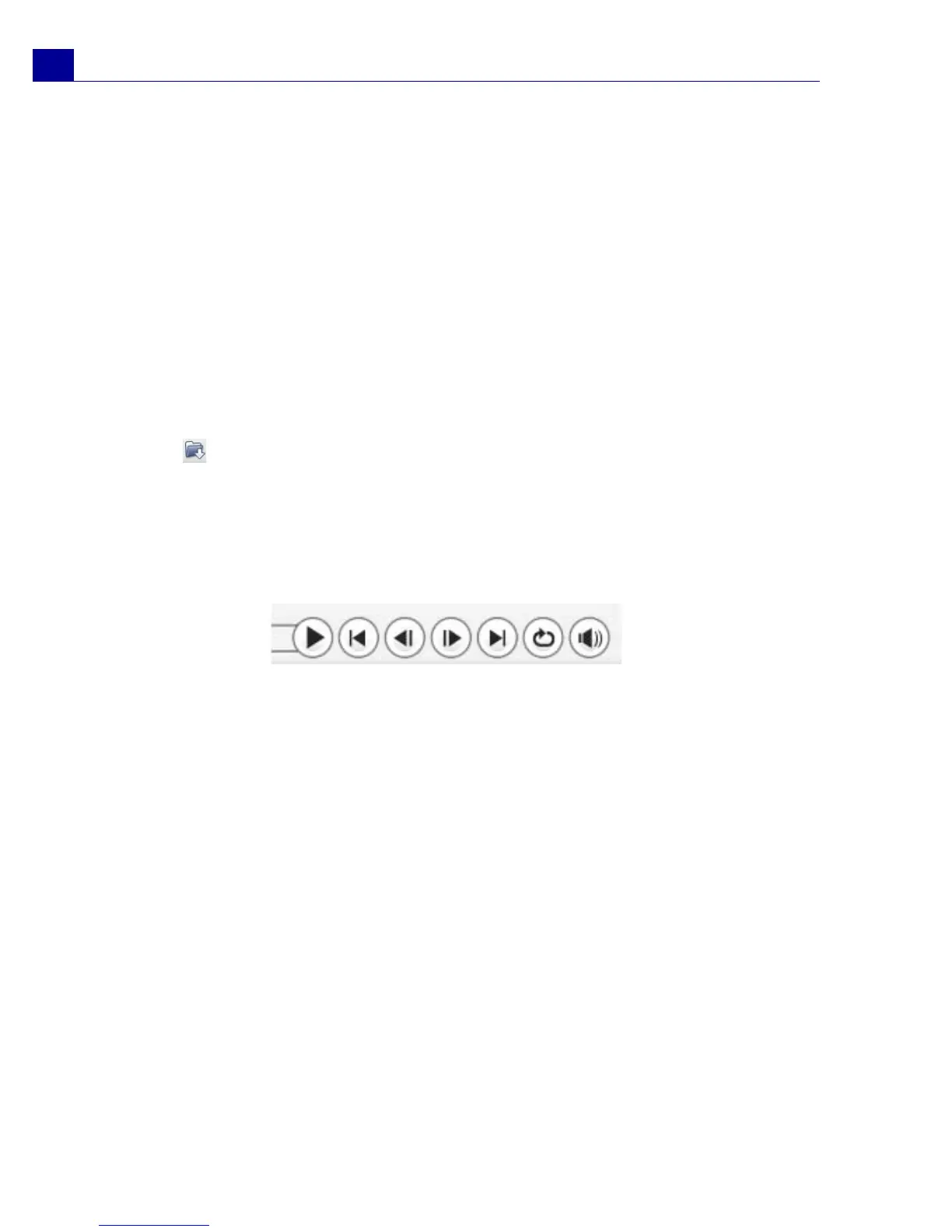
The Play button in the Navigation Panel serves two purposes: for playback of
your entire project or a selected clip. To play back, click Project or Clip, then click
Play.
VideoStudio offers you two preview options: Instant Playback and High Quality
Playback. Select File: Preferences - General, then choose the preview method
that you prefer in Playback method.
Saving your project
While composing your movie project, select File: Save [Ctrl + S] to frequently
save your project. To automatically save your work, select File: Preferences then
select Auto save duration and specify the time interval between saves.



 To Next Page