ULEAD VIDEOSTUDIO USER GUIDE
32
Title
While a picture may be worth a thousand words, the text in your video production
(i.e., subtitles, opening and closing credits, etc.) adds to the clarity and
comprehensibility of your movie. In VideoStudio's Title Step, create professional-
looking titles, complete with special effects, in minutes.
Adding text
Ulead VideoStudio allows you to add text either in multiple text boxes or in a single
text box. Using multiple text boxes gives you the flexibility to position the different
words of your text anywhere on the video frame and allows you to arrange the
stacking order of the text. Use a single text box when you are creating opening
titles and end credits for your projects.
To add multiple titles:
1. In the Options Panel, select Multiple titles.
2. Use the buttons in the Navigation Panel to scan your movie and select the
frame where you want to add the title.
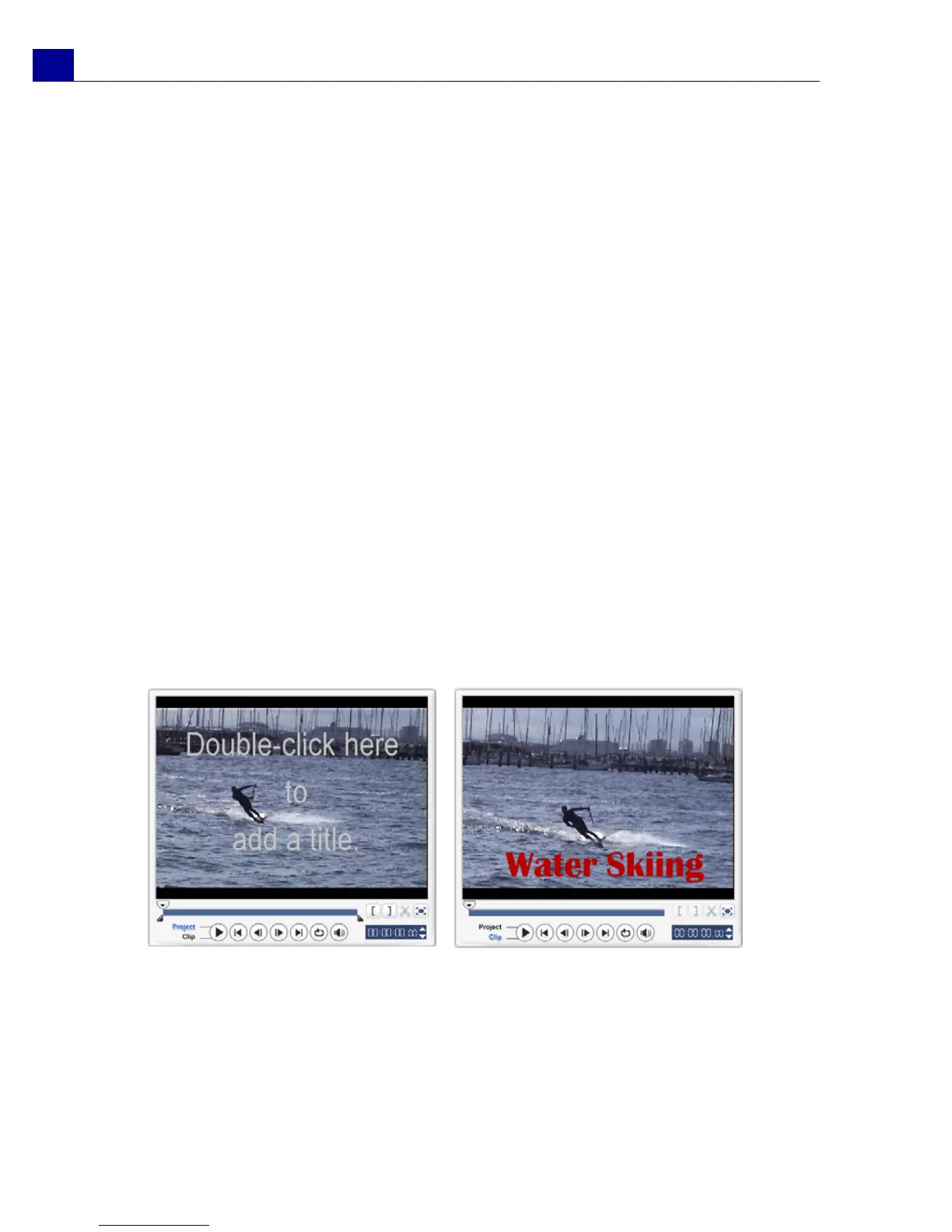
3. Double-click the Preview Window and type in your text.
Click outside the text box when you are done typing. To add another set of text,
double-click again on the Preview Window.
4. Repeat step 3 to add more sets of text.



 To Next Page