ULEAD VIDEOSTUDIO USER GUIDE
53
5. When you're done, click Go to the preview step to preview the movie.
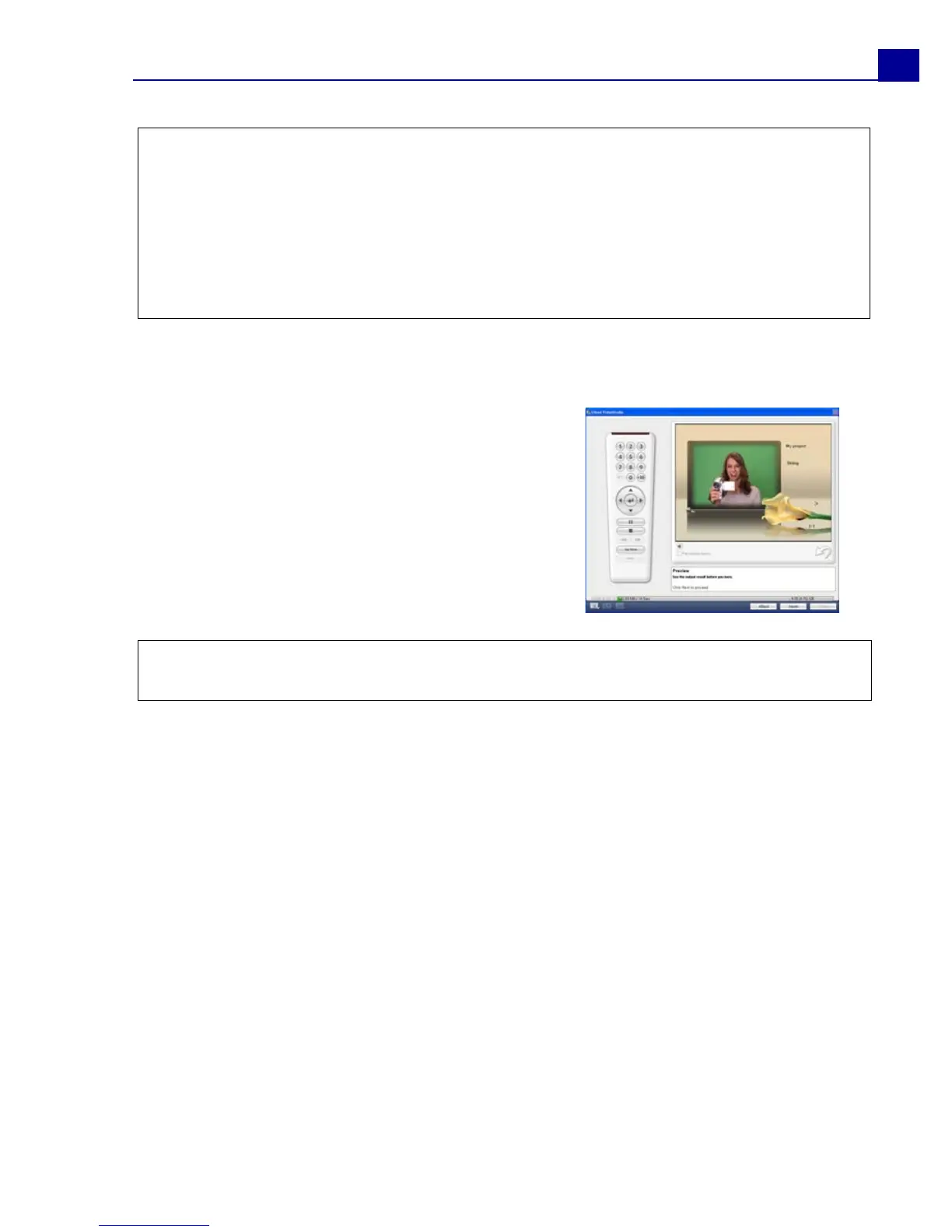
Previewing
Now, it's time to see how your movie looks like
before you burn it onto a disc. Simply move
the mouse and click Play to watch your movie
and test the menu selection on your computer.
Use the navigation controls here as you would
on a standard remote control of a home DVD
player.
Burning your project onto a disc
This is the final step in the disc creation process. You can burn your movie onto a
disc, create a DVD folder structure on your hard drive so you can play the DVD
Tips:
•Select Motion Menu to enable motion attributes to the selected menu template.
• Click Layout Settings to specify whether to apply layout to all pages of the menu,
reset the page, or reset all pages of the menu.
• Click Advanced Settings to specify whether to add a title menu, create a chapter
menu, or display the thumbnail numbers in the Chapter List.
• Click Customize to apply pan & zoom, motion filter and, menu in and menu out
effects.
Tip: As you move between controls, a Tool Tip pops up and tells you its specific
function.



 To Next Page