ULEAD VIDEOSTUDIO USER GUIDE
54
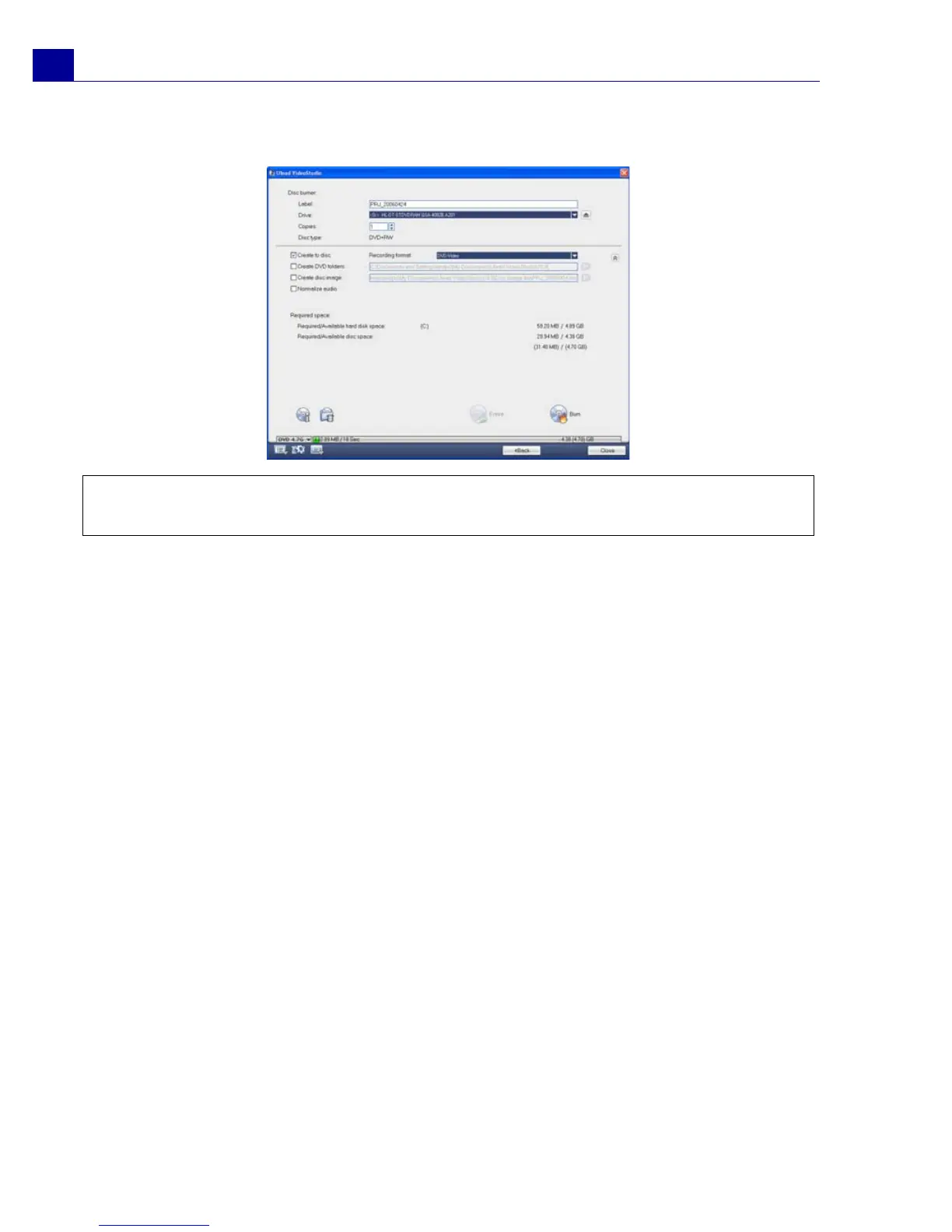
movie on your computer or create a disc image file of your movie to save on your
hard drive.
To burn your movie onto a disc:
1. Click Next after you preview your project.
2. Click Show more output options to show other output options.
•Select Create DVD folders to create folders for your project and specify
their location.
•Select Create disc image file to make an ISO image file of the DVD for later
use.
•Select Normalize audio to make sure that irregular audio levels during
playback are prevented.
3. Click Burning Options to define additional burner and output settings.
4. Click Burn to start the burning process.
5. After successfully burning your disc, a dialog box appears from which you can
select the next step.
• Close prompts you to save your work and close Ulead VideoStudio.
Tip: For details about the different disc formats, you can refer to Appendix C:
Technology Overview - DVD, VCD and SVCD.



 To Next Page