ULEAD VIDEOSTUDIO USER GUIDE
30
To apply a filter to the current overlay clip:
You can apply video filters to your overlay clips. For more details on how to apply,
you can refer to Edit: Applying video filters.
To use the same attributes for different overlay clips:
You can use the attributes (size and position) of one overlay clip and apply it to a
different overlay clip on your movie project. To apply the same attributes, first
right-click the source overlay clip then select Copy Attributes. Next, right-click
the target overlay clip then select Paste Attributes.
Adding Objects or Frames
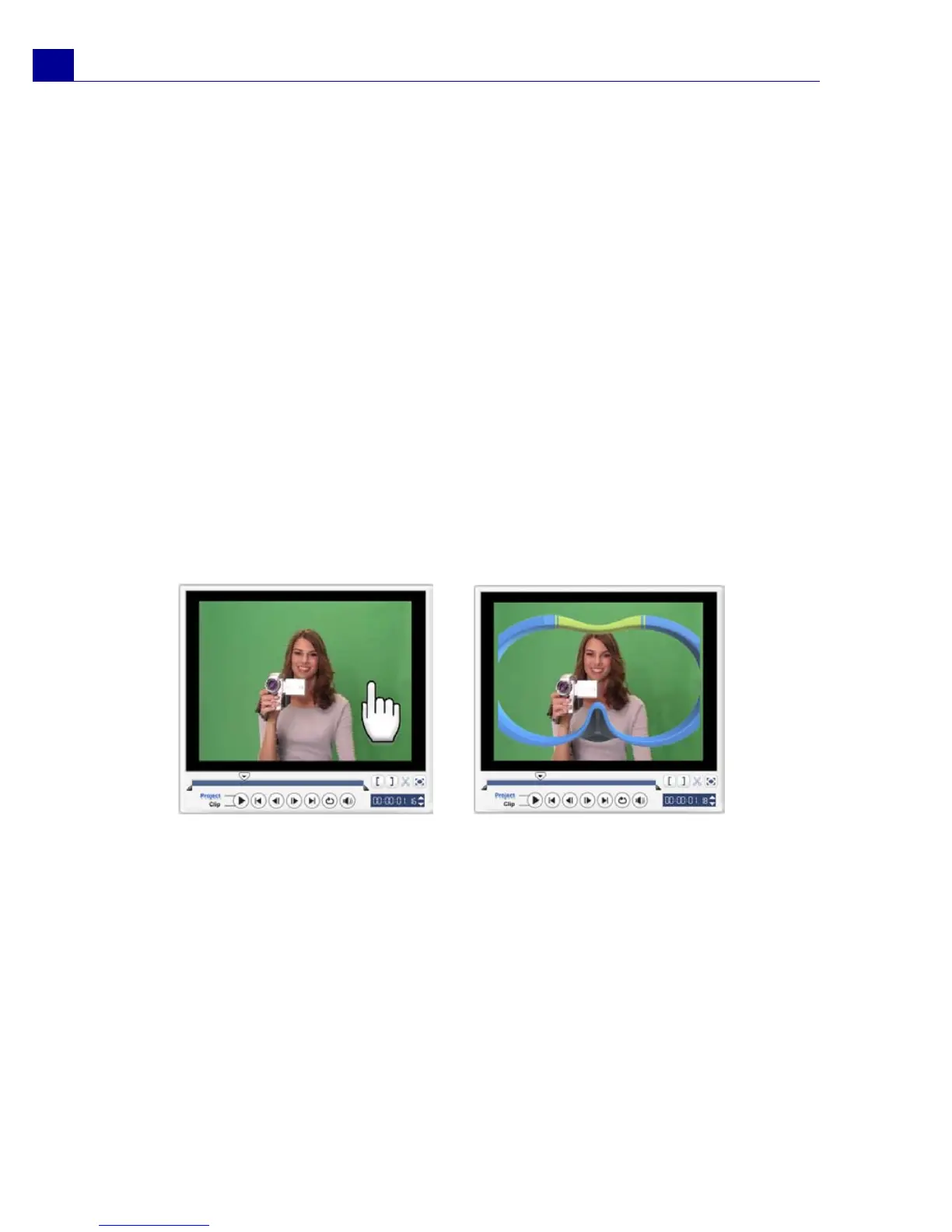
Add decorative objects or frames for your videos as overlay clips.
To add an object or frame:
1. In the Library, select Decoration: Object/Frame in the Folder list.
2. Select an object/frame then drag it onto the Overlay Track on the Timeline.
3. Click the Attribute tab to resize and reposition the object/frame.
Adding Flash animations
Give more life to your videos by adding Flash animations as overlay clips.
To add a Flash animation:
1. In the Library, select Flash Animation in the Folder list.
Object
Frame



 To Next Page