ULEAD VIDEOSTUDIO USER GUIDE
29
To resize the current overlay clip:
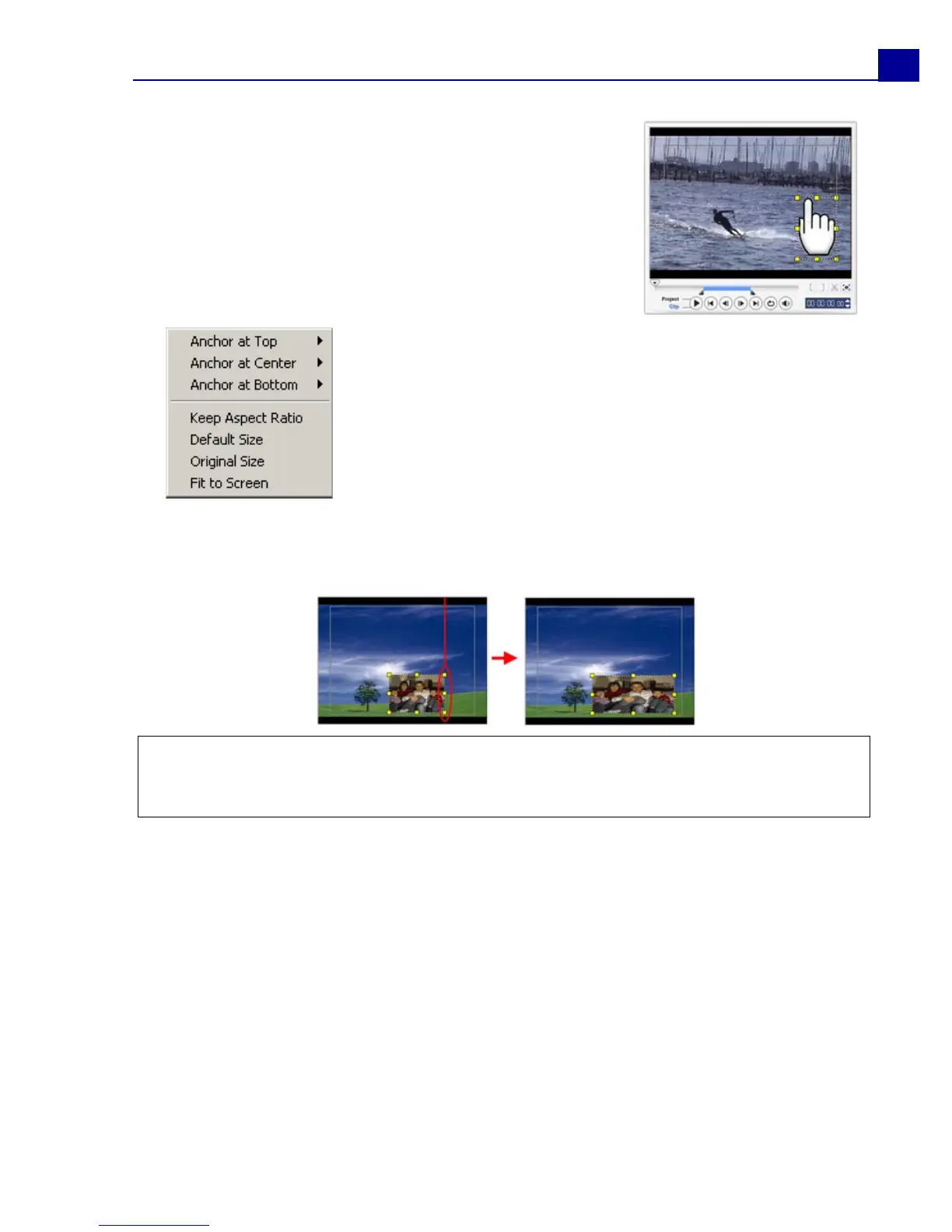
In the Attribute tab, drag a handle on the overlay clip
on the Preview Window to resize it. If you drag a
yellow corner handle, it will keep the aspect ratio when
you resize the clip.
It is recommended that you keep the overlay clip
within the title safe area.
The Keep Aspect Ratio option resizes the overlay clip based on the width or
height, depending on which is longer in length, of the overlay clip.
To reposition the current overlay clip:
In the Attribute tab, drag the overlay clip to the desired area on the Preview
Window.
You can also right-click the overlay clip on the Preview Window to open a menu
where you can automatically place the overlay clip in a preset position on the
video. It is recommended that you keep the overlay clip within the title safe area.
You can also right-click the overlay clip on the Preview
Window to open a menu where you can resize the
overlay clip to keep the aspect ratio, revert it to the
default size, use the original size of the overlay clip, or
resize it to occupy the entire screen.
Note: When you resize the overlay clip then go back to the Edit tab, the clip will
appear to have resized back to its original size. This is only for editing purposes, the
overlay clip retains its properties.
longer side



 To Next Page