ULEAD VIDEOSTUDIO USER GUIDE
45
4. Click OK.
Creating and saving a video file
Before rendering your entire project into a movie file, select File: Save or Save As
to save it first as a VideoStudio project file (*.VSP). This allows you to return to
your project anytime and make edits.
If you want to preview your project before creating a movie file, switch to Project
Mode and click Play in the Navigation Panel. How the project is played back
depends on the option you have selected in File: Preferences - General tab -
Playback method.
To create a video file of the entire project:
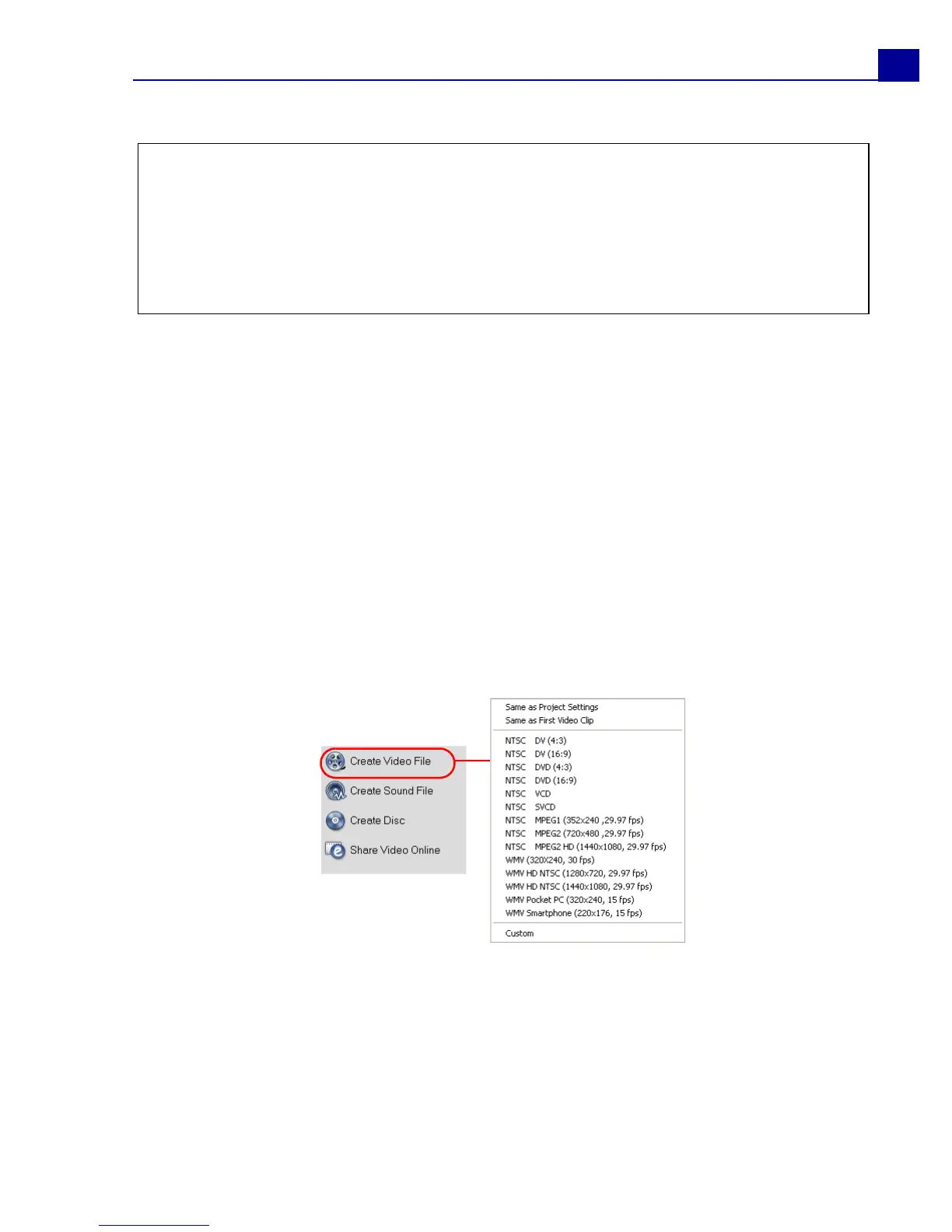
1. Click Create Video File in the Options Panel. A selection menu of movie
templates then opens.
Notes:
• Movie templates will appear in a selection menu when you click Create Video File
in the Share Step. If you do not want to use a movie template, you can select
Custom from the pop-up menu. This allows you to choose your own settings for
creating the final movie or simply use the current project settings.
• To modify the settings of a movie template, click Edit in the Make Movie Manager
dialog box.



 To Next Page