ULEAD VIDEOSTUDIO USER GUIDE
22
Pan & Zoom
Pan & Zoom is applied to still images, and it emulates the pan and zoom effect of
a video camera. To apply this effect to an image, select an image clip in the
Timeline, then select Pan & Zoom and click Customize Pan & Zoom.
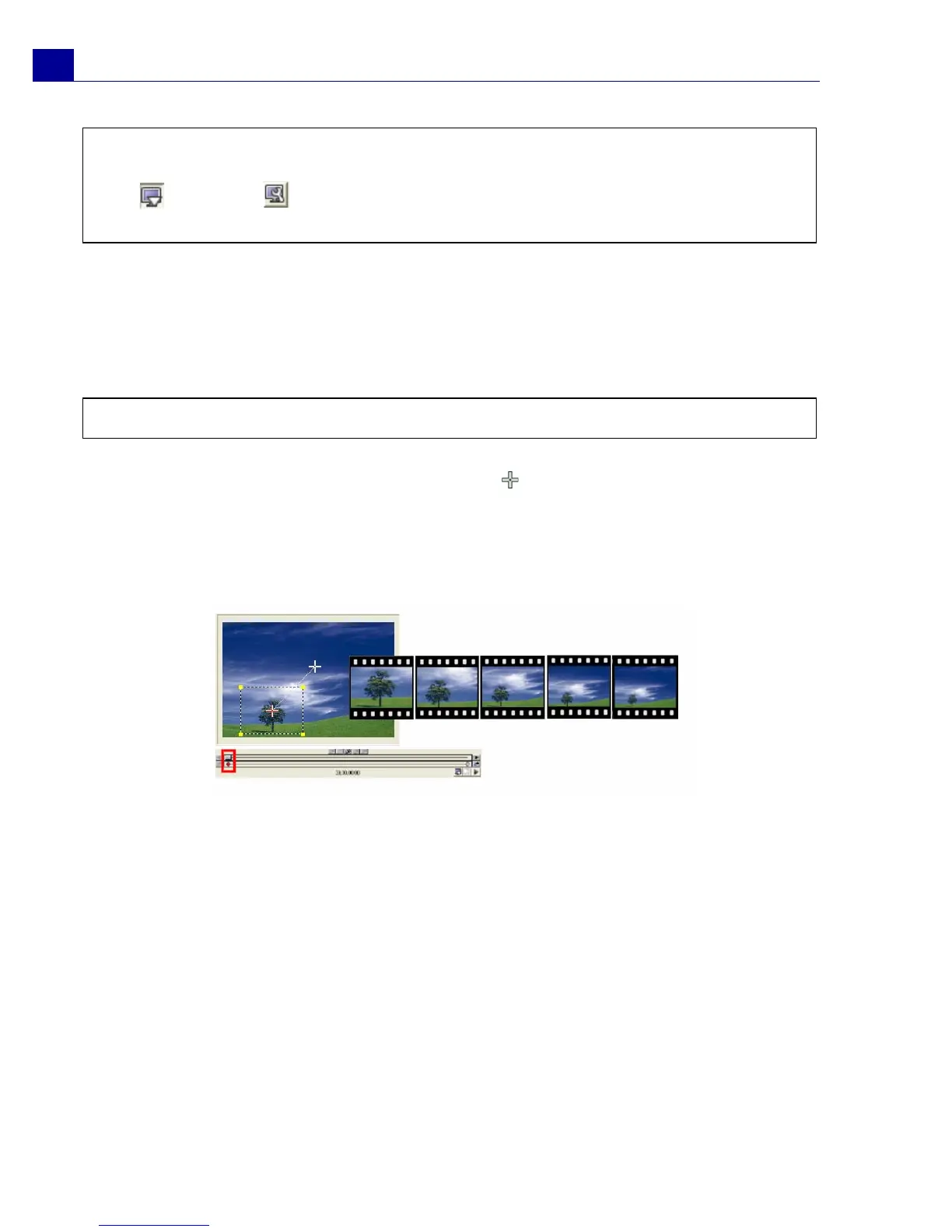
In the Pan & Zoom dialog box, the crosshairs in the Image Window represent
the key frames in the image clip where settings can be customized to produce the
pan and zoom effect. When customizing each key frame, use the Image Window to
focus on an area or to pan the image; use the Options tab settings to customize the
zooming effect.
Tip: You can preview the clip with applied video filter on VideoStudio’s Preview
Window or an external device such as a TV monitor or DV camcorder.
Click , then click to open the Preview Playback Options dialog box where
you can choose the display medium.
Note: Pan & Zoom cannot be applied to masked images.



 To Next Page