ULEAD VIDEOSTUDIO USER GUIDE
27
4. Click the Attribute tab. The overlay clip is then resized to a preset size and
positioned at the center. Use the options in the Attribute tab to apply motion to
the overlay clip, add filters, resize and reposition the clip, and more.
To apply motion to the current overlay clip:
In the Attribute tab, select where the overlay clip will Enter and Exit the screen
under Direction/Style. Click a specific arrow as to where you want your clip to
enter and exit in your movie.
To apply transparency to the current overlay clip:
Tips:
• To make overlay clips with transparent backgrounds, you can create a 32-bit alpha
channel AVI video file or an image file with an alpha channel. You can use an
animation program such as Ulead COOL 3D Production Studio or an image editing
program such as Ulead PhotoImpact to create these video and image files.
• Another alternative is to use VideoStudio’s Mask & Chroma Key function to mask a
specific color on an image.
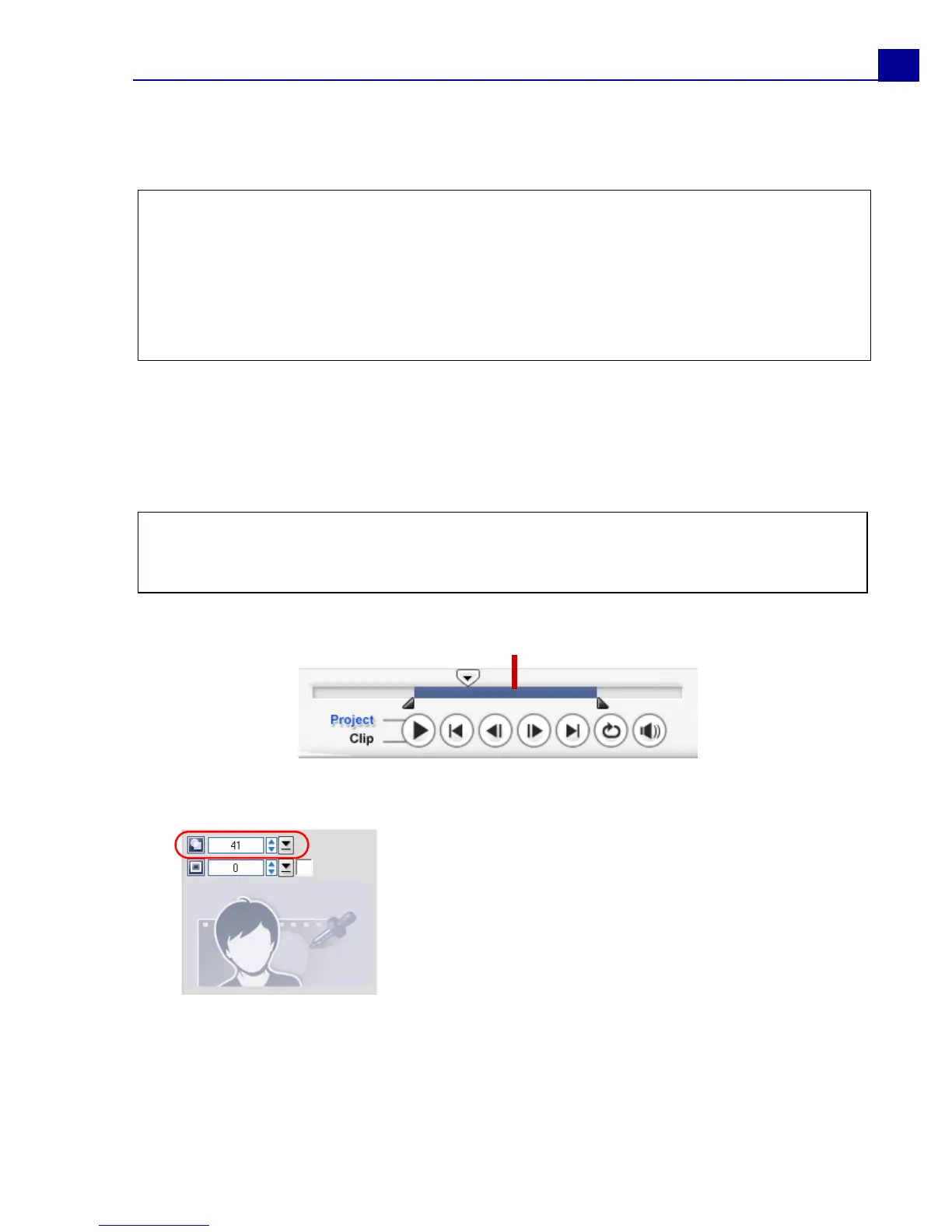
Tip: Pause Duration determines how long your pause will be in the designated area
before the clip exists the screen. If you applied motion to the overlay clip, drag the
Trim handles to set the Pause Duration.
In the Attribute tab, click Mask & Chroma Key
to go to the Overlay Options Panel. Drag the
Transparency slider to set the opacity of the
overlay clip.
Pause Duration



 To Next Page