DIGITAL TV (FREEVIEW) MENU OPERATION
System Settings
1) Press [DVB-MENU]
2) Press [\/] 3 times to select System
Settings
3) Press [OK]
First Time Installation/Reinstall
First Time Installation is highlighted,
Press [OK]. You will then
be prompted on screen. Press [<] to
highlight Confirm and then press [OK]
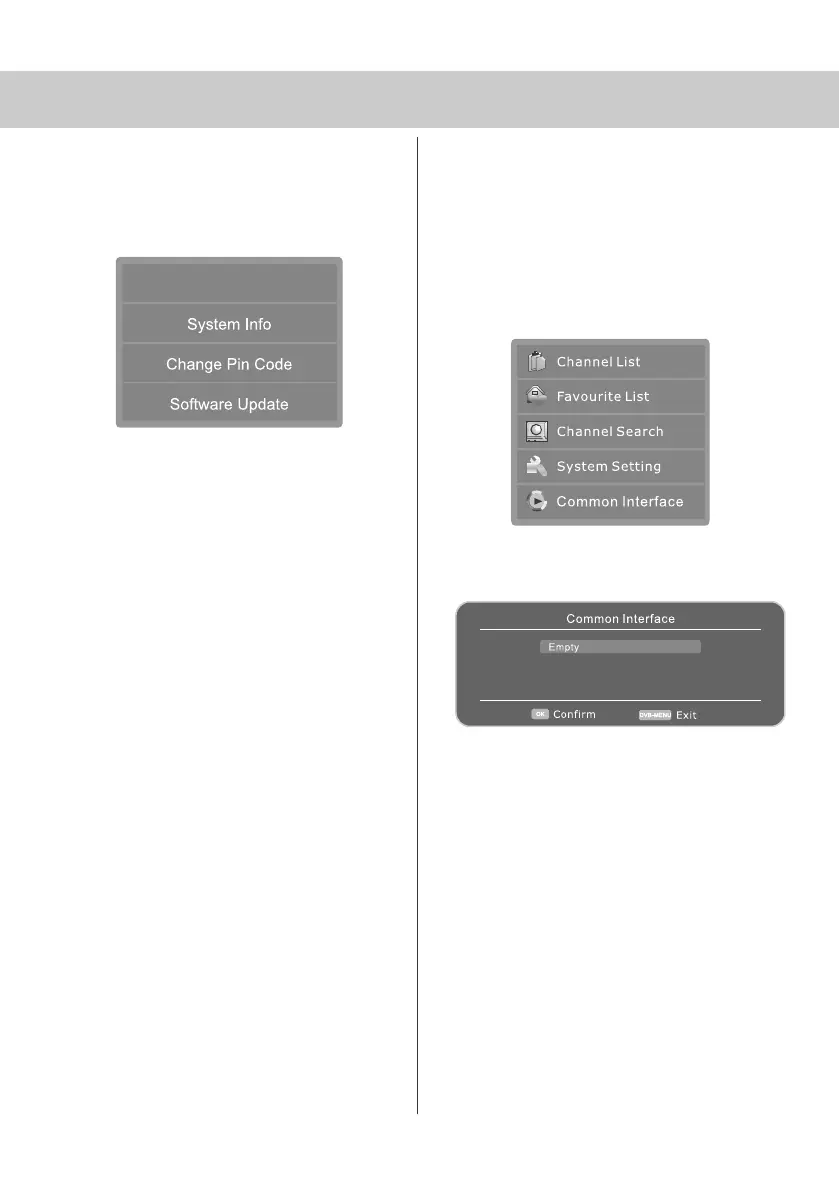
System Info
You may be asked by a service engineer
which version of software your TV has.
Press [\/]
Press [OK]
Software version will now be displayed
on screen.
Setting / Changing Pin Code
Pin code is used for locking channels. You
may wish to change it to a memorable
number. Once changed it can only be reset
by switching the TV back to factory settings
(see page 17).
Press [\/] twice
Press [OK]
Enter old pin code
(default is 888888)
Enter new pin code
Enter again
Press [OK] to confirm
Software update
This mode is so a service engineer can
perform software update, as default
it should be set to Auto.
4) After you have finished with this menu
press [DVB-MENU] twice to exit menu
15
Common Interface Port
Pay per view services require a “smartcard” to be
inserted into the TV. If you subscribe to a pay per
view service the provider will issue you with a ‘CAM’
card “smartcard”. The CAM can then be inserted into
the COMMON INTERFACE PORT (see page 9).
To access the card follow the steps below.
1) Press [DVB-MENU]
2) Press [\/] 4 times to select Common Interface
3) Press [OK]
You will now see the above screen, if a card
is inserted it will be listed.
4) Press [OK] to access the card service.
First Time Installation
19_18 english manual 15.pdf 4. 5. 2009 9:43:38


 To Next Page