21
TV MENU OPERATION
GENERAL SETTINGS
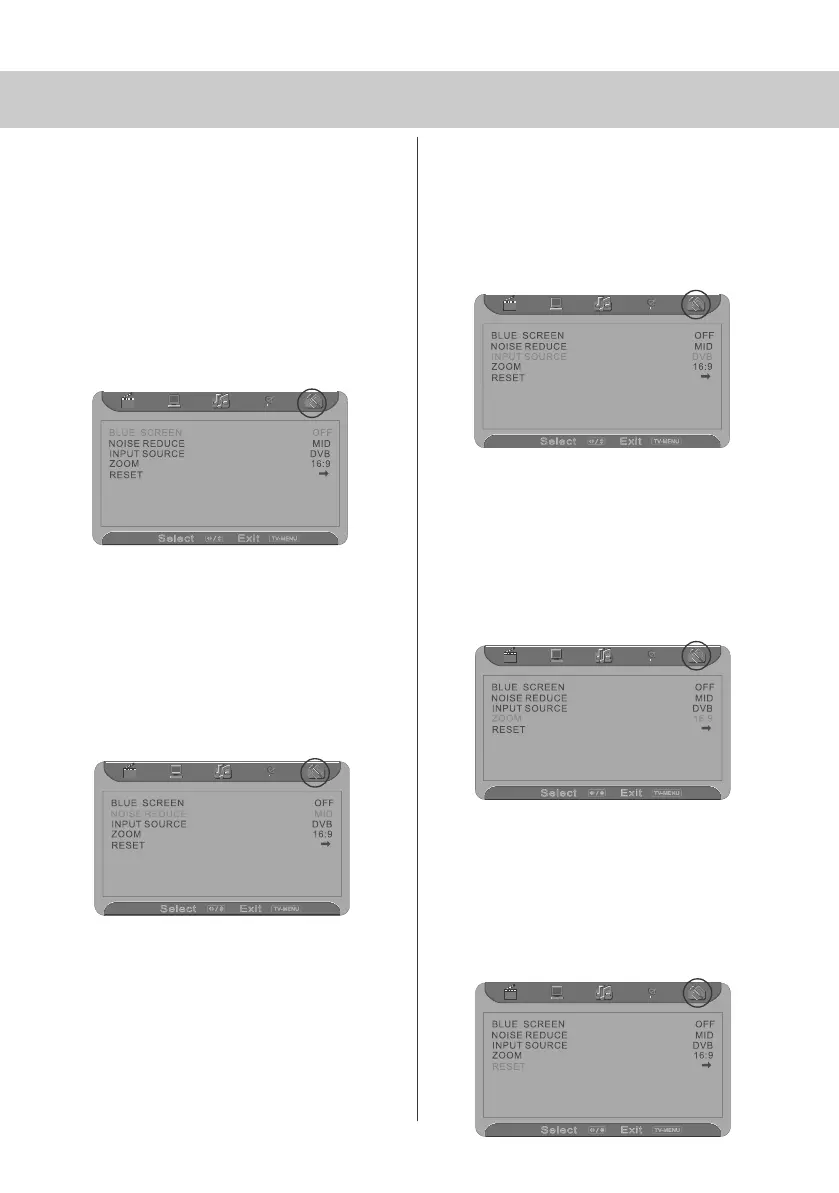
Adjusting Blue Screen
Changes the background when there is no
input between clear and a blue
background
1) Press [LCD-MENU] to enter menu
2) Press [>] twice to go to General menu
3) Press [\/] to select Blue Screen
4) Then press [>] or [<] to change
between on and off
5) Press [LCD-MENU] twice to exit
Noise Reduce
Reduces the interference in the picture
1) Press [LCD-MENU] to enter menu
2) Press [>] twice to go to General menu
3) Press [\/] twice to select Noise Reduce
4) Then press [>] or [<] to change
between LOW, MID, HIGH, OFF
5) Press [LCD-MENU] twice to exit
Adjusting Input Source
You may wish to change the input which is being used
1) Press [LCD-MENU] to enter menu
2) Press [>] twice to go to General menu
3) Press [\/] 3 times to select Input Source
4) Then press [>] or [<] to change between
DVB, TV, SCART, YPBPR, HDMI, DVD, PC-RGB
5) Press [LCD-MENU] twice to exit
Adjusting Picture Format
You may wish to change picture format between 16:9
and 4:3.
1) Press [LCD-MENU] to enter menu
2) Press [>] twice to go to General menu
3) Press [\/] 4 times to select Zoom
4) Then press [>] or [<] to change between 16:9
and 4:3
5) Press [LCD-MENU] twice to exit
Reset
You may wish to reset the menus to factory settings
e.g. if you have forgotten a changed password
1) Press [LCD-MENU] to enter menu
2) Press [>] twice to go to General menu
3) Press [\/] 5 times to select Reset
4) Then press [>] to reset
19_18 english manual 21.pdf 4. 5. 2009 9:51:31


 To Next Page