18
NOTE: The next steps differ depending on the authentication method that you have selected.
Proceed to Step 17 of either section A or B.
Section A - Connecting to devices using the WPA2-PSK or Mix Mode WPA2/WPA
authentication
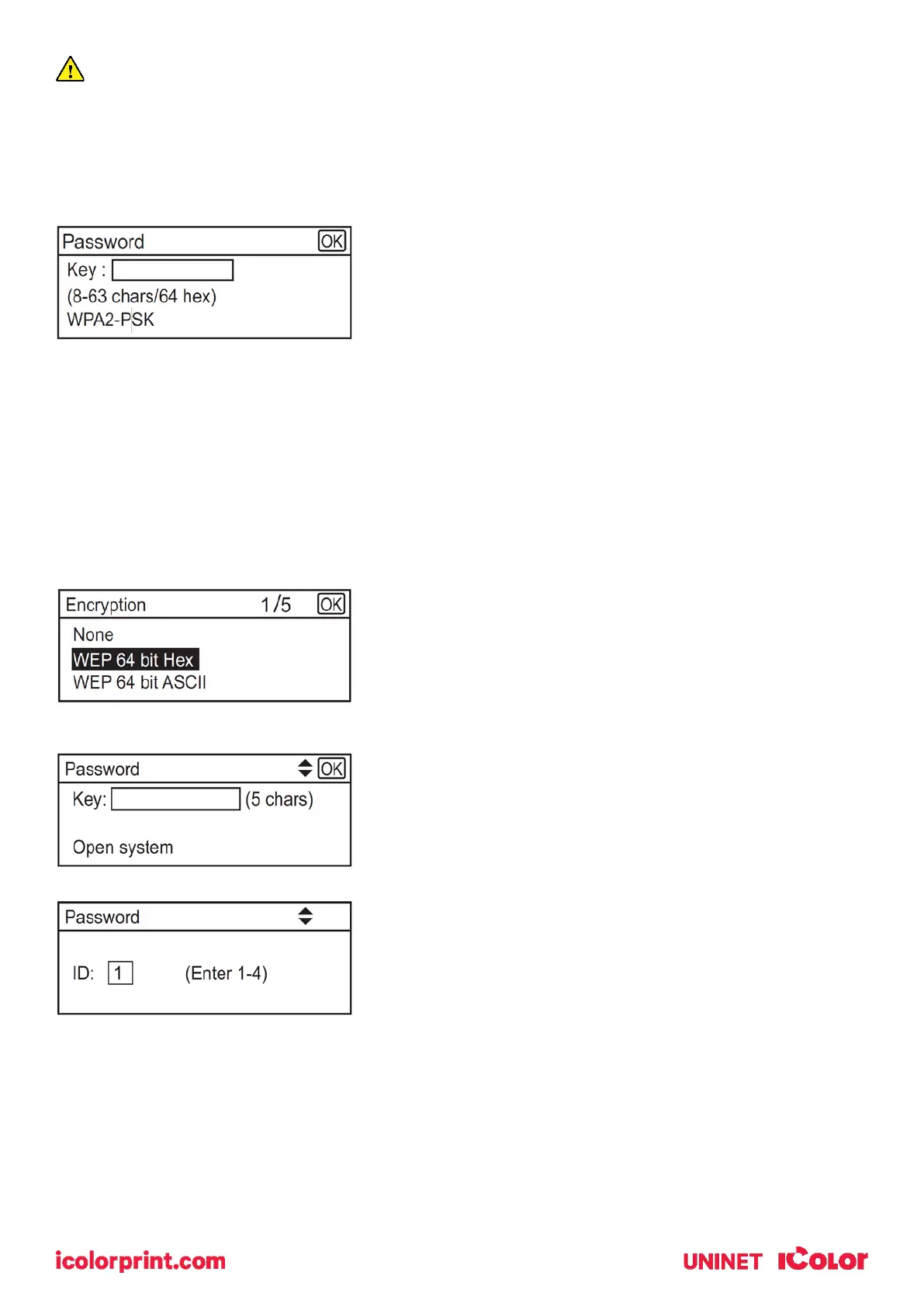
10. Enter the encryption key (Passphrase) using the up/down keys, and then press the [OK] key.
As the passphrase, you can enter either 8 to 63 ASCII characters
(0x20-0x7e) or 64 hexadecimal digits (0-9, A-F, a-f).
• To go to the next characters, press the [OK] key.
• Press the [Escape] key to clear all characters.
11. After connecting to the network, the Wi-Fi screen is displayed.
12. Using the up/down keys, select [Wi-Fi Status], and then press the [OK] key.
• When "Connected" is displayed, the connection has been established.
• If "Disconnected" is displayed, the connection has not been established. Start again from the
beginning.
Section B - Connecting to the devices using the Open System or Shared Key authentication
13. Using the up/down keys, select the encryption method, and then press the [OK] key.
• The max number of characters that can be entered in the
encryption key field depends on the encryption method settings.
• Do not select [None] except in special circumstances. If
selected, the security system will not work.
14. Enter the encryption key using the up/down keys, and then press the [OK] key.
• To go to the next characters, press the [OK] key.
• Press the [Back] key to clear all character.
15. Enter the ID using the up/down keys, and then press the [OK] key.
• The ID is used for identifying the encryption key. You can
register four encryption keys (ID 1 to 4).
20. Enter password, then press the [OK] key.
• After connecting to the network, the Wi-Fi screen is displayed.
21. Using the up/down keys, select [Wi-Fi Status], and then press the [OK] key.
• When "Connected" is displayed, the connection has been established.
• If "Disconnected" is displayed, the connection has not been established. Start again from the
beginning.


 To Next Page