47
Removing Paper Jams
Caution
• The inside of this machine becomes very hot. Do not touch the parts labeled (indicating a hot
surface).
• Some of this machine's internal components get very hot. For this reason, take care when removing misfed
paper. Not doing so could result in burns.
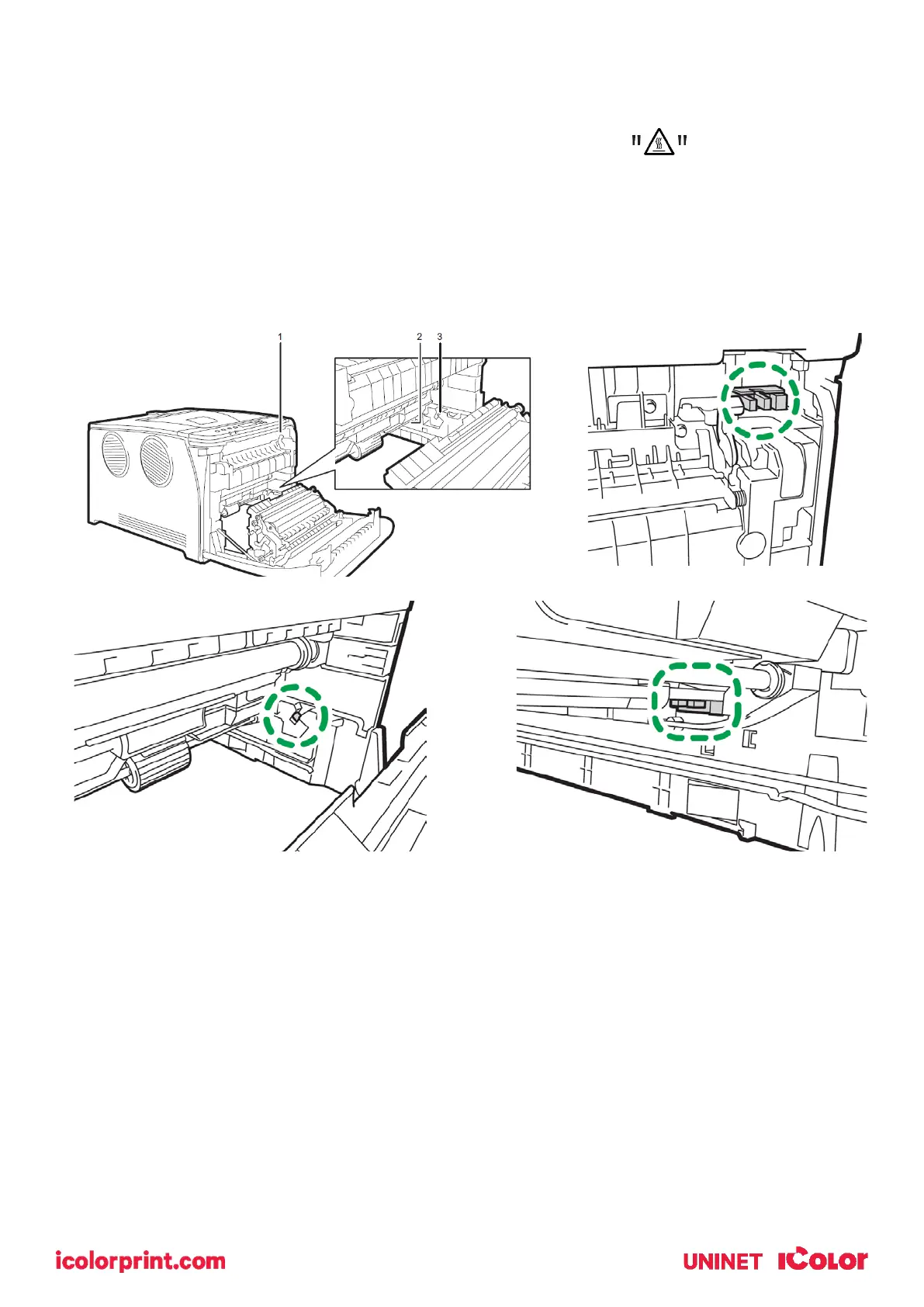
• Some of the internal components of this machine might be fragile. When you remove jammed paper, do not
touch the sensors, connectors, LEDs, or other fragile parts that are shown in this manual. Doing so may cause
malfunctions.
For the location of the sensors in the machine and extended options, see the following illustrations:
Important
• Jammed paper may be covered in toner. Be careful not to get toner on your hands or clothes.
• Toner on prints made immediately after clearing a paper jam may be insufficiently fused and may smudge.
Make test prints until smudges no longer appear.
• Do not forcefully remove jammed paper, as it may tear. Torn pieces remaining inside the machine will cause
further jams and possibly damage the machine.
• Paper jam can cause pages to be lost. Check your print job for missing pages and reprint any pages that did not
print out.
If paper jams inside the fusing unit, follow the procedure below to remove it.
• Since the temperature around the guide is high, wait for it to cool down before checking for jammed paper.


 To Next Page