40
Maintaining your Printer
Replacing the Print Cartridges
• Store print cartridge in a cool dark place.
• Actual yield varies depending on image volume and density, number of pages printed, paper type and size, and
environmental conditions such as temperature and humidity.
• The manufacturer shall not be responsible for any damage or expense that might result from the use of parts
other than genuine parts from the manufacturer with your office products.
• When the toner runs out, pressing the [Stop/Start] key allows you to print a few more pages, but the print
quality of those pages may be lower.
• Do not allow paper clips, staples, or other small objects to fall inside the machine.
• Do not expose the print cartridge without its cover to direct sunlight for a long time.
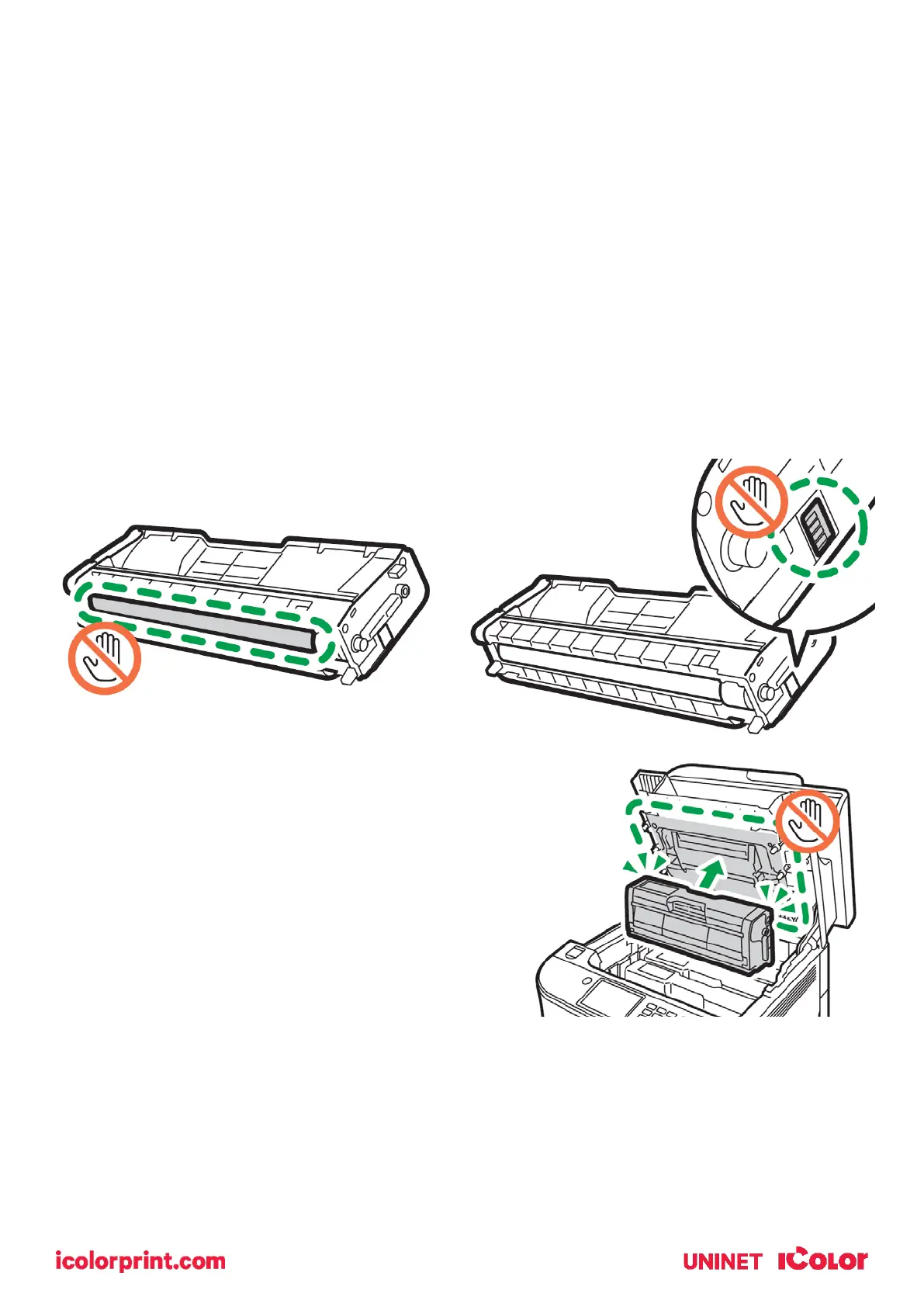
• Do not touch the print cartridge's photo conductor unit or the ID chip on the side of the print cartridge as
indicated in the illustration below.
• When removing print cartridges, be careful not to touch the
laser scanning unit under the upper cover (the position shown
by the arrow in the illustration to the right).
• If cyan, magenta, or yellow toner runs out, you can print in
monochrome using just the black toner. Change the color mode
setting to Black and White using the machine's driver.
• If black toner runs out, you cannot print at all until the black
print cartridge is replaced.


 To Next Page