EasyManua.ls Logo

Uninet DTF 1000 - User Manual

Uninet DTF 1000
29 pages
Print Icon
To Next Page IconTo Next Page
Loading...
USER MANUAL

Other manuals for Uninet DTF 1000

Question and Answer IconNeed help?

Do you have a question about the Uninet DTF 1000 and is the answer not in the manual?

Summary

Product Warning and Usage Restrictions

Professional Use Only

This product is designed exclusively for professional use; manual review is mandatory.

General Safety Precautions

Location and Power Supply Safety

Guidance on safe printer placement and power connection to prevent hazards.

Machine Cleaning and Maintenance Safety

Safe procedures for cleaning and maintaining the printer, avoiding electrical risks.

Operating Safely Around the Machine

Precautions for safe operation, including magnetic fields and flammable materials.

Print Heads, Ink Tanks, and Cartridges Safety

European Union Disposal Regulations

General Printer Information

Product Description and Identification

Overview of the DTF-Model-J printer and its identification details.

General Warnings and Operator Responsibilities

Operator Age and Manual Adherence

Mandatory safety guidelines for operators including age, reading the manual, and PPE.

Printer Warranty Information

Warranty Period and Terms

Details on the warranty duration, coverage, and conditions for the printing system.

Responsibility and Loss of Warranty Conditions

Manufacturer responsibility, liability limits, and conditions that void the warranty.

Jurisdiction for Disputes

Specifies the legal jurisdiction for any disputes related to the product.

Instructions for Printer Use

Preventing Misuse and Damage

Guidelines to prevent common misuse scenarios and protect the printer from damage.

Manual Usage Cautions

Advice on how to properly use and retain the operation and maintenance manual.

Read This First: Essential Safety

Mandatory Safety Instructions

Crucial safety instructions to prevent injury and product/environment damage.

Manufacturer Disclaimer

Responsibility for Misuse and Non-Compliance

Company disclaims responsibility for injury or damage from misuse or non-compliance.

Printer Placement Guidelines

Optimal Environment for Printer Placement

Details the recommended environmental conditions for proper printer placement.

Printer Installation and Unpacking

Unpacking and Handling Procedures

Instructions for safely unpacking and handling the printer during initial setup.

Roll Feeder Setup Instructions

Roll Feeder Assembly and Attachment

Step-by-step guide for assembling and attaching the roll feeder to the printer.

Included Printer Materials

Printer Buttons and Switches Overview

Righthand Side Controls

Description of the buttons and switches on the right side of the printer.

Lefthand Side Controls

Description of the buttons and switches on the left side of the printer.

White Ink Management System (WIMS) Setup

Before Printer Power On: Ink Tank Setup

Ink Tank Installation and Filling Procedure

Steps for installing and filling the CMYK ink tanks before printer operation.

Printer Damper Priming Procedure

DTF Film Loading Instructions

Printer Power On Sequence

Epson Printer Driver Installation

Installing Epson Stylus Photo 1390 Drivers

Guide to downloading and installing the necessary Epson printer drivers and utilities.

Stopping and Canceling Print Jobs Safely

Emergency Printer Shutdown Procedure

Printer Cleaning and Maintenance

Daily Cleaning Tasks and Procedures

Daily maintenance routines to ensure printer longevity and optimal performance.

Head Cleaning and Nozzle Check

Procedures for performing head cleaning and nozzle checks to maintain print quality.

Weekly Maintenance Tasks

Resetting Printer Waste Pads

WIC Reset Program Download and Use

Guide to downloading the WIC Reset Utility for waste pad error resolution.

Purchasing and Applying Reset Keys

Instructions on buying and applying reset keys for the waste pad counter.

Heat Element and Oven Usage for Curing

Optional Software Installation (8 PRT)

R1800 Driver Installation for Software

Steps for installing the Epson R1800 printer driver for optional software use.

Port Configuration for R1800 Driver

How to manually configure the serial port for the R1800 printer driver.

8 PRT Batch Printing Software Installation

8 PRT Software Connection Test

8 PRT Software Configuration and Syncing

Sending Jobs to 8 PRT Task List

Important General Warnings and Precautions

Storage, Operating, and Ink Precautions

Guidelines for optimal storage, operation, and handling of inks and printer.

Computer System Requirements

Minimum System Requirements

Minimum hardware and software specifications for running the printer.

Suggested System Requirements

Recommended hardware and software specifications for optimal printer performance.

Printer Troubleshooting Guide

Common Print Quality Issues

Troubleshooting common print quality problems like blurriness and banding.

Power and Indicator Light Issues

Resolving issues with printer power, flashing lights, and error indicators.

Technical Support Contact Information

Printer Technical Specifications

Key Printer Specifications

Summary of brand, model, colors, print area, and resolution.

Operational and Environmental Data

Details on power, consumption, operating/storage temperatures, and humidity.

Physical Dimensions and Noise

Printer physical dimensions, weight, and noise emission levels.

Summary

Product Warning and Usage Restrictions

Professional Use Only

This product is designed exclusively for professional use; manual review is mandatory.

General Safety Precautions

Location and Power Supply Safety

Guidance on safe printer placement and power connection to prevent hazards.

Machine Cleaning and Maintenance Safety

Safe procedures for cleaning and maintaining the printer, avoiding electrical risks.

Operating Safely Around the Machine

Precautions for safe operation, including magnetic fields and flammable materials.

Print Heads, Ink Tanks, and Cartridges Safety

European Union Disposal Regulations

General Printer Information

Product Description and Identification

Overview of the DTF-Model-J printer and its identification details.

General Warnings and Operator Responsibilities

Operator Age and Manual Adherence

Mandatory safety guidelines for operators including age, reading the manual, and PPE.

Printer Warranty Information

Warranty Period and Terms

Details on the warranty duration, coverage, and conditions for the printing system.

Responsibility and Loss of Warranty Conditions

Manufacturer responsibility, liability limits, and conditions that void the warranty.

Jurisdiction for Disputes

Specifies the legal jurisdiction for any disputes related to the product.

Instructions for Printer Use

Preventing Misuse and Damage

Guidelines to prevent common misuse scenarios and protect the printer from damage.

Manual Usage Cautions

Advice on how to properly use and retain the operation and maintenance manual.

Read This First: Essential Safety

Mandatory Safety Instructions

Crucial safety instructions to prevent injury and product/environment damage.

Manufacturer Disclaimer

Responsibility for Misuse and Non-Compliance

Company disclaims responsibility for injury or damage from misuse or non-compliance.

Printer Placement Guidelines

Optimal Environment for Printer Placement

Details the recommended environmental conditions for proper printer placement.

Printer Installation and Unpacking

Unpacking and Handling Procedures

Instructions for safely unpacking and handling the printer during initial setup.

Roll Feeder Setup Instructions

Roll Feeder Assembly and Attachment

Step-by-step guide for assembling and attaching the roll feeder to the printer.

Included Printer Materials

Printer Buttons and Switches Overview

Righthand Side Controls

Description of the buttons and switches on the right side of the printer.

Lefthand Side Controls

Description of the buttons and switches on the left side of the printer.

White Ink Management System (WIMS) Setup

Before Printer Power On: Ink Tank Setup

Ink Tank Installation and Filling Procedure

Steps for installing and filling the CMYK ink tanks before printer operation.

Printer Damper Priming Procedure

DTF Film Loading Instructions

Printer Power On Sequence

Epson Printer Driver Installation

Installing Epson Stylus Photo 1390 Drivers

Guide to downloading and installing the necessary Epson printer drivers and utilities.

Stopping and Canceling Print Jobs Safely

Emergency Printer Shutdown Procedure

Printer Cleaning and Maintenance

Daily Cleaning Tasks and Procedures

Daily maintenance routines to ensure printer longevity and optimal performance.

Head Cleaning and Nozzle Check

Procedures for performing head cleaning and nozzle checks to maintain print quality.

Weekly Maintenance Tasks

Resetting Printer Waste Pads

WIC Reset Program Download and Use

Guide to downloading the WIC Reset Utility for waste pad error resolution.

Purchasing and Applying Reset Keys

Instructions on buying and applying reset keys for the waste pad counter.

Heat Element and Oven Usage for Curing

Optional Software Installation (8 PRT)

R1800 Driver Installation for Software

Steps for installing the Epson R1800 printer driver for optional software use.

Port Configuration for R1800 Driver

How to manually configure the serial port for the R1800 printer driver.

8 PRT Batch Printing Software Installation

8 PRT Software Connection Test

8 PRT Software Configuration and Syncing

Sending Jobs to 8 PRT Task List

Important General Warnings and Precautions

Storage, Operating, and Ink Precautions

Guidelines for optimal storage, operation, and handling of inks and printer.

Computer System Requirements

Minimum System Requirements

Minimum hardware and software specifications for running the printer.

Suggested System Requirements

Recommended hardware and software specifications for optimal printer performance.

Printer Troubleshooting Guide

Common Print Quality Issues

Troubleshooting common print quality problems like blurriness and banding.

Power and Indicator Light Issues

Resolving issues with printer power, flashing lights, and error indicators.

Technical Support Contact Information

Printer Technical Specifications

Key Printer Specifications

Summary of brand, model, colors, print area, and resolution.

Operational and Environmental Data

Details on power, consumption, operating/storage temperatures, and humidity.

Physical Dimensions and Noise

Printer physical dimensions, weight, and noise emission levels.

Overview

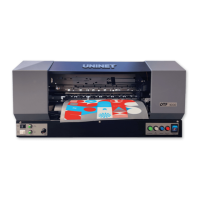
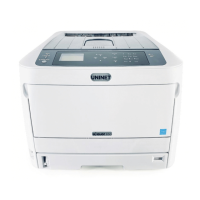
The UNINET™ DTF 1000 is a specialized inkjet printing system designed for professional use in heat transfer applications to various fabrics like cotton and polyester. This manual provides comprehensive instructions for its installation, operation, maintenance, and safety to ensure optimal performance and longevity.

Function Description

The DTF 1000 printer utilizes inkjet technology to print high-quality photos and vector graphics onto specialized PET film. This process is a crucial step in Direct-to-Film (DTF) printing, where textile ink is first printed onto the film, followed by the application of DTF powder, and then cured. The system is designed to work with RIP (Raster Image Processor) software to achieve exceptional resolution and print speeds.

The printer includes a Roll Feeder for continuous media handling, allowing for efficient batch printing. It also incorporates a White Ink Management System (WIMS) to ensure proper agitation and circulation of white ink, preventing sediment buildup and clogs.

Usage Features

Installation and Setup:

The printer requires placement in a dedicated, air-conditioned environment with a temperature range of 60°F to 80°F and relative humidity between 42% and 60%, non-condensing. It should be kept away from direct sunlight, dust, dirt, vibrations, and mechanical impacts.

The Roll Feeder assembly involves attaching side brackets, square rods, and round rods, then securing it to the printer. The printer's power supply and USB cables must be connected to the computer before powering on.

Ink System Preparation:

Before initial use, the CMYK ink tanks need to be filled. It's crucial to seal small breather holes during filling to prevent contamination. The white ink container at the top of the printer must also be filled.

Priming Dampers:

A critical step involves priming the dampers to draw ink through the lines and into the print head. This process requires syringes with 14" gauge tips and involves carefully disengaging, filling, and re-engaging each damper. The print head carriage needs to be unlocked and moved manually for access.

Loading Film:

The printer uses specialized PET film, with the matte side being the print side. Film is loaded from the roll feeder, fed under the printing platform rollers, and aligned using the green buttons that control the rollers.

Powering On:

The printer is powered on by flipping the blue switch to ON, followed by pressing the red button to power on the printing module.

Driver Installation:

The printer requires the "Epson Photo Stylus 1390" driver, which can be downloaded from the Epson website. During installation, it's important to uncheck the option to set it as the default printer and select "Others" for the area location. Updates from Epson should be declined to avoid compatibility issues.

Optional Software (8PRT):

For batch printing, the optional 8PRT software can be installed. This involves installing the R1800 driver (32-bit or 64-bit depending on the PC), configuring the port to "COM 1: Serial Port" manually, and then installing the 8PRT program. The 8PRT folder should be moved to the root of the C Drive. The software needs to be run as an administrator, and the "Epson 1390" printer selected and "Locking" box checked before connecting to sync with the printer. When printing from 8PRT, the feeding setting in AcroRIP must be changed from "Roll Feed" to "Sheet," and the port from "Epson Photo Stylus 1390" to "Epson R1800."

Emergency Stop:

In an emergency, the main power to the entire unit can be turned off by flipping the large blue switch on the right-hand side of the front of the unit.

Heat Element & Oven:

After printing and powdering, the film needs to be cured using a heating device. For a Heating Oven, the temperature should be set to 125° Celsius for 2 minutes. For a Heating Mat, it should be set to 108° Celsius for 2 ½ minutes. Images covering more surface area may require rotation and additional baking time.

Maintenance Features

Daily Maintenance:

  • Shake White Ink Bottle: Daily agitation of the white ink bottle is essential to prevent titanium sediment from settling and causing clogs.
  • Head Cleaning: A head cleaning should be performed daily, regardless of printing activity, to prevent clogged lines, ensure full dampers, and verify print head functionality. This can be initiated by holding the ink button for 7 seconds or through the PC's "Printing Preferences" in the Maintenance tab.
  • Nozzle Check: After head cleaning, a nozzle check should be run to identify any blockages in ink channels. If more than two breaks are present in CMYK channels, repeat head cleaning and nozzle check.
  • WIMS Switches: Ensure both black and white WIMS switches are set to ON at all times to agitate white ink.

Weekly Maintenance:

  • Capping Station: With the printing module on, press the white button (not hold) to move the print head. Turn off the printer's full power using the blue switch. Move the carriage to the far left to expose the capping station. Clean the edges of the capping station with a foam swab dipped in cleaning solution. For ink buildup, use de-plasticizing solution. Add 10-15 drops of capping solution to the sponge in the station using a small syringe.
  • Wiper Blade: Located to the left of the capping station, the wiper blade needs to be popped up using a flat-head screwdriver or similar tool. Clean both sides of the rubber blade with a foam swab and cleaning solution. For ink buildup, use de-plasticizing solution.
  • Print Head Frame: With the print head carriage moved completely to the left, clean the square outer silver frame of the print head with a foam swab and cleaning solution. Avoid cleaning the center or print head face.
  • Waste Bottle: Periodically check the waste bottle and empty it when 75% full. Rinse thoroughly with water and reinsert the waste tube into one of the cap holes.
  • Refill Ink: Maintain ink levels above 50% in all tanks, refilling as needed based on printing volume.

Troubleshooting:

The manual provides solutions for common printing issues such as blurry prints, bands or lines in images, split prints, and lights being off. For example, blurry prints can be resolved by ensuring the printer is on a level surface, and bands/lines by performing nozzle checks and head cleaning. If the ink and paper lights flash simultaneously, it indicates a waste pad error that requires checking the status monitor in the WIC program and resetting the waste pads.

Waste Pad Reset:

When the white and blue buttons blink, it indicates full waste pads. The WIC Reset Program needs to be downloaded, installed, and used to read waste counters. If full, a reset key must be purchased and entered into the program to clear the error. The printer will then prompt to be powered off and back on.

Uninet DTF 1000 Specifications

General IconGeneral
ColorsCMYK + White
Print ResolutionUp to 1440 dpi
InterfaceUSB, Ethernet
Operating System CompatibilityWindows
Weight150kg
Print TechnologyDTF (Direct to Film)
Print SpeedUp to 15 sqm/hour (depending on print mode)
Power Requirements220V, 50/60Hz

Related product manuals